Reference: This addendum expands on the WisprFlow sidebar introduced in Chapter 2. Use it as a setup guide and workflow reference for voice-driven prompt input.
1The Problem With Typing Prompts
A well-structured Lukos prompt is not short. When you follow the Role → Context → Task framework properly, you are writing 200 to 400 words every time. You are specifying who the AI is, what background it needs, exactly what you want, and what format the output should take.
That takes time. At an average typing speed of 45 words per minute, a 300-word prompt costs you about 6–7 minutes — including thinking, backspacing, and reformatting. Multiply that across 10 to 15 prompting sessions per analyst workday and you have lost more than an hour to keystrokes alone.
WisprFlow solves this.
Speaking at a conversational pace, most professionals produce 130–180 words per minute. WisprFlow’s own benchmarks clock the average user at 220 words per minute with voice dictation versus 45 wpm typing — a 4× speed advantage. For prompt-heavy workflows, this is not a convenience. It is a force multiplier.
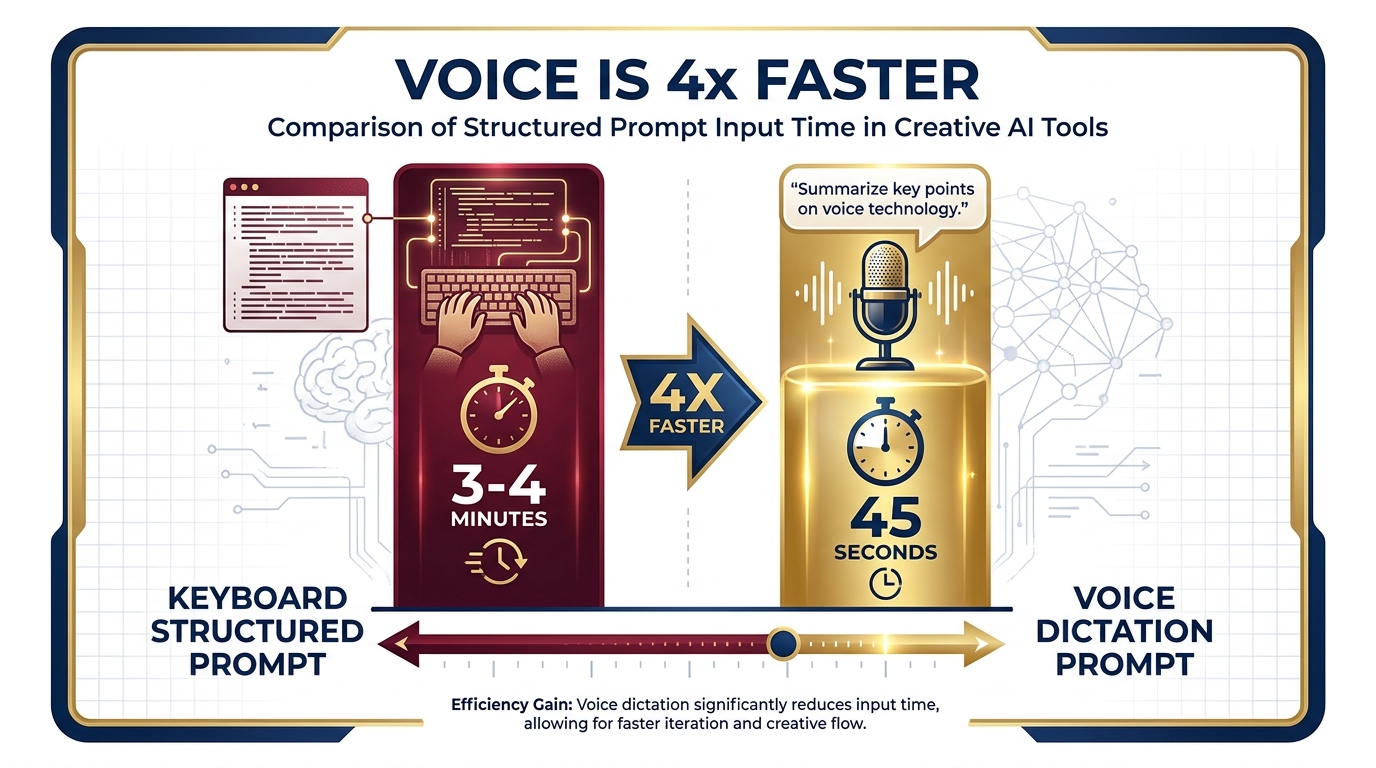
Figure 1:Figure A-1: Time comparison — typing a 300-word structured prompt (3–4 minutes) versus speaking it (under 60 seconds). Across a full analyst workday, the savings compound to more than an hour of recovered time.
2What WisprFlow Is
WisprFlow (wisprflow.ai) is an AI-powered voice dictation tool that works system-wide — across every application on your Mac, Windows PC, iPhone, or Android device. Unlike browser-based dictation tools that only work inside a specific tab, WisprFlow places your cursor in any text field — in Gemini, Claude, AI Studio, NotebookLM, Google Docs, Slack, email, or anywhere else — and types what you say.
It is not a transcription service you send audio files to. It is a live, continuous voice-to-text layer that sits on top of your entire operating system.
Key capabilities verified from live research (April 2026):
System-wide dictation — works in every app on every platform
AI Auto Edits — removes filler words, fixes rambled phrasing, formats output automatically
Personal dictionary — learns your names, jargon, acronyms (IRON BEAR, OIL format, J7, AAR, etc.)
Snippet library — voice shortcuts that expand to full boilerplate text
Tone-matching — automatically adjusts formality based on the app you are using
100+ languages — detects and transcribes across languages automatically
Privacy Mode (Zero Data Retention) — available on all plans
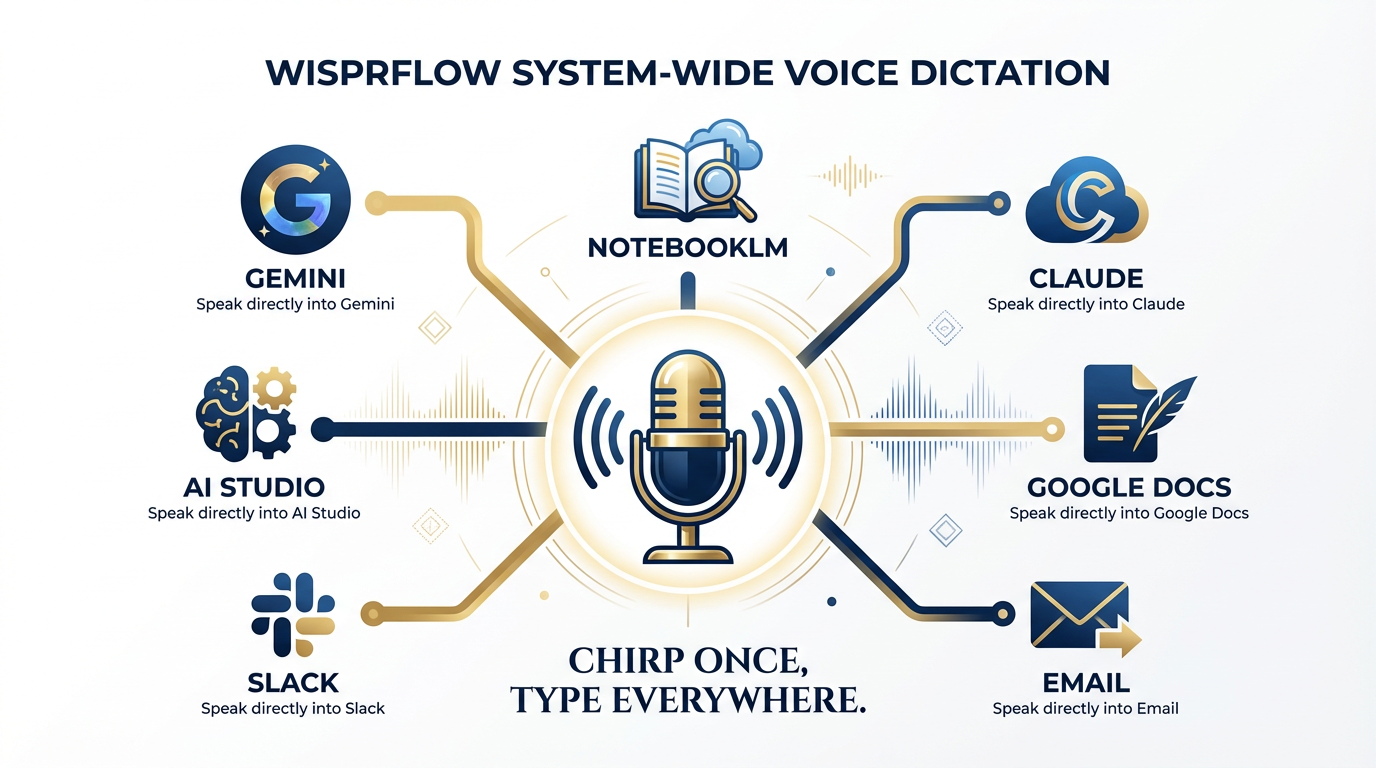
Figure 2:Figure A-2: WisprFlow works across all apps — place your cursor in Gemini, AI Studio, NotebookLM, Claude, Google Docs, or Slack, then speak. The text appears wherever the cursor is, system-wide.
3Installation and Setup
Platform Support
WisprFlow runs natively on:
| Platform | Support |
|---|---|
| macOS | ✅ Native app |
| Windows | ✅ Native app |
| iPhone / iOS | ✅ Native app |
| Android | ✅ Native app |
Step 1: Download
Go to wisprflow.ai and click Download for free. The site detects your operating system automatically and serves the correct installer. Alternatively:
Mac: Download the
.dmgfrom the site, open it, drag Flow to Applications.Windows: Download the
.exeinstaller, run it, follow the setup wizard.iPhone: Available on the App Store — search “Wispr Flow.”
Android: Available on Google Play — search “Wispr Flow.”
Step 2: Create an Account
On first launch, WisprFlow prompts you to create a free account. Your personal dictionary, snippets, and settings sync across all devices using your account — so your Lukos jargon follows you from your workstation to your phone.
Step 3: Grant Microphone and Accessibility Permissions
Mac: WisprFlow requires Accessibility access to type into other applications. Go to System Settings → Privacy & Security → Accessibility and enable WisprFlow. You will also be prompted to grant Microphone access.
Windows: WisprFlow requests Microphone permission on first use. Accept the Windows security prompt.
These permissions are what allow WisprFlow to place text anywhere your cursor sits — not just inside its own window.
Step 4: Learn the Activation Shortcut
By default, WisprFlow activates with a double-press of the right Option key (Mac) or the right Alt key (Windows). Press once to activate, speak your prompt, and it types as you talk. The shortcut is configurable in Settings.
On mobile, a floating button appears that you tap to start and stop dictation.
Step 5: Build Your Personal Dictionary
Before your first real session, add your unit-specific vocabulary. Open WisprFlow Settings → Personal Dictionary and add:
Unit names and exercise designators (IRON BEAR, COLD RESPONSE, CERCES, etc.)
Doctrine terms (OIL, AAR, J7, LSCO, MDMP, OPORD)
Names of leaders and organizations you reference frequently
WisprFlow also learns automatically — any word it initially misspells that you correct will be added to the dictionary going forward.
Step 6: Take the 14-Day Pro Trial
All new accounts receive 14 days of Flow Pro at no cost. No credit card required. Use this trial period to build your habits before committing to a paid plan.
4Pricing and Plans
Verified from wisprflow
| Plan | Price | Words | Best For |
|---|---|---|---|
| Flow Basic | Free | 2,000/week (desktop), 1,000/week (iPhone), unlimited (Android) | Light users, trial period after Pro trial |
| Flow Pro | 12/user/month billed annually) | Unlimited | Full-time analysts, daily prompt work |
| Flow Enterprise | Contact sales | Unlimited | Teams needing SOC 2 Type II, SSO/SAML, enforced HIPAA, advanced dashboards |
Student discount: Three months free + 50% off Pro plan with student verification.
For Lukos analysts: The Free tier (2,000 words/week) will run out in roughly two to three heavy prompt days. Flow Pro at $12/month billed annually is the practical choice for any analyst who prompts daily. At that price, recovering even 30 minutes per week of typing time delivers an immediate return.
Compliance note: HIPAA-ready on all plans. SOC 2 Type II and ISO 27001 compliance on Enterprise. Privacy Mode (Zero Data Retention) available on all plans — important for sensitive operational material.
5The Voice Prompting Workflow
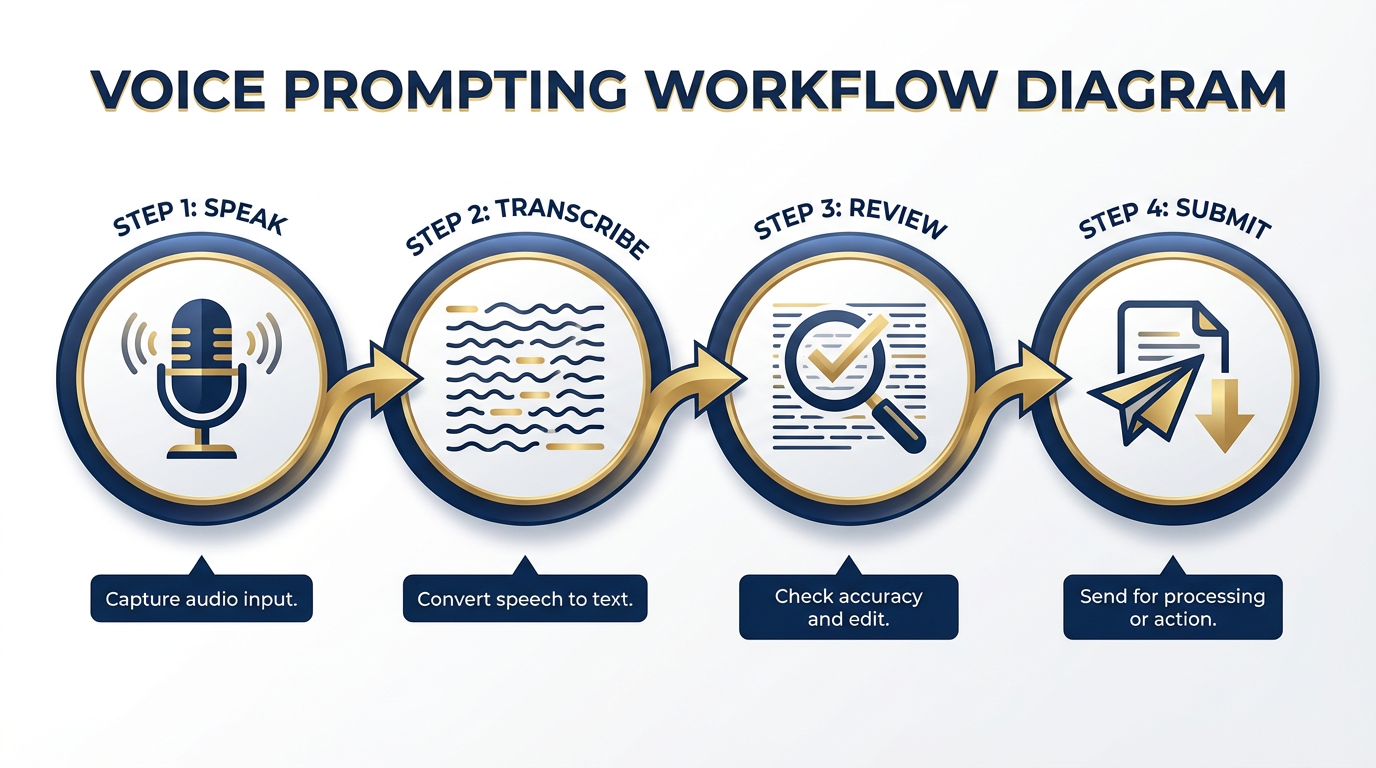
Figure 3:Figure A-3: The four-step voice prompting workflow — Speak → Transcribe → Review → Submit. Each step takes seconds; the entire cycle for a 300-word prompt runs under 90 seconds.
The WisprFlow workflow integrates directly with the Role → Context → Task prompt structure from Chapter 2. Here is how to execute it:
Step 1: Position Your Cursor
Click into the prompt input field — Gemini, Claude, AI Studio, NotebookLM, or any other tool. This is where WisprFlow will type.
Step 2: Activate WisprFlow
Double-press the right Option key (Mac) or right Alt key (Windows). A small recording indicator appears. Begin speaking immediately.
Step 3: Speak the Role
Speak the Role component first, calmly and clearly. Pause at punctuation.
“You are a senior J7 Lessons Learned analyst with expertise in LSCO doctrine and multi-domain operations. [pause]”
WisprFlow transcribes as you speak. The pause signals the end of a sentence — it will add a period automatically.
Step 4: Speak the Context
Continue without stopping WisprFlow. Move directly into the Context block.
“I have three After Action Reviews from IRON BEAR 24-3, covering logistics, sustainment, and medical support. The unit is a division-level headquarters. The observations span fourteen days of operations in a contested environment. [pause]”
Step 5: Speak the Task
Deliver the Task clearly, including output format instructions.
“Extract all logistics-related observations and format them using the OIL framework — Observation, Implication, Lesson. Present each finding as a numbered entry. Do not summarize. Preserve the original language of the observation where possible. [pause]”
Step 6: Review Before Submitting
Stop. Read the full transcript. This is the most important step analysts skip.
WisprFlow’s AI Auto Edits will have cleaned up most filler words and reformatted run-on phrasing. But your job is to verify:
Does the Role match the expertise you need?
Is the Context complete — did you mention everything the AI needs to know?
Is the Task unambiguous — would a smart analyst know exactly what to produce?
Edit anything that needs correction. Then submit.
6Common Mistakes and How to Fix Them
Mistake 1: Speaking Too Fast
What happens: WisprFlow transcribes at roughly real-time pace. If you race through a 300-word prompt in 60 seconds without pausing, the AI Auto Edits system may over-correct or merge sentences incorrectly.
Fix: Speak at 70–80% of your natural conversational pace. Pause briefly at every sentence boundary. Think of it as speaking to a new team member who is taking notes — deliberate, not hurried.
Mistake 2: Skipping Punctuation Cues
What happens: Without pauses, WisprFlow produces a wall of run-on text that is technically accurate but hard to read and harder to submit.
Fix: Pause at periods. WisprFlow interprets a natural breath-pause as a sentence boundary and inserts punctuation. For commas, you can say the word “comma” directly — it will insert the character, not transcribe the word.
You can also say:
“new line” — inserts a line break
“new paragraph” — inserts a paragraph break
“colon” — inserts a colon
Mistake 3: Not Reviewing Before Submitting
What happens: Auto Edits occasionally reinterprets military jargon, acronyms, or specialized terms incorrectly — especially on first use before your personal dictionary is trained.
Fix: Always read the full prompt before hitting submit. Five seconds of review catches the substitution of “OIL” with “oil” or “J7” with “Jay 7.” Once WisprFlow learns your vocabulary through corrections, these errors drop to nearly zero.
Mistake 4: Dictating in a Noisy Environment
What happens: Background noise degrades transcription accuracy and triggers false pauses, splitting your sentences mid-clause.
Fix: Use a quality headset microphone or find a quieter space. WisprFlow is optimized for clear, direct audio — the same headset you use for video calls is sufficient.
Mistake 5: Treating It Like a Phone Call
What happens: Some users start speaking in a casual, conversational tone — then are surprised when the output lacks the precision of a written prompt.
Fix: Before activating WisprFlow, mentally draft the prompt structure. Know your Role, Context, and Task before you speak. Voice dictation is fast only when you know what you are going to say. It is not a substitute for thinking — it is a substitute for typing.
7Advanced Features Worth Knowing
Snippet Library
If you write the same boilerplate repeatedly — a standard Role definition for Lessons Learned analysis, a Context block for a recurring exercise series, a Task template for OIL extraction — set it up as a Snippet.
In WisprFlow Settings → Snippets, create a voice shortcut. Say the shortcut phrase (e.g., “lessons learned role”) and WisprFlow expands it to the full boilerplate text automatically. This is particularly useful for standing prompts that analysts run weekly.
Command Mode (Pro)
With Flow Pro, Command Mode lets you issue editing instructions by voice after transcription. Speak commands like “make the first sentence more formal” or “add a line break after the Context block” and Flow applies the edit. This keeps your hands off the keyboard entirely.
Mobile Workflow
WisprFlow on iPhone and Android uses the same account, dictionary, and snippets as your desktop. If you are reviewing documents on your phone and want to fire a quick prompt into the Claude or Gemini mobile app, the same workflow applies — tap the Flow floating button, speak, review, submit.
8Quick-Reference Card
| Action | Command |
|---|---|
| Activate dictation | Double-press Right Option (Mac) / Right Alt (Windows) |
| Insert a comma | Say “comma” |
| New line | Say “new line” |
| New paragraph | Say “new paragraph” |
| Expand snippet | Say the snippet trigger phrase |
| Edit with voice (Pro) | Activate after transcription, give edit command |
| Add word to dictionary | Correct the word → auto-added |
9Recommended First Week
| Day | Goal |
|---|---|
| Day 1 | Install, set up account, complete permissions, add 10–15 military terms to dictionary |
| Day 2 | Run your first three real prompts by voice. Review each one carefully. |
| Day 3 | Create two to three Snippets for your most common Role or Context blocks |
| Day 4 | Try a full prompting session without touching the keyboard after activation |
| Day 5 | Evaluate: where is it still rough? Add those words to the dictionary. |
By the end of the first week, voice prompting should feel faster than typing. By the end of the first month, it should feel natural.
10Summary
WisprFlow is not a gadget. For analysts who write precise, structured prompts all day, it is a productivity shift on par with switching from handwriting to a keyboard. The math is simple: speaking is faster than typing, and better prompts produce better outputs. Analysts who voice-prompt consistently tend to write longer, more complete prompts — because the friction of length disappears.
Install it. Train the dictionary. Build your Snippets. Then stop typing.
The wolfpack moves at the speed of thought. Your prompts should too.
For the latest pricing and download links, visit wisprflow.ai. Pricing verified April 2026: Flow Basic (free), Flow Pro (15/month), Flow Enterprise (contact sales).