Reputation Management: The Five-Star Sales Machine
Your next customer is reading your last customer's review. Are you winning that moment?
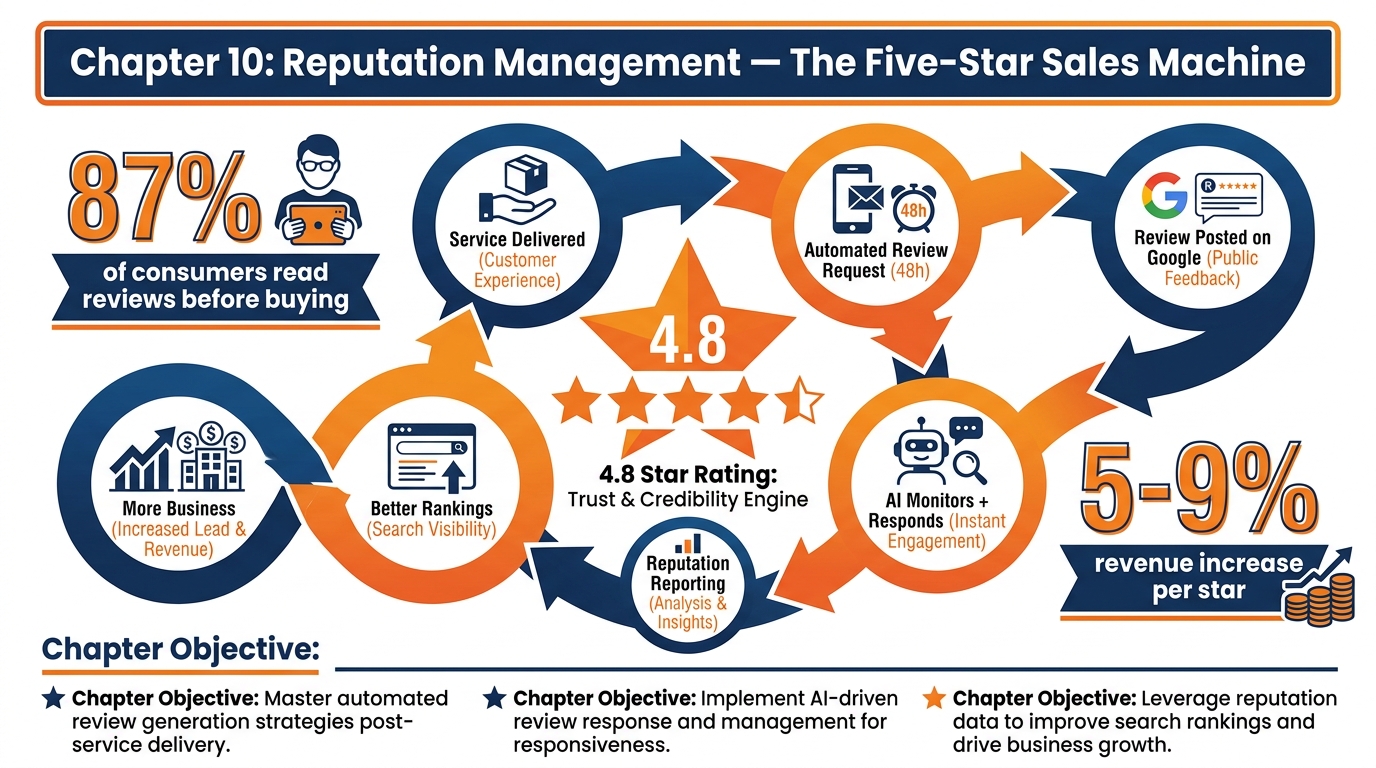
Figure 1:Chapter 10 overview: the complete reputation management cycle — from automated review requests to monitored responses to reported ROI — running without manual intervention.
110.1 The Review That Closed the Deal Before You Said a Word
A prospective client decides to hire you before you ever speak to them.
It happens every day. Someone gets a referral, sees your ad, or finds you in a Google search. Before they fill out your form or call your number, they do what every buyer in the modern economy does: they Google you. They read your reviews. They look at your star rating. They scroll through the most recent comments, looking for patterns — how do you handle complaints? Do you bother responding? Is the praise specific and credible, or does it sound like you wrote it yourself?
If your Google profile shows 4.8 stars with 87 reviews, most of them recent and specific, with professional owner responses to both praise and criticism — the sale is 80% closed before the first conversation begins. You look like the obvious choice.
If your profile shows 3.9 stars with 14 reviews, most of them over two years old, with zero owner responses — the prospect moves on. Not because your service is bad. Because the evidence suggests it might be, and evidence beats promises every time.
Your online reputation is your most powerful sales asset and your least systematized business process. Most business owners know they should be collecting reviews. Most business owners also know that asking for reviews is awkward, time-consuming, and easy to forget when there are seventeen other things on the list.
GHL’s Reputation Management module eliminates the awkwardness and the forgetting. This chapter teaches you how to build an automated review engine that collects reviews at the perfect moment, monitors your reputation in real time, responds professionally to every piece of feedback, and turns your star rating into a visible competitive advantage.
210.2 Why Reviews Are the New Word of Mouth — And Why You’re Leaving Money on the Table
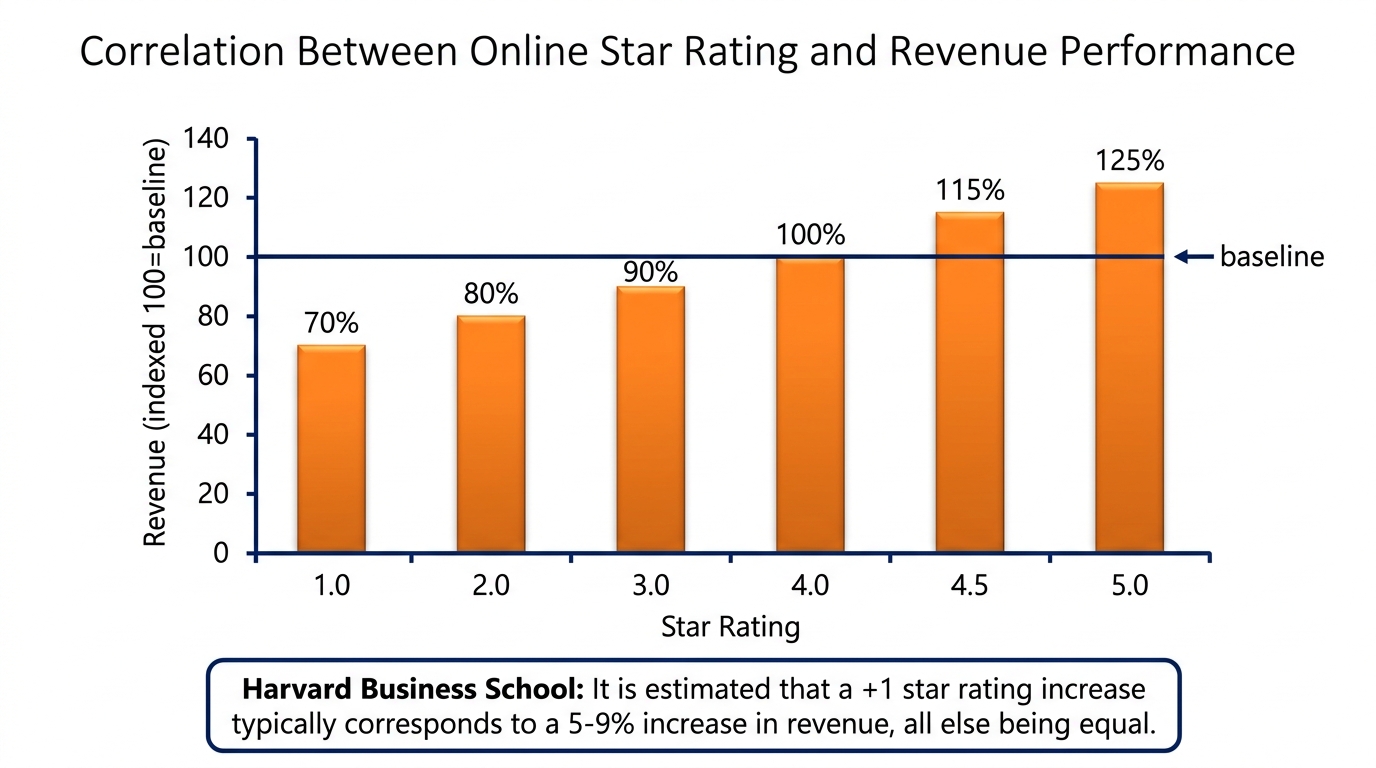
Figure 2:Harvard Business School research on the star rating–revenue relationship: each full star improvement correlates with a 5–9% revenue increase for local service businesses.
The case for investing in reputation management is not emotional. It is financial.
BrightLocal’s 2025 Local Consumer Review Survey — one of the most comprehensive annual studies on consumer review behavior — found that 87% of consumers read online reviews for local businesses before making a purchasing decision. More pointedly, 79% of consumers say they trust online reviews as much as personal recommendations from friends. The mental model shift is complete: a stranger’s review on Google has the same persuasive weight as a friend’s recommendation, because both represent authentic, uncompensated feedback from a real user experience.
The revenue implications compound from there. A Harvard Business School study found that a one-star increase in Yelp rating leads to a 5–9% increase in revenue for the average restaurant. Similar correlations exist in healthcare, home services, legal, and professional services. Star ratings are not vanity metrics. They are revenue levers.
Yet the average local business actively collects reviews sporadically if at all. Why? Three reasons:
Timing failure. Asking for a review three weeks after service is too late. The emotional peak — the moment when the client is most satisfied and most willing to leave a review — is in the 24–72 hours immediately following a positive service experience. Businesses that ask manually almost always miss this window.
Channel friction. Asking in person is awkward. Asking by email is easy to ignore. Sending a direct link to your Google review page by SMS — with a warm, personal message — achieves 20–40% conversion on review requests because it removes every friction point except clicking and typing.
No system. When review requests are manual, they depend on whoever happens to remember to do it. When review requests are automated, they happen every single time, for every single customer, at exactly the right moment, without anyone remembering anything.
GHL’s Reputation Management module solves all three problems. Here’s how.
310.3 The Anatomy of GHL’s Reputation Module
Navigate to Reputation in your GHL left sidebar. The Reputation module has five core components:
Overview Dashboard — A real-time summary of your aggregate star rating, total reviews by platform, recent review activity, and trend graphs showing rating movement over time. This is your morning check-in: how does the business look online today?
Reviews — All reviews from connected platforms (Google, Facebook) in a single feed, sorted by recency. Each review shows the star rating, full review text, and the AI-suggested or AI-generated response. From here you respond, publish AI drafts, or flag for follow-up.
Requests — The outbound side: where you configure, send, and track review requests. Set up automated SMS/email campaigns, send manual one-off requests to specific contacts, and track delivery, open, and conversion rates for every request sent.
Widgets — Embeddable review display widgets for your website or landing pages. Show your current star rating, recent reviews, or a rotating testimonial carousel — pulling live data from your connected review platforms.
Settings — Platform connections (Google Business Profile, Facebook), notification preferences, and AI Review Responder configuration (covered in Chapter 9).
410.4 Connecting Your Review Platforms
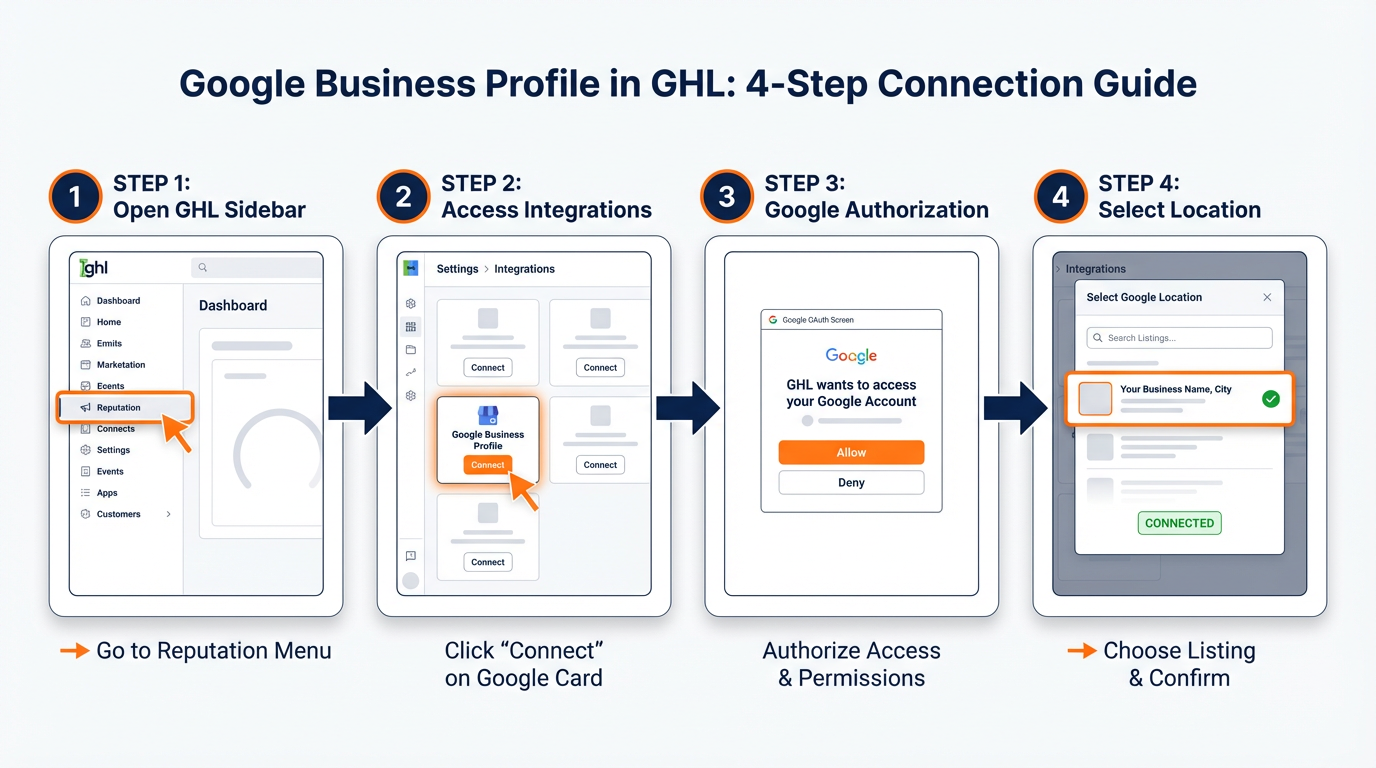
Figure 3:Four steps to connect Google Business Profile: navigate to Reputation → Settings, authorize with Google, select your business location, and verify the green “Connected” status appears.
Before you can monitor or respond to reviews in GHL, you must connect your review platforms.
4.1Connecting Google Business Profile
Navigate to Reputation → Settings → Integrations → Google Business Profile.
Click Connect Google Account. A Google OAuth window opens — sign in with the Google account that manages your Google Business Profile (Google My Business). Grant the requested permissions (GHL needs read/write access to manage reviews on your behalf).
After authorization, select the specific business location from your Google Business account if you have multiple locations. GHL connects to that location’s review feed.
Important: Google Business Profile requires that your listing is verified (the verification postcard process, or phone/video verification) before GHL can access review management. If your listing isn’t verified yet, complete that step in Google Business Profile first.
4.2Connecting Facebook Page
Navigate to Reputation → Settings → Integrations → Facebook.
Click Connect Facebook. Sign in to the Facebook account with admin access to your business Page. Select the Page you want to connect. GHL imports your existing Facebook reviews and subscribes to new review notifications in real time.
Important: Facebook reviews pull from your Facebook Business Page’s Ratings and Reviews tab. This feature must be enabled on your Page: Page Settings → Privacy → Ratings and Reviews → toggle on. If it is disabled, GHL has nothing to import.
510.5 Automated Review Requests: Setting Up the Review Engine
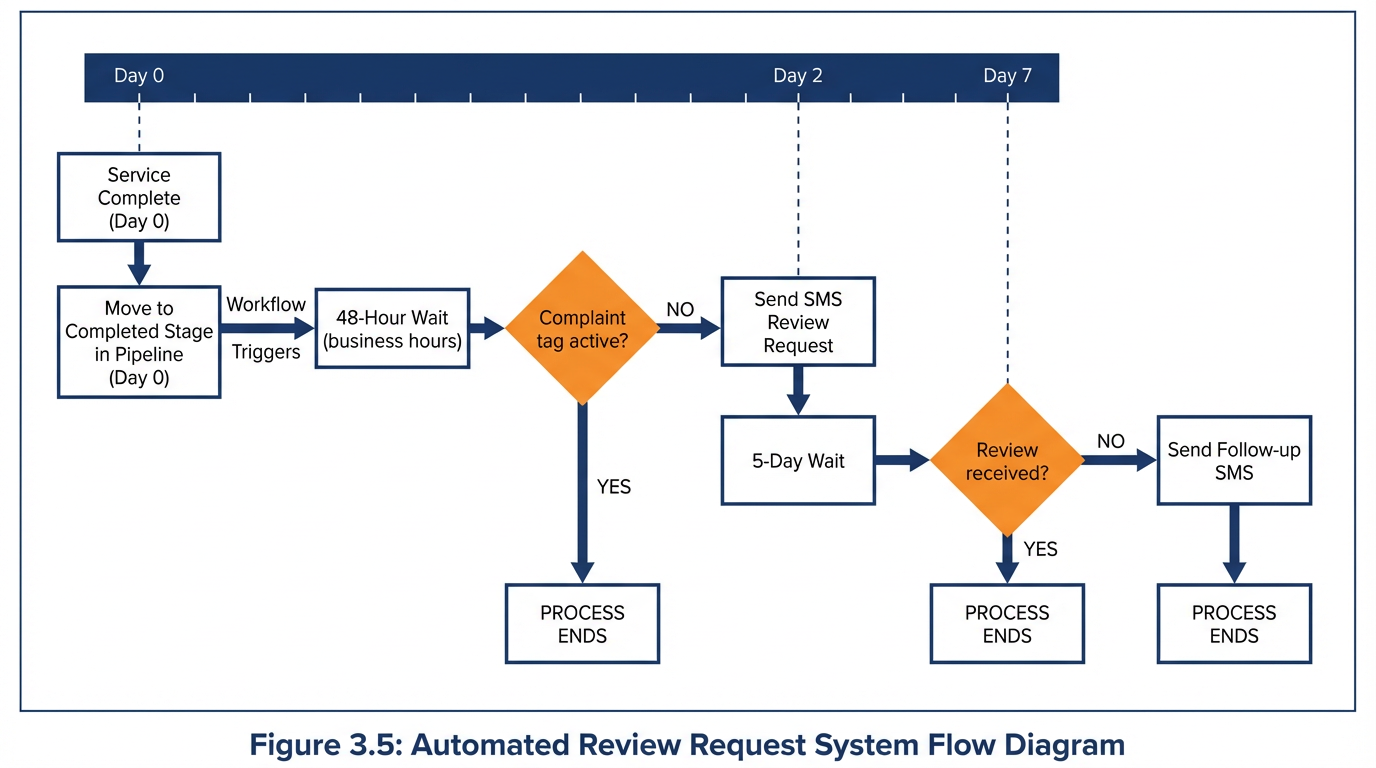
Figure 4:The automated review request workflow: a 48-hour wait, a complaint gate, a warm SMS request, and a single 5-day follow-up — requesting reviews from every completed client without manual intervention.
The review request system is where GHL’s Reputation module earns its keep. An automated review request sent at exactly the right moment to every satisfied customer is worth more than a hundred conversations about why reviews matter.
5.1How Review Requests Work
Review requests in GHL are outbound messages — SMS, email, or both — containing a direct link to your Google or Facebook review page. The contact taps the link, is taken directly to the review form, and leaves their feedback without any intermediate steps.
GHL generates unique tracking URLs for each review request sent, enabling you to measure delivery rate, click rate, and review conversion rate per campaign.
5.2Creating an Automated Review Request Workflow
The cleanest implementation: a workflow that automatically sends a review request 48–72 hours after a service is delivered. Here’s how to build it.
Step 1 — Choose your trigger. The trigger depends on how you mark service completion in your business. Common options:
Opportunity Stage Changed → “Completed” or “Closed Won”
Tag Added →
service-completePayment Received (for businesses where payment = service completion)
Step 2 — Add a Wait step. Wait 48–72 hours from the trigger. This is the sweet spot: the client has had enough time to form an opinion, but the experience is still fresh and positive. Sending immediately feels automated and can feel pushy. Waiting a week means you’ve missed the emotional peak.
Step 3 — Add an If/Else gate. Before sending, check whether the contact has already left a review (you can check via a tag applied when a review is confirmed) or has an active complaint or negative tag. You do not want to send a review request to someone mid-complaint — it escalates.
Step 4 — Send the review request. In Reputation → Requests, create a request template. Configure:
Channel: SMS (highest response rate), email, or both
Message: Warm, personal, specific. Do not sound like a form letter.
Review platform: Direct to Google, Facebook, or offer both
Step 5 — Add a follow-up. Wait 5 days. If no review has been received, send one follow-up request — gentler in tone, acknowledging it might have been missed. One follow-up maximum. More than that tips from persistence into harassment.
5.3Writing High-Converting Review Request Messages
The message matters enormously. Compare these two approaches:
❌ Generic: “We’d appreciate a review. Click here: [link]”
✅ Warm and specific: “Hi [First Name], it was great working with you on [service]. If you have 60 seconds, we’d love to know how everything went — your feedback means a lot to us and helps other [business type] owners find us. [Google Review Link]”
The warm version is specific, personal, ties the request to the actual service delivered, and frames the review as helping other customers (not just the business). Conversion rates for warm, specific review requests run 2–3x higher than generic templates.
In GHL → Reputation → Requests → Templates, build your template with merge fields: {{contact.first_name}}, {{appointment.service_name}} (if available), and your review platform link.
610.6 Handling Negative Reviews: Your Public Crisis Response Protocol
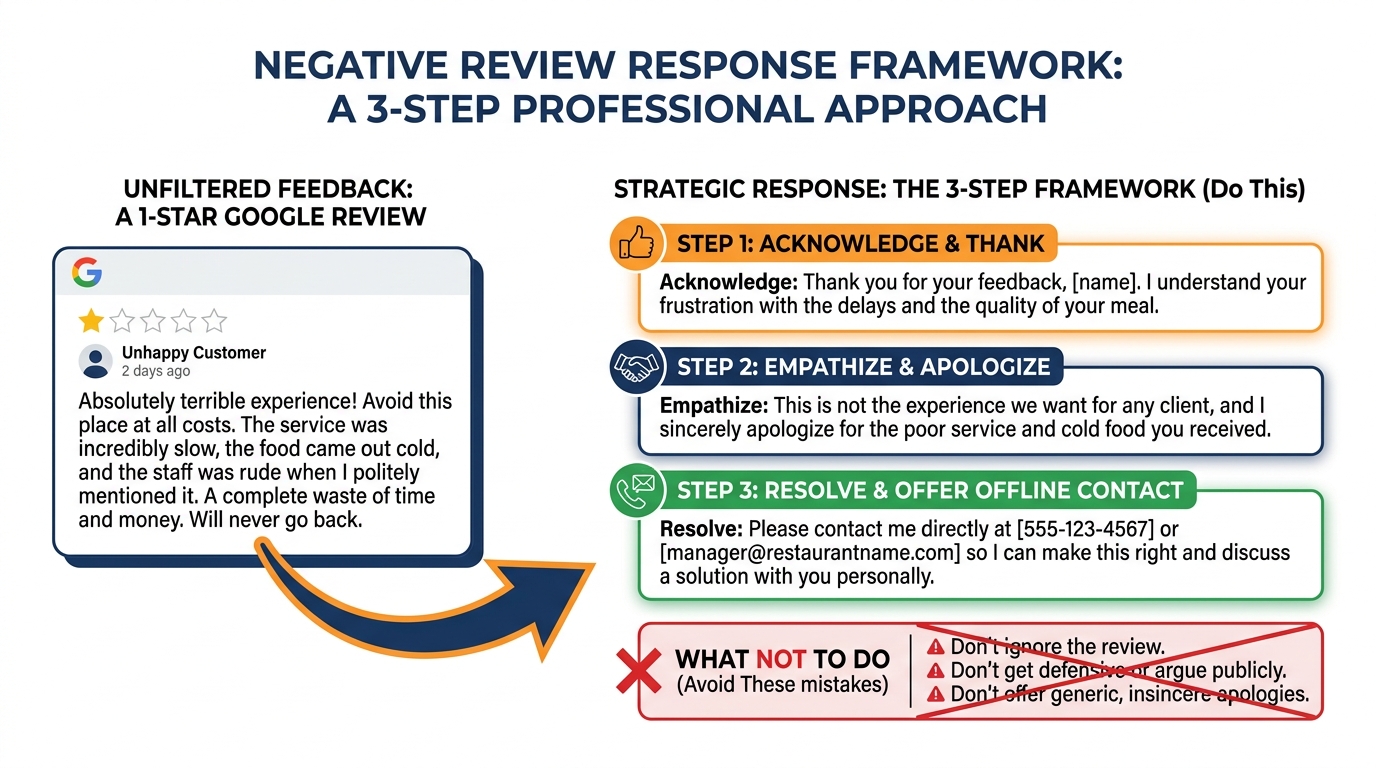
Figure 5:The acknowledge-empathize-resolve framework for negative review responses. Every step is visible to future prospects reading your reviews — respond to the audience, not just the reviewer.
Every business with enough reviews will eventually receive a negative one. How you respond in public is watched by every future customer who reads that review thread. The response is not just for the unhappy customer — it is for every prospect who will read it for the next three years.
The three-part negative review response framework:
Part 1: Acknowledge without admitting liability. “Thank you for taking the time to share your experience with us. We take every piece of feedback seriously.”
Part 2: Express genuine empathy. “We’re sorry to hear that your visit did not meet your expectations — that’s not the experience we want for any of our clients.”
Part 3: Invite private resolution. “We’d like the opportunity to make this right. Please reach out to us directly at [email] or [phone] and we’ll do our best to resolve this for you.”
What you never do in a public negative review response:
Argue with the facts as presented
Explain why the customer was wrong
Offer a refund or discount publicly (sets a precedent and invites manufactured negative reviews)
Call out what you believe to be a fake or malicious review (if you believe it is fake, dispute it through Google’s review dispute process instead — Reputation → Reviews → Flag Review → Dispute with Google)
Respond with sarcasm, frustration, or defensiveness
710.7 Review Widgets: Turning Your Star Rating Into a Sales Tool
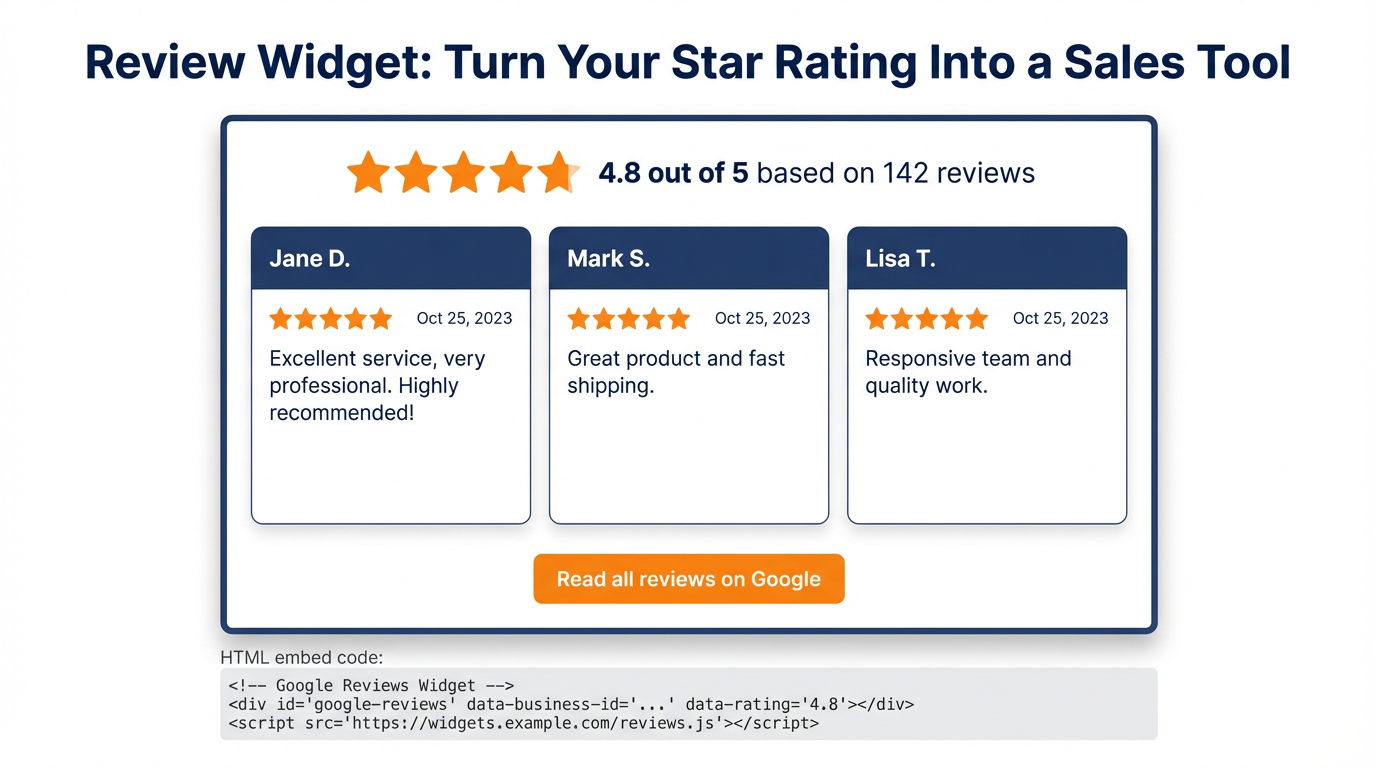
Figure 6:The GHL Review Widget: paste one HTML code block into your website or funnel and your live Google rating, review count, and most recent reviews display automatically — updating every time a new review arrives.
You earned the reviews. Now put them to work.
GHL’s review widgets pull your current star rating and recent reviews from connected platforms and display them on your website, landing pages, and funnels as live, embedded social proof.
7.1Types of Review Widgets
Navigate to Reputation → Widgets. GHL offers:
Star Rating Badge: Shows your aggregate star rating and total review count. Ideal for website headers, landing page hero sections, and email signatures.
Review Feed: A scrollable or static list of recent reviews. Shows reviewer name, star rating, review text, and platform icon.
Rotating Carousel: Auto-scrolling testimonials from recent reviews. High-visibility social proof for above-the-fold sections.
7.2Where to Embed Widgets
Funnel landing pages: Place a star rating badge or carousel above the fold, near your headline. Social proof at the point of decision increases opt-in rates consistently.
Thank-you pages: A review feed on the thank-you page reinforces the decision the contact just made (“You made the right call.”).
Email templates: Embed a star rating image in your email footer or in your sales nurture sequences. A simple “★★★★★ 4.9 stars from 200+ verified customers” line adds credibility to every email you send.
Website homepage: A review carousel on the home page addresses the skepticism of cold visitors. They arrived unsure — your reviews answer the “but can I trust them?” question before they decide to explore further.
7.3Getting the Widget Code
In Reputation → Widgets → + Create Widget, configure your widget type and appearance (colors, number of reviews to display, minimum star rating to show). Copy the generated HTML embed code. Paste it into your website or GHL funnel page’s custom code section.
810.8 Reputation Reporting: Measuring What Matters
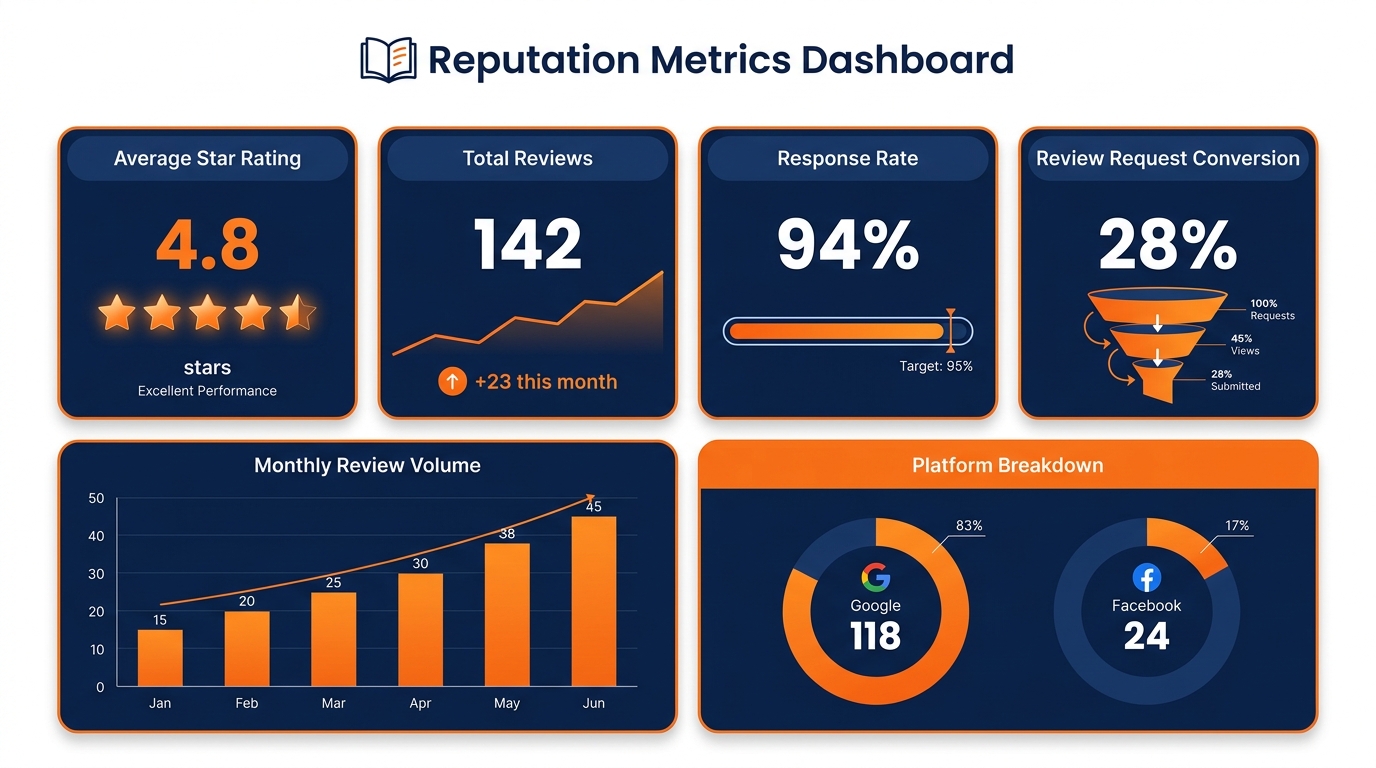
Figure 7:Four reputation KPIs to monitor monthly: star rating (target 4.5+), total review volume, response rate (target 100%), and review request conversion rate (benchmark 25–35% for SMS requests).
You cannot improve what you don’t measure. GHL’s Reputation Reporting gives you the metrics that matter for understanding where your reputation stands and where it is heading.
8.1Key Reputation Metrics
Aggregate Rating: Your current star average across all connected platforms. Trend line shows movement over 30, 60, and 90 days.
Review Volume: Total reviews collected in a time period. Rising volume signals your request system is working. Flat or declining volume signals a gap in your workflow triggers.
Rating Distribution: The percentage of 5-star, 4-star, 3-star, 2-star, and 1-star reviews. Healthy distribution: 80%+ should be 4–5 stars. If more than 5% are 1–2 stars, investigate the service delivery patterns those reviews point to.
Response Rate: What percentage of reviews received a response. Industry standard expectation (from Google’s own recommendations): respond to 100% of reviews. GHL’s AI Responder makes this achievable.
Review Request Performance: For each campaign — how many requests sent, how many delivered, how many clicked the review link, how many resulted in a review. Track this conversion funnel like you track any other funnel. A 2–5% click-to-review conversion from SMS requests is typical; above 10% is excellent.
Platform Breakdown: Reviews and ratings split by Google vs. Facebook. If one platform is significantly lower than the other, investigate whether a specific segment of your customer base (who uses one platform more than the other) has a different experience.
8.2Building a Reputation Dashboard
In GHL → Reporting → Dashboards → + New Dashboard, create a reputation-specific dashboard with widgets for: Aggregate Rating (current + 90-day trend), New Reviews This Month, Response Rate, and Review Request Conversion Rate. Share the read-only dashboard link with your management team so everyone can monitor reputation health without needing full GHL access.
910.9 Lab 10: Build Your Automated Review Request System
You cannot collect five-star reviews by hoping happy clients remember to leave them. The businesses with 150+ Google reviews aren’t doing anything magic — they have a system that asks every single completed customer at the right moment, every time, without anyone remembering to do it. In this lab, you build that system: a workflow that fires at the 48-hour post-service mark, sends a warm SMS review request, gates out unhappy clients, and follows up once at 5 days for non-responders. By the end, this runs in the background permanently — generating new reviews while you sleep.
9.1Step 1: Connect Google Business Profile
If you have not yet connected Google Business Profile to GHL:
In the left sidebar, click Reputation.
Click the Settings tab → Integrations → Google Business Profile.
Click Connect Google Account → authorize with the Google account that manages your GBP listing.
In the location picker, select your business location → Connect.
Click the Reviews tab — your existing Google reviews should load.
You’ll know you did this right when: The Reviews tab in Reputation shows your existing Google reviews with star ratings and timestamps.
9.2Step 2: Create Your Review Request SMS Template
In the left sidebar, click Reputation → Requests tab.
Click + New Request Template (or + New Template depending on your GHL version).
Configure:
Template Name:
Post-Service Review Request — SMSChannel: SMS
Review Platform: Google
In the message body, write your review request. Keep it warm, personal, and under 160 characters where possible:
Hi {{contact.first_name}}, working with you was a pleasure! If you have 60 seconds, a Google review helps others find us and means the world to our team: {{review.link}}
Click Save Template.
You’ll know you did this right when: The template appears in your Request Templates list with the SMS icon and your message body visible.
9.3Step 3: Build the Review Request Automation Workflow
Automation → Workflows → + New Workflow → Start from Scratch
Workflow Name:
Review Request — Post-Service AutomationClick + Add New Trigger → search for
Opportunity→ select Opportunity Stage Changed.In the trigger configuration:
Pipeline: Select your primary sales pipeline
New Stage: Select
Completed(orClosed Won, whichever is your final successful stage)
Click Save Trigger.
You’ll know you did this right when: The trigger node shows “Opportunity Stage Changed” with your pipeline name and final stage specified.
9.4Step 4: Add the Wait Step (48-Hour Delay)
Click + Add Action below the trigger.
Select Wait from the action picker.
Configure:
Duration: 2 Days
Send only during: Toggle ON “Business Hours Only” (prevents sending at 3 AM)
Business days only: Toggle ON (optional — prevents weekend sends if your customers prefer weekdays)
Click Save Action.
You’ll know you did this right when: A Wait node showing “2 Days - Business Hours” appears on the canvas.
9.5Step 5: Add the Complaint Gate (If/Else Branch)
Before sending any review request, check that this contact doesn’t have an active complaint:
Click + Add Action → select If/Else.
Configure the condition:
Condition: Contact Tags → does not contain →
complaint-active
Click Save.
This creates two branches:
YES (passes the gate — no complaint tag): Continue to send the review request
NO (has complaint tag): Route to End Workflow
On the “NO” branch, add an End Workflow action.
You’ll know you did this right when: The canvas shows a branching path — the “YES” path continues forward, the “NO” path routes to End Workflow.
9.6Step 6: Send the Review Request (On the YES Branch)
On the YES branch after the If/Else:
Click + Add Action → search for Send Review Request (may also appear as “Reputation → Review Request” in the action categories).
Select your
Post-Service Review Request — SMStemplate.Click Save Action.
Then add a tag:
4. Click + Add Action → Add Tag → review-request-sent
5. Click Save.
You’ll know you did this right when: The YES branch shows: Send Review Request → Add Tag (review-request-sent).
9.7Step 7: Add the 5-Day Follow-Up Sequence
After the Send Review Request node (still on the YES branch):
Add Wait → 5 Days → business hours only.
Add another If/Else:
Condition: Contact Tags → does not contain →
review-receivedYES (no review yet): send follow-up
NO (review received): End Workflow
On the YES branch, add Send SMS (or Send Review Request again with a different template):
Message: “Hi {{contact.first_name}}, just a quick follow-up in case my message got buried! If you have a moment, here’s that Google review link: {{review.link}} — Thank you so much, it means a lot to us! 🙏”
Add End Workflow at the bottom.
You’ll know you did this right when: The workflow canvas shows the complete two-request sequence with the review-received gate protecting against double-requesting clients who already left a review.
9.8Step 8: Test and Publish
Test the workflow:
Open a test contact in your CRM.
Create an opportunity for that contact in your sales pipeline.
Manually move the opportunity to your “Completed” stage.
Verify the workflow triggers (check the contact’s workflow history or the Automation → Workflows → History log).
Since the Wait step is 2 days, use the “Skip Wait” option if available in the workflow tester, or temporarily change Wait to 1 minute for testing purposes.
Publish:
Toggle the workflow to Active → Publish.
Reset the Wait steps back to 2 Days and 5 Days after testing.
You’ll know you did this right when: The workflow shows “Active” status. A test contact moving to “Completed” in the pipeline triggers the workflow execution log.
Troubleshooting Common Issues
{{review.link}} returns empty in the SMS: Your Google Business Profile is not connected. Return to Reputation → Settings → Integrations and verify the GBP connection shows green. If connected but the merge field still fails, disconnect and reconnect the GBP account, then re-save the template.
The workflow trigger doesn’t fire when I move the opportunity stage: The trigger requires the opportunity to have a pipeline AND the new stage to match exactly. Check that you are moving the opportunity in the same pipeline specified in the trigger filter. If the pipeline has been renamed since the workflow was built, the filter may no longer match.
Review request SMS isn’t sending even though workflow shows executed: A2P 10DLC registration must be approved for outbound SMS. If not yet approved, the SMS action will fail silently. Check Settings → Phone System → A2P Registration for approval status. As a temporary workaround, change the template channel to Email until A2P is approved.
Clients are complaining they received a review request after a dispute:
Someone on your team is not applying the complaint-active tag before moving the opportunity to Completed. Create a standard operating procedure: any client with a complaint gets the complaint-active tag applied before the opportunity is moved to the final stage. Consider adding a mandatory team training note in the Stage description in Settings → Pipelines.
The 5-day follow-up fires even for clients who left a review:
The review-received tag must be applied when a review is received. GHL can apply this tag automatically when a new review is detected through the Reputation module — check Reputation → Settings for automatic tag options. Alternatively, your team can manually apply the tag when a review notification arrives.
1010.10 Reputation as a Sales Tool: Beyond the Star Rating
Most businesses think of reputation management as a defensive activity — protect the star rating, respond to complaints, prevent damage. The best businesses think of it as an offensive tool: reputation is a sales asset that actively closes deals.
Here’s how to make your reputation work proactively:
The Pre-Sales Send. When a prospect is in the pipeline but hasn’t made a decision yet, your sales rep can send a single message with a link to your reviews page: “I wanted to share what our recent clients have said — we let them do the selling.” A curated link to a filtered 5-star view of your Google profile is more persuasive than any brochure you could write.
Review Content in Campaigns. Pull specific review quotes into your nurture email sequences. A real quote from a real client — full name, if permitted — with a star rating graphic carries more weight than a marketing claim. In GHL email builder, use a review quote as a mid-email trust element in your Day 3 nurture sequence.
The Reputation Objection Handler. When a prospect raises concerns about your business (“I saw some negative reviews...”), your sales rep can respond with specific context: here’s what happened, here’s how we resolved it, here’s what changed in our process. Reviews are a transparency opportunity, not just a liability.
Review Volume as a Credibility Signal. There is a volume threshold above which your star rating becomes an anchor — a visible symbol that hundreds of people have trusted you. For local businesses, 50+ reviews changes the psychology. 100+ reviews is a moat. Build review volume systematically and the star rating becomes self-reinforcing: more reviews attract more customers, who leave more reviews.
11🎯 Your Turn: Apply It to Your Business
Your reputation is happening right now, whether you’re managing it or not. Every completed service is an opportunity to build social proof. Every ignored review is a missed chance to demonstrate your business is attentive and professional.
1. Audit your current online reputation. Right now, search your business name on Google. What is your current star rating? How many reviews do you have? When was the most recent review posted? How many reviews have received owner responses? Write down the numbers. These are your baselines. You’ll measure every improvement from here.
2. Connect your Google Business Profile to GHL. Log into GHL → Reputation → Settings → Integrations → Google Business Profile. Complete the authorization flow. Confirm your reviews appear in the Reviews tab. If your GMB listing isn’t verified yet, start that process at business.google.com — verification is required before GHL can access your review feed.
3. Write your review request SMS template. In Reputation → Requests → + New Request Template, build your warm, specific review request SMS using merge fields. Write it in your own voice — not a corporate template. Test the message on yourself: does it feel like something a real person sent, or does it feel automated? The answer should be the former.
4. Build and activate the review request workflow. Follow the Lab 10 steps to build your automated review request workflow. Don’t overthink the trigger — pick the most natural “service complete” signal in your business. Activate it. The first automated review request that fires while you’re asleep will be a small but clarifying moment of what systematic operations feel like.
5. Respond to your last 10 unanswered reviews. Go to Reputation → Reviews and find every review that has received no response. Respond to them — use AI drafts in Suggestive Mode if needed, then edit for authenticity. Responding to old reviews shows prospective customers that you eventually show up. It is not as good as responding immediately, but it is far better than permanent silence.
12Chapter Summary
Your online reputation is your most persuasive sales asset and your most systematically neglected business process. GHL’s Reputation Management module closes that gap with a complete system: automated review requests sent at the optimal moment via SMS and email, a centralized Reviews dashboard pulling in real-time Google and Facebook feedback, AI-assisted response drafting, embeddable review widgets, and reporting that tracks every metric from aggregate rating to request conversion.
The revenue math is straightforward: more reviews mean higher rankings in local search, higher trust with prospective customers, and measurably higher conversion rates at every stage of the sales process. The operational math is equally straightforward: an automated system collects reviews from every customer without anyone remembering to ask.
Build the system once. Let it run. Your reputation compounds.
13Glossary
Reputation Management The systematic practice of monitoring, collecting, responding to, and leveraging online customer reviews to build brand trust, improve local search visibility, and increase conversion rates.
Review Request An outbound SMS or email message sent to a customer containing a direct link to a business’s Google or Facebook review page, prompting the customer to share their experience.
Review Widget An HTML-embeddable element that pulls live review data from connected platforms (Google, Facebook) and displays star ratings, review text, and review counts on a website or landing page.
Response Rate The percentage of incoming reviews that received a public response from the business. A 100% response rate is the current industry standard recommended by Google.
Review Request Conversion Rate The percentage of review request messages sent that resulted in a published review. Healthy benchmark: 2–5% for SMS requests; above 10% is excellent.
Complaint Gate An If/Else condition in a review request workflow that prevents review requests from being sent to contacts with active complaints, negative tags, or unresolved service issues.
Star Rating The aggregate numerical rating (typically 1.0–5.0) calculated from all customer reviews on a given platform. A primary ranking signal in Google’s local search algorithm and a key conversion driver in customer decision-making.
Rating Distribution The breakdown of reviews by star level (5-star, 4-star, 3-star, 2-star, 1-star) as a percentage of total reviews. A healthy distribution has 80%+ in the 4–5 star range.
Google Business Profile (GBP) Google’s free business listing tool (formerly Google My Business) that powers a business’s appearance in Google Search and Google Maps, including the display of customer reviews and star ratings.
Chapter 11 covers Reporting and Analytics — how to build dashboards, understand attribution, connect ad accounts, and use GHL’s data to optimize every part of your marketing operation.
1410.12 Bulk Review Requests: Managing Large Contact Lists
In 2025, GHL rebuilt its bulk review request feature to handle thousands of contacts without throttling or delivery delays. This is significant for businesses with large customer databases that want to run an initial reputation-building sprint before transitioning to automated post-service triggers.
14.1When to Use Bulk Requests
Bulk review requests make sense in three scenarios:
New GHL setup, existing customer base. You have 500 past customers in your database who had great experiences but were never asked for a review. A targeted bulk campaign to these contacts — segmented to exclude anyone with a complaint history — can generate 30–50 reviews in a week, creating immediate momentum.
Post-service batch sends. Some businesses (event-based, seasonal, project-based) complete work in batches rather than on a rolling basis. A plumbing company completing a 30-unit apartment renovation sends requests to all 30 contacts on the same day, rather than trickling them out one by one.
Platform recovery campaigns. If you have reviews predominantly on one platform (say, 120 Google reviews) but barely any on Facebook, a targeted bulk campaign to contacts who are likely Facebook users can rebalance your review platform distribution.
14.2Running a Bulk Review Request in GHL
Navigate to Reputation → Requests → + New Request → Bulk Send.
Step 1 — Select your contacts. Choose a Smart List that defines your target audience for this campaign. The Smart List should include: status = customer (not leads), tag ≠ complaint-active, tag ≠ review-request-sent (to avoid duplicates), and if possible, last-purchase-date within the last 12 months.
Step 2 — Choose the channel. SMS delivers the highest conversion rate for bulk requests (typically 2–3x email). However, bulk SMS requires A2P registration (Chapter 5) and confirmed SMS consent from recipients. For contacts without confirmed SMS consent, email is the compliant default.
Step 3 — Select your template. Use your warm, personalized template from Lab 10. Because this is a bulk send, the merge field personalization is particularly important — {{contact.first_name}} is the minimum. Contacts who receive a message that appears personal are significantly more likely to respond than those who clearly received a mass message.
Step 4 — Schedule the send. Set delivery for a Tuesday, Wednesday, or Thursday morning between 9 AM and 11 AM local time. These are historically the highest-engagement windows for SMS marketing. Avoid Mondays (people are mentally unavailable), Fridays (mentally checked out), and weekends (intrusive for a business message).
Step 5 — Review and confirm. GHL shows you a pre-send summary: number of contacts, estimated delivery rate, estimated cost. Confirm and schedule.
14.3Bulk Send Best Practices
Never send bulk review requests to more than 500 contacts at a time from a single number — carrier throttling can affect deliverability at high volume
Stage bulk sends across multiple days if your contact list exceeds 500
Monitor the Reviews dashboard in real time after a bulk send — you will see reviews post within hours and should have AI responses ready (Auto-Pilot Mode is strongly recommended during a bulk campaign)
Tag every contact who receives a bulk request with
review-request-bulk-[campaign-date]so you can exclude them from future bulk campaigns
1510.13 Integrating Reputation Into Your Sales Pipeline
Most businesses treat reputation management as separate from the sales process. It lives in the Marketing team’s lane, while Sales focuses on closing deals. This separation is a missed opportunity.
Your star rating and your review volume are objection handlers. They are credibility signals. They are the reason prospects choose you over a competitor with an identical service and lower price. Here is how to weave reputation directly into your pipeline workflow.
15.1The Review Milestone Trigger
In GHL → Automation → Workflows, create a workflow triggered by a custom field update: when the “Google Review Count” field crosses a threshold (e.g., reaches 50, 100, or 200 reviews), fire an internal notification to the team: “🎉 We just hit [X] reviews on Google! Update the homepage badge and share on social.”
This sounds small. It is not. Businesses that celebrate reputation milestones internally tend to maintain better review collection discipline over time because the team sees the scorecard and knows it matters.
15.2Stage-Based Reputation Use
Map each pipeline stage to a specific reputation use:
Stage: New Lead — Include your star rating and a link to your reviews in the first email sequence. “Our clients say it best — 4.9 stars from 140 verified customers.” This is the credibility foundation for the entire subsequent conversation.
Stage: Proposal Sent — Follow up a proposal with a “social proof email”: a collage of three to five specific reviews from clients with similar businesses or needs as the prospect. “Here’s what [industry] clients have said about working with us.” This is targeted social proof — far more persuasive than generic testimonials.
Stage: Objection / Stalled — When a deal stalls, one reactivation approach is a direct link to your reviews page: “I understand you’re still evaluating options. I wanted to share what our recent clients have said about working with us — I think their experiences might address some of the questions you have.” Reviews do objection-handling at scale.
Stage: Closed Won — The new customer goes into the post-service review request workflow immediately. The cycle closes and reopens.
15.3Using Review Data in Team Performance Reviews
For agencies and multi-location businesses, reputation data should factor into team performance evaluation. Configure a custom GHL dashboard for each location or service team showing:
Location’s aggregate star rating (current vs. 90-day prior)
Number of new reviews this month
Response rate
Review request conversion rate for that team’s contacts
These numbers tell a service quality story that no customer satisfaction survey can replicate. If one location consistently earns 4.8 stars and another earns 3.9, the gap has a cause — and reputation data is the starting point for finding it.
1610.14 Case Study: From 23 Reviews to 211 Reviews in 180 Days — A Home Services Agency
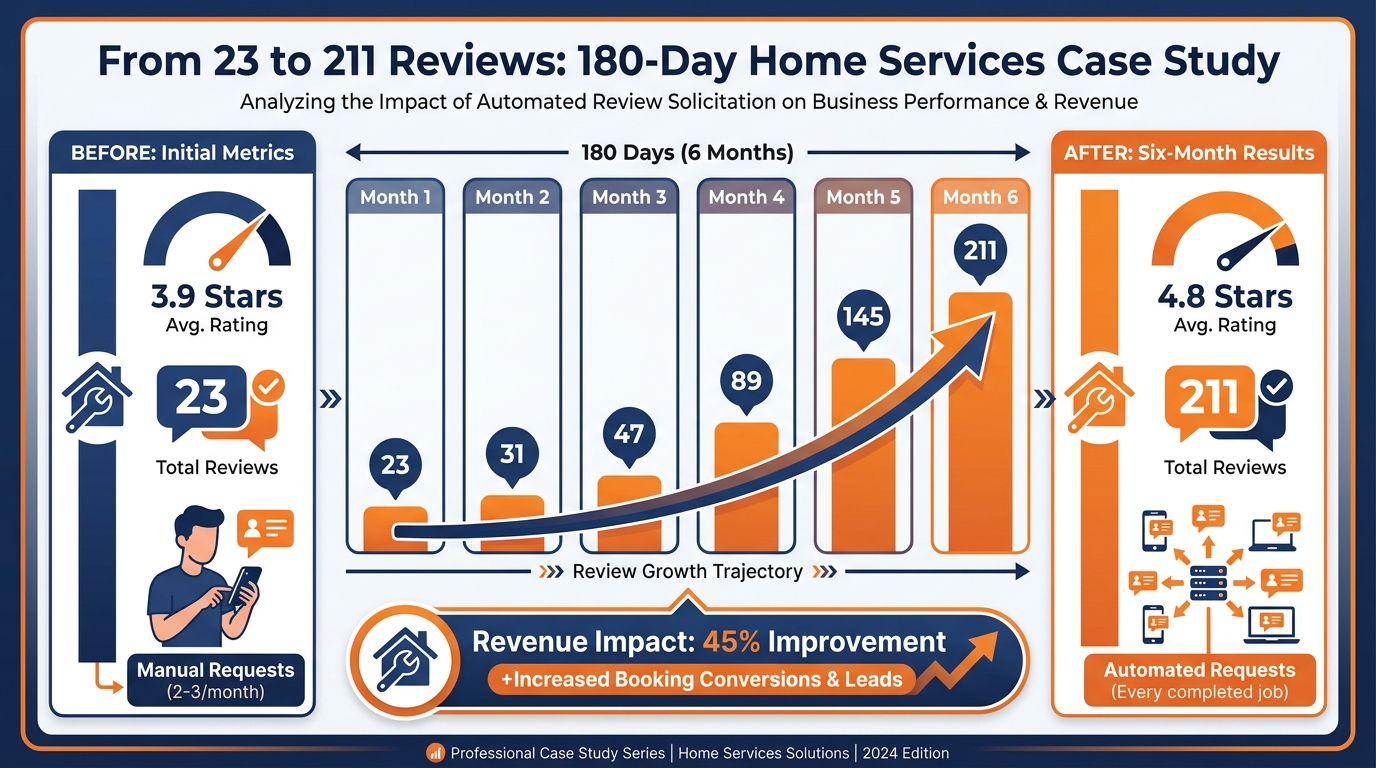
Figure 8:180-day results: automated review requests after every completed job grew the client’s review count from 23 to 211, improving their Google star rating from 3.9 to 4.8.
Precision Home Services is a residential HVAC and plumbing company in the American Southeast (yes, the same region as the missed-call case study from Chapter 4 — let’s assume they were thorough about their GHL implementation).
In January 2025, they had 23 Google reviews and a 4.2-star rating. Their primary competitor, two zip codes over, had 187 Google reviews and a 4.8-star rating. In every local search that mattered — “HVAC repair near me,” “plumber emergency weekend” — the competitor appeared first and was chosen more often, because the volume and rating gap signaled clear market experience and trustworthiness.
The team implemented GHL’s Reputation Management module systematically:
Month 1 — Foundation. Connected Google Business Profile. Built the review request SMS template. Activated the post-service automation workflow (trigger: opportunity moved to “Job Complete” stage → 48-hour wait → SMS review request → 5-day follow-up). Also ran a one-time bulk campaign to their 340 past customers from the previous 12 months who had never been asked for a review.
The bulk campaign yielded 41 new reviews in two weeks. Not all five stars — three came in at 3-star and two at 2-star — but the volume and the professional responses demonstrated responsiveness. The team’s star rating temporarily dipped to 4.1 as the older negative reviews became a slightly higher proportion of the new count, but climbed to 4.4 within weeks as more five-star reviews arrived.
Month 2–3 — Automation running. The post-service workflow ran on autopilot. Every completed job triggered the sequence. Conversion rate: approximately 18% of review requests resulted in reviews (well above the 5% benchmark — the company’s field techs were explicitly telling customers to expect a text, which dramatically improved response rates).
Month 4–6 — Monitoring and response. AI Review Responder in Auto-Pilot for positive reviews, Suggestive Mode for anything under 4 stars. The owner personally reviewed and responded to every negative review with the acknowledge-empathize-resolve framework. Zero defensive responses. Several negative reviewers publicly updated their ratings after receiving professional follow-through.
By June 2025 — 180 days in — they had 211 Google reviews and a 4.7-star rating. The competitor still had 187 reviews. For the first time, Precision Home Services ranked above the competitor in the three primary local search keywords that drove their business.
The owner’s estimate: the reputation improvement contributed to a 22% increase in inbound organic leads in Q2 versus Q1 — leads that cost nothing in ad spend because the star rating and review volume were doing the selling in Google’s local pack results.
The cost of the entire initiative: a few hundred dollars in SMS sending costs over six months, and approximately three hours of the owner’s time per week monitoring and approving AI-drafted responses.
1710.15 Discussion and Exercises
17.1Discussion Prompt
The chapter presents online reviews as a marketing and revenue tool, not merely a customer service metric. Yet reputation management sits in a contested space: businesses have an obvious incentive to collect positive reviews and suppress negative ones, which creates the potential for manipulation that undermines the trustworthiness of the entire review ecosystem.
Drawing on the frameworks in this chapter — automated review requests, AI-assisted responses, complaint handling — construct an argument for or against the following claim: Automated review request systems give businesses an unfair advantage in shaping their public reputation and undermine the authenticity that makes reviews valuable to consumers.
Support your position with reference to at least one scholarly or credible industry source. Consider the counterarguments. Where should the ethical line be drawn between systematic review collection and reputation manipulation?
Guidelines: Write at least 200 words addressing the prompt. Include at least one citation. Respond to at least two peers with substantive feedback.
17.2Exercises
Review Audit and Competitive Analysis
Search your business (or a local business you are familiar with) on Google. Then search a direct competitor. Compare: star ratings, total review count, recency of most recent review, response rate, and tone of owner responses to negative reviews. Write a 300-word analysis of the reputational gap between the two businesses and what systematic changes would close it within 90 days.
Negative Review Response Writing
Below are three real-style negative reviews. Write a professional, empathetic, brand-appropriate response to each one using the acknowledge-empathize-resolve framework. Do not argue, do not defend, do not offer a refund publicly.
★☆☆☆☆ — “Waited 45 minutes past my appointment time with zero communication. When I finally saw someone, they rushed through the whole thing. Won’t be back.”
★★☆☆☆ — “The service itself was fine but the price at checkout was $80 more than the quote I was given over the phone. When I asked about it, the staff seemed bothered by the question.”
★☆☆☆☆ — “Absolute disaster from start to finish. The technician arrived 3 hours late, didn’t have the part needed, and told me they’d be back ‘sometime next week.’ No follow-up since. This is NOT a professional operation.”
Review Request Message Optimization
You have two review request SMS templates. Template A achieves a 3.2% review conversion rate. Template B achieves a 9.1% conversion rate.
Template A: “Please consider leaving us a review. [Link]”
Template B: “Hi [Name], working with you on [service] was a highlight for our team. If you have 60 seconds, your feedback would mean the world to us — and helps other [business type] owners find us: [Link] Thanks, [Business Name]”
Identify every specific element in Template B that contributes to its higher conversion rate.
Write a Template C that incorporates all of Template B’s strengths while adding one additional conversion element you identify from the chapter.
Explain what A/B test you would run next to optimize Template C further.
18EXTRA2 echo “ch10 extended”
19Additional Notes for Practitioners
19.1Review Platform Priorities by Business Type
Not every business needs to be equally active on every review platform. Here is a practical priority guide:
Local service businesses (HVAC, plumbing, dental, medical, automotive): Google Business Profile is the primary driver of new customer discovery. Prioritize Google review volume above all others. Facebook reviews are secondary.
Restaurants and hospitality: Google first, then Yelp (still significant in this vertical despite declining influence elsewhere), then Facebook.
Professional services (legal, financial, consulting): Google and LinkedIn recommendations. Some verticals have niche platforms (Avvo for legal, Expertise.com for various service categories) that matter for SEO even if review volume is lower.
E-commerce: Platform-specific reviews (Amazon, Etsy, Shopify store reviews) take priority. Google reviews still matter for brand trust but not for product discovery.
B2B SaaS and software: G2, Capterra, and Trustpilot are the reputation battlegrounds. GHL’s Reputation module does not natively integrate with these platforms, but the review request workflow logic applies — trigger after onboarding completion, link directly to your G2 profile.
GHL’s Reputation module is optimized for Google and Facebook — which covers the vast majority of local service business reputation needs. For verticals requiring other platforms, use GHL’s workflow engine to send review request templates and manually manage the responses on those platforms until native integrations expand.