AI Employees: Your 24/7 Workforce That Never Burns Out
The employee who never ghosts you, never calls in sick, and never forgets a follow-up.
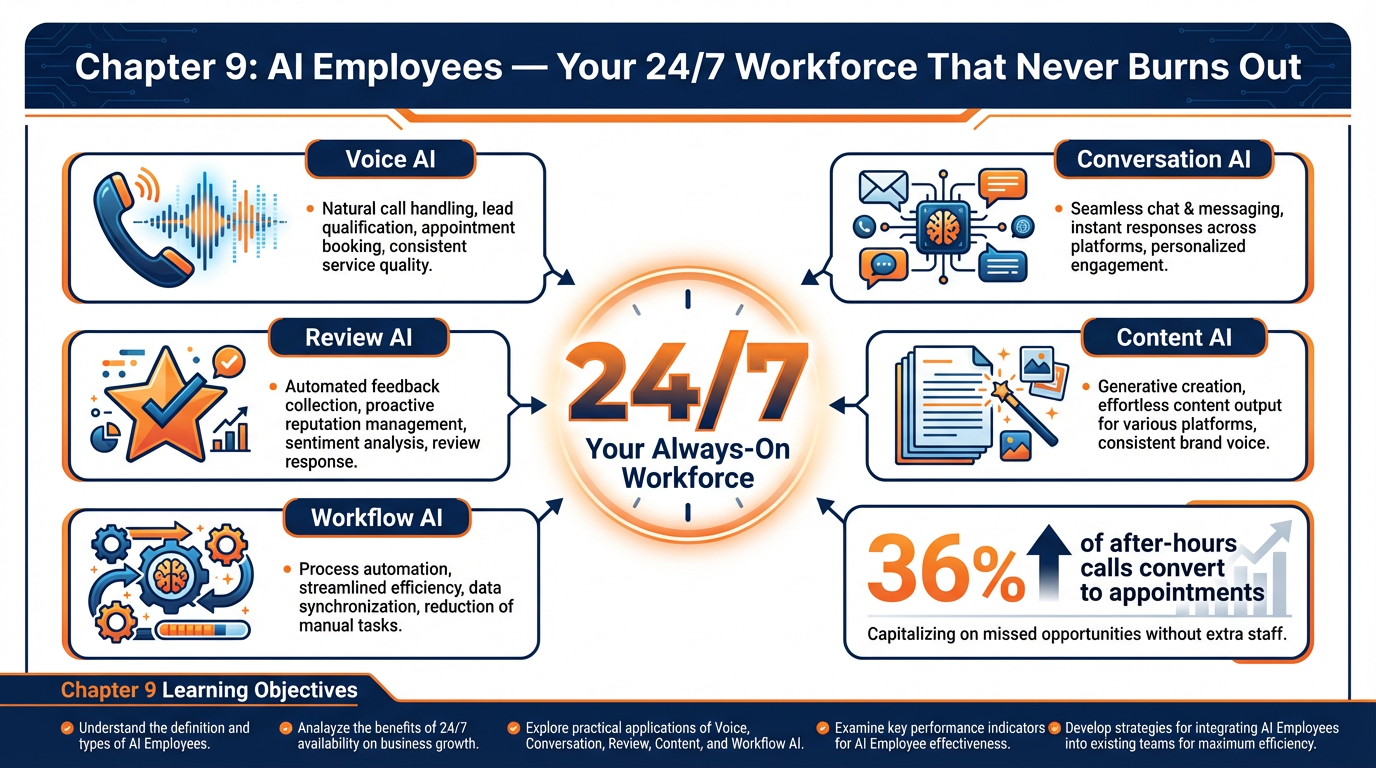
Figure 1:Chapter 9 overview: GHL’s AI Employee suite is a collection of five specialized AI tools — each handling a distinct job function that previously required a human being on the clock.
19.1 The New Hire Who Never Quits
Sarah runs a med spa in Scottsdale. She has three treatment rooms, two full-time technicians, and a front desk coordinator named Marcus who handles every incoming call, every booking request, every “how much does it cost?” inquiry, and every “can I reschedule?” that comes through the door, the phone, the website chat, and Instagram DMs.
Marcus is excellent at his job. He is also human. He takes lunch. He takes PTO. He has one bad Monday every few weeks where everything feels harder than it should. And no matter how good he is, Marcus physically cannot answer the phone at 11:47 PM when a potential client is lying awake Googling laser treatments and decides, in that exact moment, that she is ready to book.
Sarah knows she is losing appointments to this gap. She has considered hiring a second front desk person. The math does not work. So she deploys an AI Employee instead.
Within a week, her GHL Voice AI agent is answering every call Marcus cannot get to — greeting callers by name if they are returning contacts, answering her twelve most common questions, and booking directly into her calendar without involving Marcus at all. Her Conversation AI is handling every website and Instagram inquiry with the same warmth and accuracy. Her Review AI is crafting personalized responses to every Google and Facebook review within minutes of posting.
Marcus is still excellent. He now handles the complex cases — the clients who need emotional reassurance, the tricky rescheduling situations, the upsell conversations that require a human touch. The AI employees handle everything else. Together, they process three times the volume Marcus handled alone.
This is not science fiction. This is GHL’s AI Employee suite, available in your account right now. This chapter teaches you how to deploy every piece of it.
29.2 What GHL’s AI Employee Actually Is
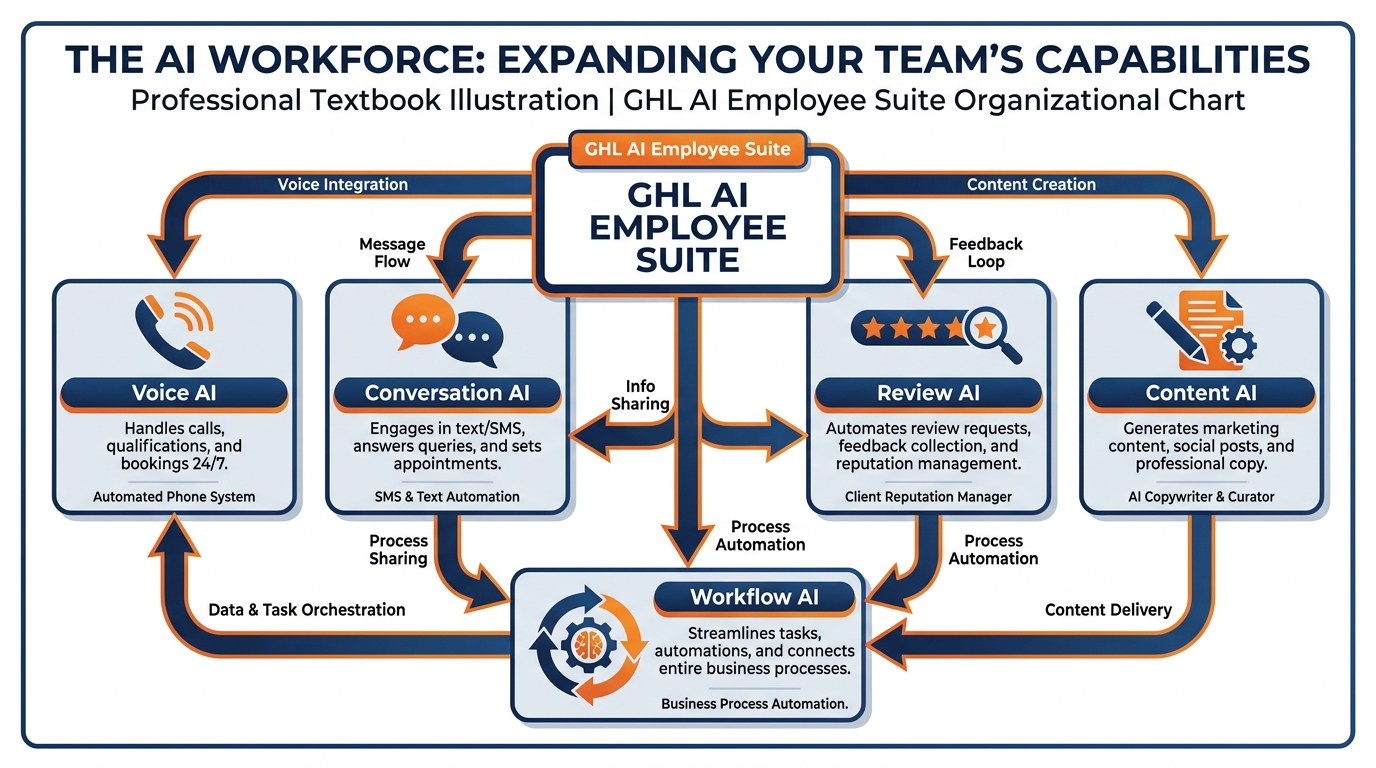
Figure 2:GHL’s AI Employee suite — five specialized tools each designed for a specific job function that previously required a human staff member.
Let’s be precise, because the term “AI Employee” is used loosely and the result is confusion about what is actually possible. In GHL, AI Employee is not one tool — it is a suite of five distinct AI-powered capabilities, each designed for a specific job function within a business:
1. Voice AI — An AI-powered phone agent that handles inbound and outbound voice calls in real-time natural language. It listens, understands, responds conversationally, follows your configured goals, books appointments, and hands off to a human when warranted.
2. Conversation AI — An AI chatbot for every text-based channel: SMS, web chat, Facebook Messenger, Instagram DMs, WhatsApp, and Google Business Messages. It responds using your knowledge base, qualifies leads, and escalates to humans when needed.
3. Review AI — Monitors incoming Google and Facebook reviews and generates personalized, contextually appropriate responses. Available in Suggestive Mode (draft for human review) or Auto-Pilot Mode (auto-publishes responses).
4. Content AI — An AI writing assistant embedded inside GHL’s funnel builder, email builder, and social planner. Generates headlines, body copy, subject lines, and CTAs from a brief description of your offer and audience.
5. Workflow AI — The natural language automation builder covered in Chapter 4 that scaffolds entire workflow sequences from a plain-English description.
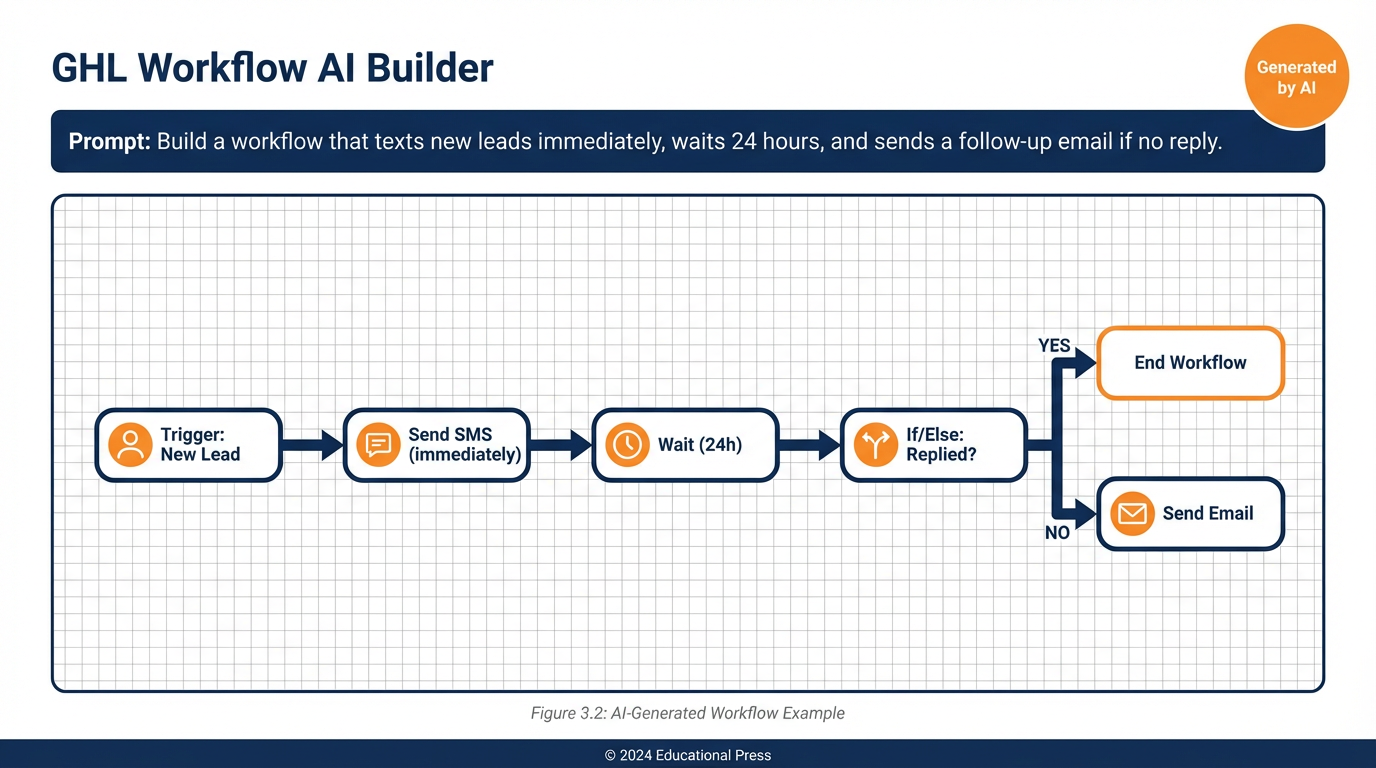
Figure 3:Workflow AI converts a plain-English description into a scaffolded workflow with triggers, wait steps, and conditional branches — ready to review and activate.
All five live under Settings → AI Employee in your GHL sub-account. AI features are metered separately from your base subscription — Voice AI charges per conversation minute, Conversation AI per message, and Content AI per generation. Check your current plan’s AI credits under Settings → AI Employee → Usage before deploying at scale.
The strategic insight here: you are not replacing people. You are replacing repetition. Every AI Employee handles the interactions that follow predictable patterns — FAQ responses, initial qualification, appointment confirmation, routine review replies. Your human team handles what only humans can: complex emotion, creative problem-solving, high-stakes negotiation. AI employees free your people to be human in the moments that matter most.
39.3 Voice AI: Setting Up Your AI Phone Agent
Voice AI is where the ROI is most immediate and most visible. Every missed call your business has ever absorbed was a revenue event that did not have to happen. Voice AI plugs that leak permanently.
3.1Accessing Voice AI in GHL
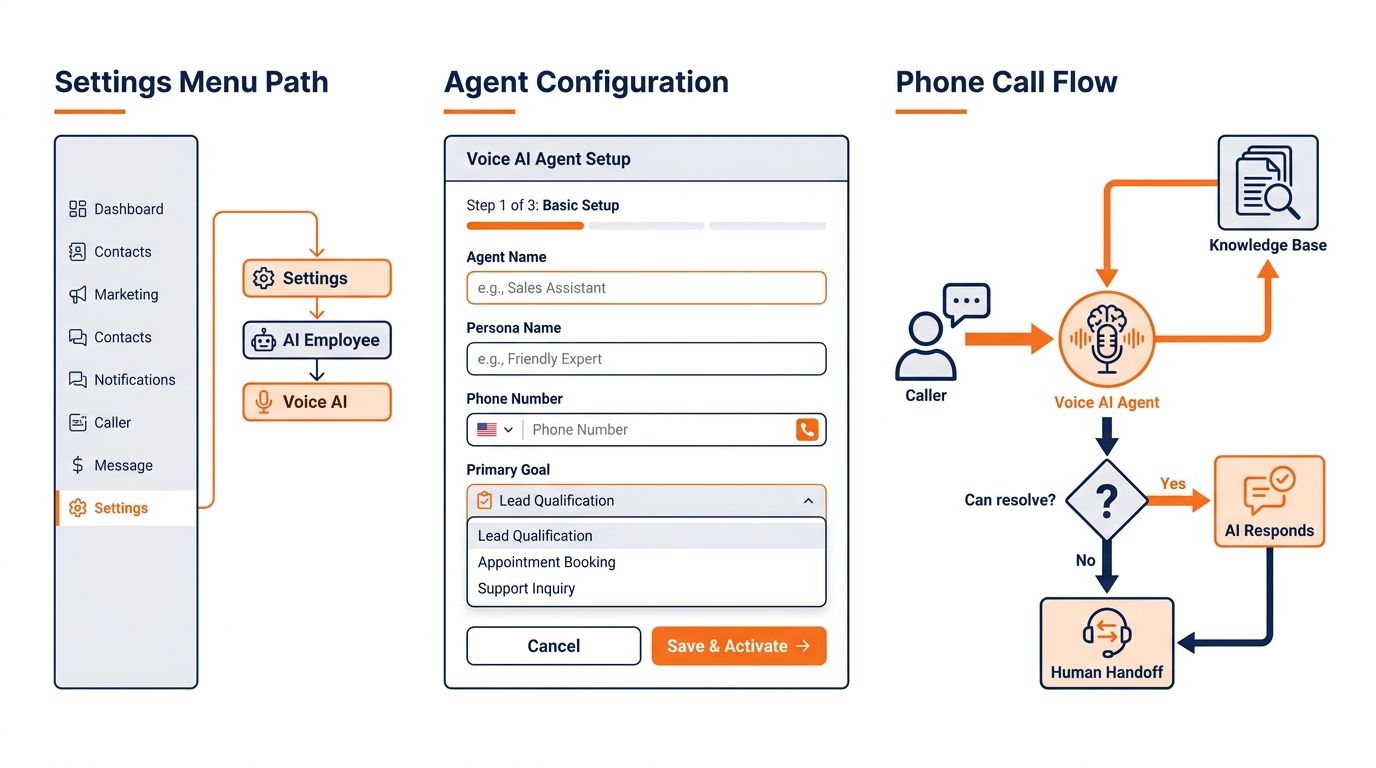
Figure 4:Voice AI agent configuration: the Settings navigation path, agent fields, and how calls flow from caller through the AI agent to resolution or human handoff.
Navigate to Settings → AI Employee in the left sidebar of your GHL sub-account. Click the Voice AI tab. If first-time setup, toggle Enable Voice AI and confirm the billing acknowledgment.
3.2Creating Your First Voice AI Agent
Click + Create Agent. Work through the setup:
Name the Agent. Internal label only — callers will hear your configured greeting, not this name. Use something descriptive: “Inbound Receptionist,” “After-Hours Booking Agent.”
Persona Name. The first name your agent introduces itself with to callers. Common choices: Aria, Alex, Jordan, Sam — names that work regardless of whether the caller realizes they’re talking to an AI.
Assign the Phone Number. Select the GHL number this agent answers. You can configure the agent to handle all inbound calls, or activate only when a call goes unanswered by a human for more than a configurable number of rings.
Primary Language. English and Spanish are natively supported as of 2026. Additional language options are being rolled out — check your account’s Voice AI settings for the current list.
Primary Goal. The most critical configuration step. Options include: Book an Appointment, Qualify a Lead, Collect Contact Information, Answer FAQs, or Transfer to Human. This goal shapes every conversation the agent has — every response is oriented toward achieving it. Select carefully.
Opening Script. The first words the AI says when a call connects. Keep it under 20 words: “Thanks for calling [Business Name] — this is [Agent Name]. How can I help you today?” Avoid corporate boilerplate. The AI will sound awkward delivering it, and callers will feel it.
3.3Building the Knowledge Base
The Knowledge Base is the brain of your Voice AI agent. Navigate to Settings → AI Employee → Voice AI → [Your Agent] → Knowledge Base and add:
Business basics: Name, address, hours of operation, parking, geographic service area
Services and pricing: What you offer, what you don’t offer, price ranges (or how to get a quote if you don’t quote over the phone)
Booking details: What information you need from callers, what appointment types are available, how far out you book
Top FAQ answers: The 10–15 questions your front desk fields most often, answered specifically and accurately
Escalation cues: Phrases or situations where the agent should immediately offer a human transfer
Treat the knowledge base like the onboarding document for a new employee. Every gap becomes a moment where the agent says “I’m not sure about that” — which is correct behavior, but every such moment is also an opportunity for a better-configured agent to close more business.
3.4Configuring Human Handoff
Human handoff is not a failure mode — it is a design feature. Configure it in Settings → AI Employee → Voice AI → [Agent] → Handoff Settings:
Transfer destination: A specific team member’s number, a ring group, or voicemail (for after-hours)
Trigger conditions: Caller requests a human; three consecutive misunderstood inputs; specific keywords detected (“complaint,” “legal,” “cancel membership”)
Handoff message: What the agent says before transferring — keep it warm and seamless: “I’m going to connect you with one of our team members who can help with that. One moment.”
When the handoff fires during business hours, the call transfers live. Outside of business hours, route to a voicemail box with a personalized greeting — and build a missed-call workflow (Chapter 4’s Workflow #2) that follows up via SMS within 60 seconds.
3.5Testing Your Voice AI Agent
Before going live, click Test Agent in your agent settings. This initiates a real call to your mobile phone from the agent. Run through at least five scenarios:
Ask your most common FAQ
Ask about pricing or availability
Try to book an appointment
Say something the agent should not know (verify it handles gracefully)
Request a human transfer
Each scenario reveals configuration gaps. Fix them before publishing. A five-minute test saves you from a week of caller complaints.
49.4 Conversation AI: The Chatbot That Actually Converts
Conversation AI is the text-based counterpart to Voice AI. While Voice AI handles the phone, Conversation AI handles every written channel simultaneously — your website chat widget, SMS replies, Facebook Messenger, Instagram DMs, WhatsApp, and Google Business Messages.
4.1Setting Up Conversation AI
Navigate to Settings → AI Employee → Conversation AI. Toggle it enabled. Configure:
Bot Mode:
Suggestive Mode — The AI drafts a response to every incoming message. Your team sees the suggestion in the Conversations inbox, reviews it, and sends with one click or edits before sending. Suggestive Mode is the training phase: you stay in control while validating the AI’s accuracy and tone.
Auto-Pilot Mode — The AI sends responses automatically without human review. Use for high-volume, lower-stakes interactions — FAQ responses, initial lead qualification, booking confirmations. Enable human escalation rules to catch complex conversations before they go sideways.
Channels. Enable Conversation AI per channel: web chat, SMS, Facebook, Instagram, WhatsApp, Google Business. You might start with web chat and SMS only, validate performance, then expand to social channels.
4.2Training Conversation AI on Your Business
The knowledge base for Conversation AI follows the same four-layer structure as Voice AI: Identity, Knowledge, Goals, and Guardrails. Navigate to Settings → AI Employee → Conversation AI → Knowledge Base and build it out completely.
One important addition for text-based AI: configure Response Style. Text conversations carry different expectations than voice. Configure the AI to:
Use short paragraphs (two to three sentences maximum per response)
Avoid all caps unless in an emoji context
Use the contact’s first name on the first response, then drop it to avoid sounding robotic
Include clear next-step language at the end of every response (“Would you like to schedule a time to talk?”)
4.3Lead Qualification Sequences
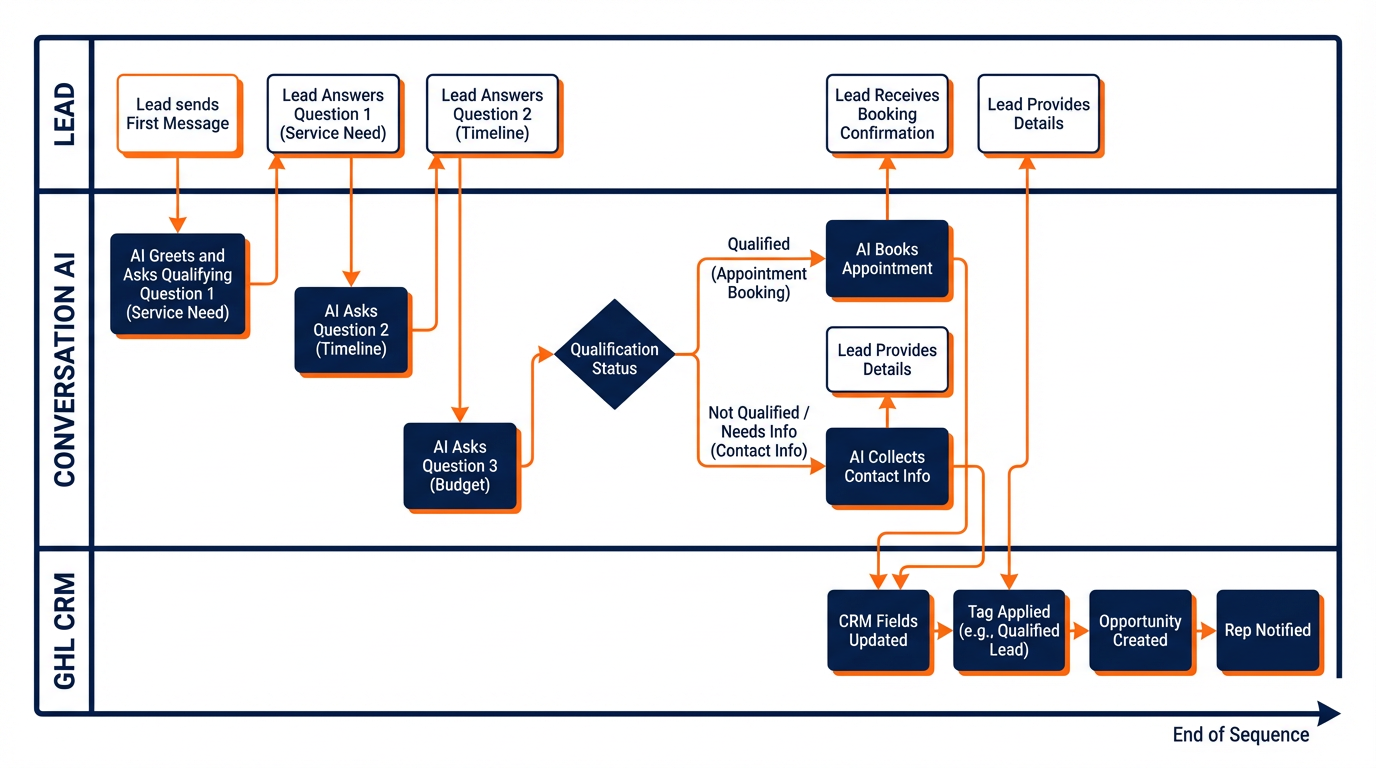
Figure 5:Conversation AI qualification sequence: the AI gathers lead information, updates CRM fields, books an appointment or escalates to a human — all without manual intervention.
One of the highest-value Conversation AI configurations is an automated qualification sequence — a series of structured questions the AI asks every new inbound lead to determine their fit and readiness.
Configure qualification questions in the Bot Goals → Qualification Questions section:
“What brings you in today?” — identifies the service need
“What’s your timeline for getting started?” — filters urgency
“Have you worked with [service type] before?” — calibrates context
“What area are you located in?” — geographic qualification
“What budget have you set aside for this?” — use carefully, position as “so we can match you with the right option”
When the contact completes the sequence, Conversation AI automatically applies a tag (ai-qualified), updates the qualification custom fields, creates a pipeline opportunity, and sends an internal notification to the assigned rep with the full qualification summary.
4.4The Human Escalation Trigger
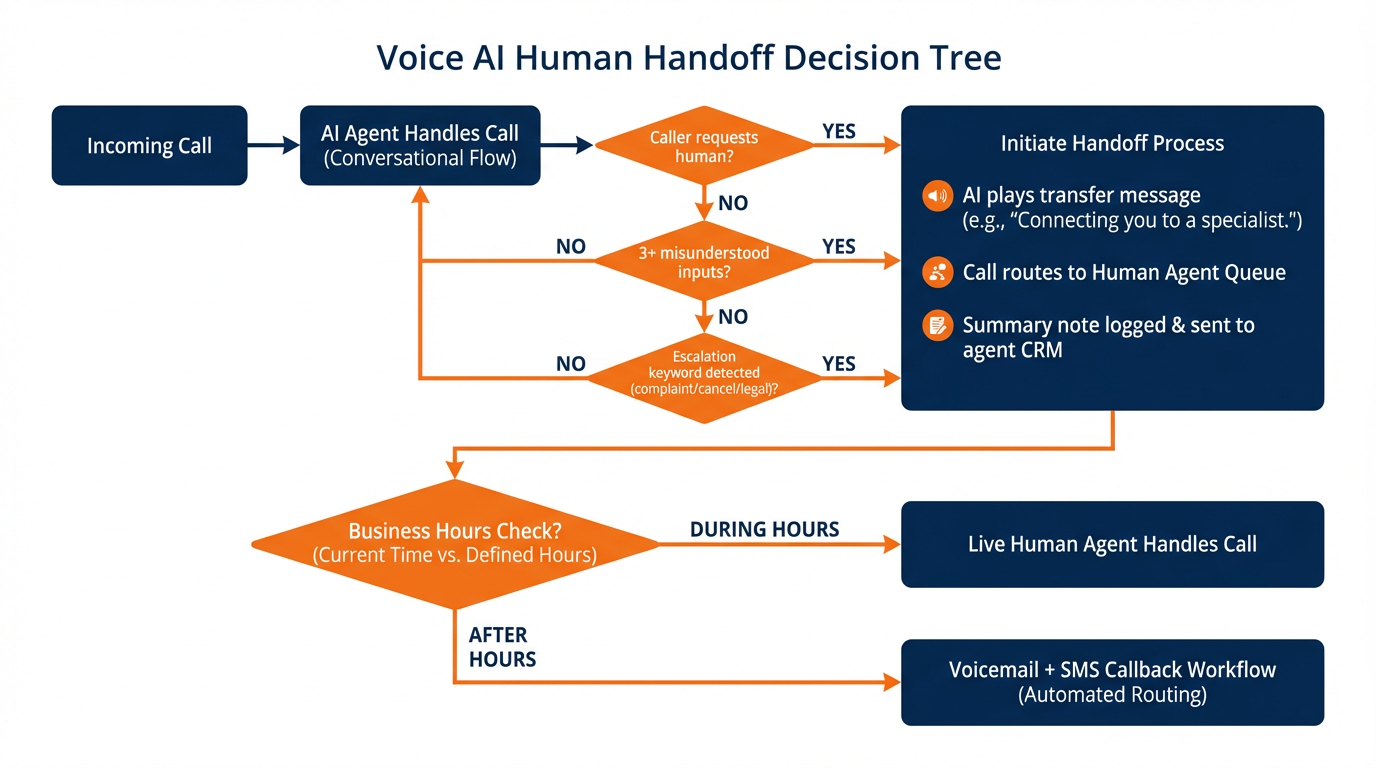
Figure 6:Human handoff decision tree: three escalation triggers route calls to live agents during business hours and to voicemail with SMS callback outside hours.
Configure escalation in Settings → AI Employee → Conversation AI → Escalation Rules:
Contact explicitly asks for a human
AI confidence drops (three misunderstood inputs in a row)
Specific keywords detected: “complaint,” “cancel,” “legal,” “lawsuit,” “angry,” “unacceptable”
Qualification complete — flag for sales team follow-up
When escalation fires, the AI adds a note to the conversation summarizing what was discussed, assigns the conversation to the appropriate team member, and sends an internal notification. The rep walks in with context, not a cold start.
59.5 Training Your AI: The Four-Layer Framework
The quality of your AI Employee scales directly with the quality of its training. This is a communication problem more than a technology problem. You know your business — your prices, your policies, the things you never say, the exact way you want customers handled. The AI’s job is to learn what you know and represent it accurately.
Layer 1 — Identity. Who is the AI? Give it a name, a role, a defined personality. Example: “You are Aria, the virtual client coordinator for Luxe Med Spa. You are warm, professional, and knowledgeable about our services. You speak like a trusted advisor, not a salesperson. You never pressure anyone.”
Layer 2 — Knowledge. What does the AI know? Feed it your services (with accurate descriptions), pricing structure, policies, FAQ answers, booking process, and geographic coverage. Be specific and accurate. “Our initial consultation is 45 minutes” beats “about an hour” — precision matters when the AI quotes it to a caller.
Layer 3 — Goals. What is the AI trying to accomplish in every interaction? “Your primary goal in every conversation is to book a consultation appointment. If the contact is not ready to book, your secondary goal is to collect their name and phone number for follow-up. Do not end any interaction without achieving one of these two outcomes.”
Layer 4 — Guardrails. What must the AI never do or say? “Do not quote specific pricing for services that require an in-person assessment. Do not compare our services to competitors by name. If asked about medical conditions or clinical outcomes, redirect to our licensed practitioners and offer to book a consultation. Never make guarantees about results.”
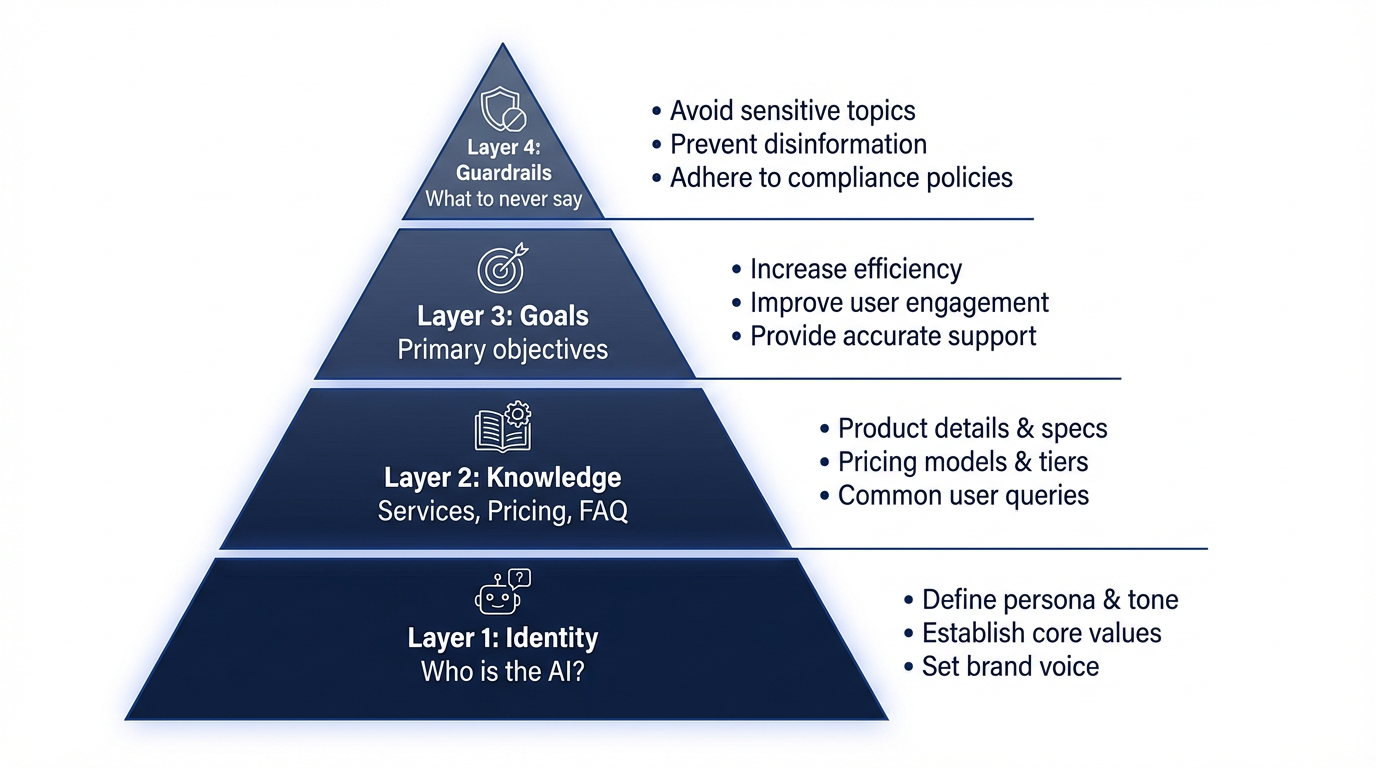
Figure 7:The Four-Layer AI Training Framework. Each layer builds on the one below it — a well-configured Guardrails layer requires solid Identity, Knowledge, and Goals foundations first.
Apply these four layers consistently to both Voice AI and Conversation AI. Audit them quarterly as your business, pricing, or services change. A stale knowledge base is the most common cause of AI agent failures.
69.6 AI Appointment Booking: The Full Integration
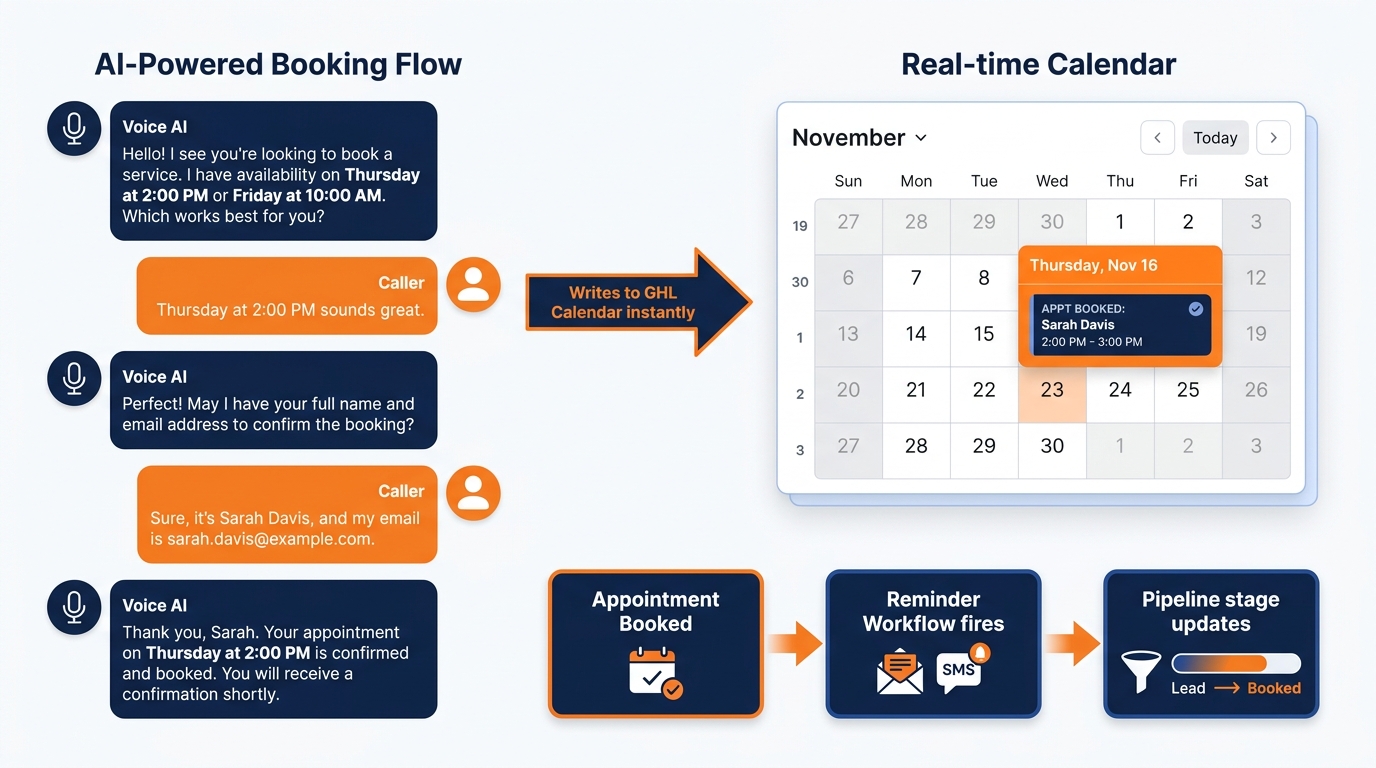
Figure 8:AI appointment booking: the conversation thread confirms a time slot while the GHL calendar updates in real time and the post-booking reminder workflow fires automatically.
When properly configured, GHL’s AI agents can access your real-time calendar availability, present open time slots, confirm the booking, and sync the appointment directly to your GHL calendar — all within a single voice call or text conversation. This is what separates GHL’s AI Employee from a basic FAQ bot.
6.1Connecting AI to Your Calendar
In Settings → AI Employee → Voice AI (or Conversation AI) → Integrations → Calendar, select the calendar the agent should book into. Configure:
Available appointment types: Which service options the AI can schedule (e.g., “Free Consultation” only, not “Full Day Package”)
Minimum advance notice: The shortest lead time before a booking is allowed (recommended: 2–4 hours minimum to prevent same-hour surprises for your team)
Confirmation delivery: Post-booking SMS, email, or both. Always enable at least one.
When a caller or chat contact confirms a time slot, the booking writes to your calendar in real time. The “Appointment Booked” workflow triggers automatically — sending reminders, creating prep tasks, and moving the pipeline stage as configured in Chapter 7.
6.2A Representative Voice AI Booking Conversation
AI: “I’d love to get you scheduled for a consultation. We have availability Tuesday at 2 PM and Thursday at 10 AM this week — which works better for you?”
Caller: “Thursday morning is great.”
AI: “Perfect. To confirm your spot, I just need your first name and email address.”
Caller: “It’s James — james@example.com.”
AI: “You’re all set, James. Your consultation is confirmed for Thursday at 10 AM. You’ll receive a confirmation email in the next few minutes with everything you need. Is there anything else I can help you with today?”
That exchange takes under 90 seconds. At 11:47 PM. With no Marcus required.
79.7 Review AI: Your Reputation on Autopilot
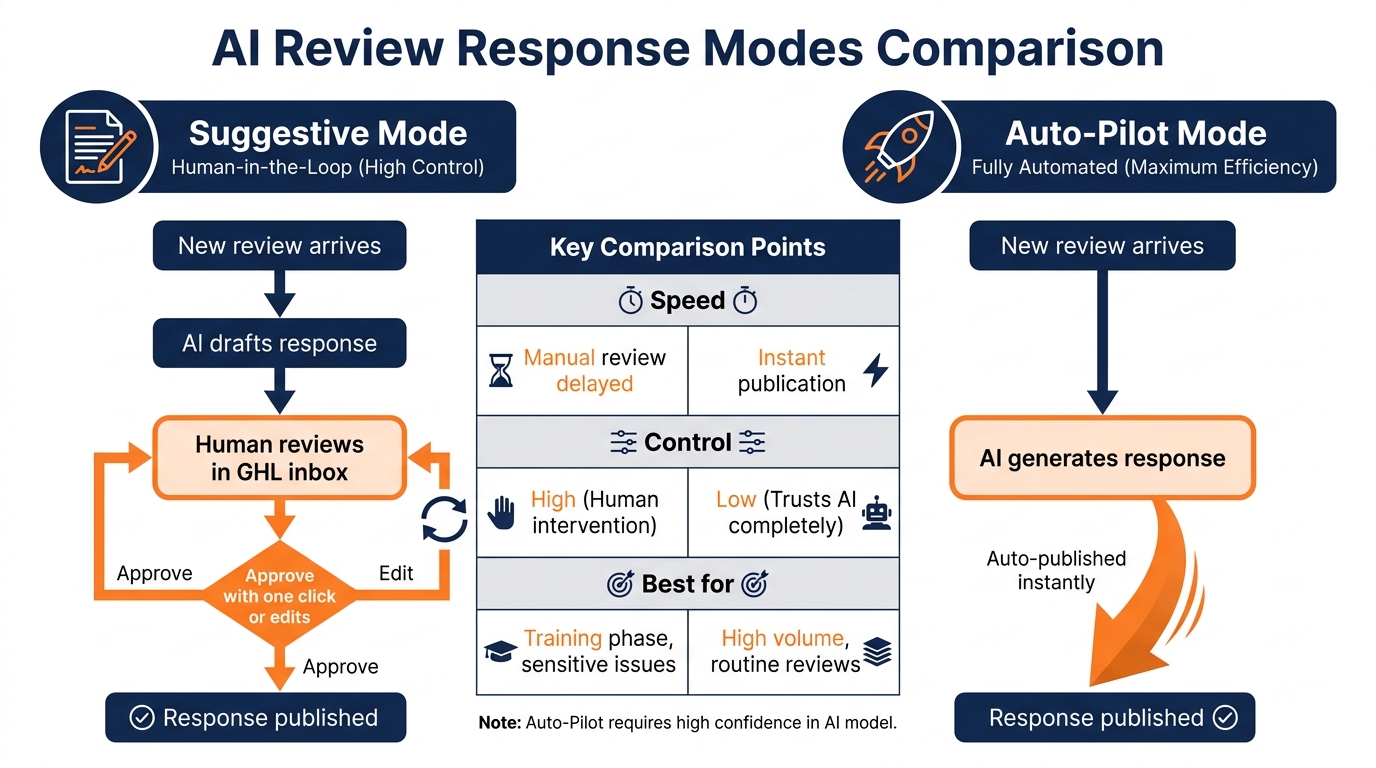
Figure 9:Review AI modes: Suggestive Mode drafts responses for human approval (maximum control, slower); Auto-Pilot Mode publishes instantly (maximum speed, lower control). Match the mode to your review volume.
Every business accumulates reviews on Google and Facebook. Most businesses respond to those reviews inconsistently — sometimes quickly, often not at all — because whoever is responsible has fifteen other priorities. The result: a review section full of unanswered feedback that signals to prospective customers that nobody is paying attention.
Review AI eliminates this entirely.
7.1Connecting Review Platforms
Navigate to Settings → Business Profile → Integrations and connect your platforms:
Google Business Profile: Authorize via your Google account. GHL will request access to your GMB listing’s reviews.
Facebook Page: Authorize via your connected Facebook Business account.
Once connected, reviews from both platforms appear in real time at Reputation → Reviews.
7.2Configuring Review AI
In Reputation → Settings → AI Review Responder, configure:
Mode selection:
Suggestive Mode: AI drafts a response for each new review. You see the draft in the Reviews dashboard, edit if needed, and publish with one click.
Auto-Pilot Mode: AI generates and publishes responses automatically — typically within minutes of a review posting.
Tone and persona: Set the AI’s voice — enthusiastic and personal for positive reviews, professional and empathetic for negative ones. The contrast matters: a one-size-fits-all tone either undersells gratitude or underwhelms in a crisis.
Custom instructions: “Always address the reviewer by first name. For negative reviews, always invite private resolution at [email address]. Never offer a refund publicly. Never argue or respond defensively.”
7.3Handling Negative Reviews
Negative reviews are the most consequential, and where Review AI configuration requires the most care. The correct sequence for any negative review response is:
Acknowledge the experience without admitting liability
Express genuine empathy (not defensive justification)
Invite private resolution (“We’d love to make this right — please reach out to us at [email]”)
Avoid: public refund offers, arguing, explaining defensively, tagging anyone
Run Suggestive Mode on negative reviews for at least two weeks before enabling Auto-Pilot for them. A poorly calibrated AI response to a 1-star review can amplify the damage dramatically. The speed benefit of Auto-Pilot is not worth the risk until you have verified the AI’s judgment on dozens of real negative reviews.
89.8 Content AI: Your Built-In Copywriter
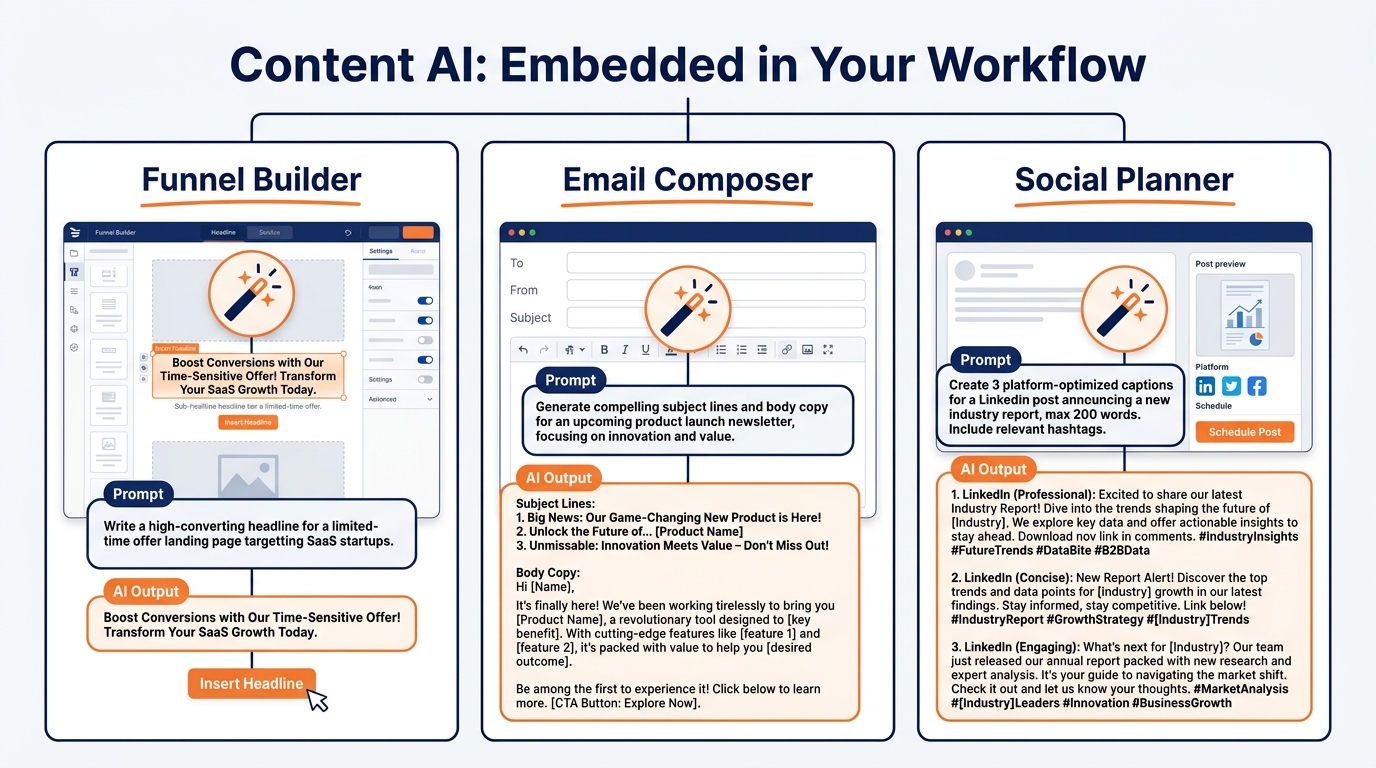
Figure 10:Content AI appears inside the three GHL builders where copy decisions happen — funnels, email campaigns, and social posts — so generation happens in context rather than requiring a separate tool.
Content AI lives inside GHL’s funnel builder, email composer, and social planner as an embedded writing assistant. Access it by clicking the AI Content (or wand icon) that appears inside any text field in these builders.
8.1Where Content AI Appears
Funnel Builder: Headline fields, body text sections, CTA buttons — click the AI wand icon to generate options from a brief
Email Composer: Subject line field, email body — select text, click AI to rewrite, expand, or improve it
Social Planner: Caption fields — generate platform-optimized captions from a brief
Blogs and Articles: Generate entire draft posts from a title and outline
8.2Using Content AI Effectively
Content AI generates strong first drafts but rarely creates publish-ready copy without editing. The correct workflow:
Provide a specific brief: “Write three headline options for a landing page offering a free business funding checklist for restaurant owners with 3–5 employees.”
Evaluate all options — AI typically generates three variants
Select the strongest, edit for your voice, and test against your own version
Over time, learn which brief formats yield better output and systematize them
Content AI is not a replacement for marketing judgment. It is a speed multiplier for execution. A marketer who understands what makes copy convert will get dramatically more value from Content AI than one who is hoping the AI will figure it out.
99.9 Lab 9: Deploy Your First AI Employee — Complete Voice Agent Setup
Every missed after-hours call is a prospect who called a competitor instead. Your AI Voice Employee works 24/7 — answering every call, handling your most common questions, booking appointments directly into your calendar, and transferring to a human when the situation demands one. In this lab, you configure a complete Voice AI agent: name it, write its opening script, build its knowledge base, connect your calendar, set up human handoff, and activate it on your GHL phone number. By the end, your business line answers professionally at 2 AM on a Sunday.
9.1Step 1: Enable Voice AI and Create Your Agent
In the left sidebar, click ⚙️ Settings → AI Employee.
Click the Voice AI tab.
Toggle Enable Voice AI to ON. A billing confirmation popup appears — review and confirm.
Click + Create Agent in the upper right.
Configure the agent basics:
Agent Name:
Main Inbound Receptionist(internal label — callers won’t hear this)Persona Name: Choose a first name — e.g.,
Aria,Alex, orJordan. This is how the agent introduces itself to callers.Phone Number: Click the dropdown → select your provisioned GHL number from Chapter 5
Primary Language: English (or Spanish if serving Spanish-speaking market — both are available as of 2026)
Primary Goal:
Book an Appointment
Click Save (or Next if the builder uses a wizard).
You’ll know you did this right when: Your new agent appears in the Voice AI agent list with your assigned phone number displayed.
9.2Step 2: Write Your Opening Script
In the agent settings, find the Opening Message field.
Write a greeting under 25 words that uses your real business name. Keep it warm and natural:
“Hi, thanks for calling [Your Business Name]! This is [Agent Name] — how can I help you today?”
Avoid long corporate-sounding intros. Callers decide in the first 3 seconds whether to stay on the line. Short and warm wins.
If relevant, add a brief availability note: “I can help you schedule an appointment or answer questions about our services.”
Click Save.
You’ll know you did this right when: The Opening Message field shows your custom greeting with the real business name. The character count is under 150 (aim for 20–30 words).
9.3Step 3: Build Your Knowledge Base
Click the Knowledge Base tab in your agent settings. This is the most important step in the entire lab. Spend at least 15 minutes here.
Add entries for each of the following categories:
Business Identity:
Full legal business name
Physical address (if applicable) and service area
Hours of operation (include time zone): “We’re available Monday through Friday, 9 AM to 6 PM Eastern Time. I can schedule appointments outside those hours on request.”
Services: Write one clear sentence for each service you offer:
Service name
What it is and who it’s for
Approximate time required
Price range (or “pricing depends on your specific situation — I can schedule a free consultation to discuss”)
Top FAQ Answers (minimum 5, target 10): Think of the 10 questions your front desk fields most often. Write them as Q&A pairs:
“What is your pricing for [service]?” → your honest answer
“Do you accept insurance / [payment method]?” → yes/no with details
“How long does [service] take?” → specific answer
“Where are you located / do you travel to [area]?” → specific answer
“What should I bring / prepare for my appointment?” → specific instructions
Booking Details:
What information you need to book: name, phone, email, service type
What appointment types are available
How far in advance you book
Your cancellation/rescheduling policy
You’ll know you did this right when: Your knowledge base has at least 5 FAQ entries, full business hours, all services listed, and booking details configured.
9.4Step 4: Connect Your Calendar for AI Booking
In your agent settings, click the Integrations tab (or Calendar tab).
Click Connect Calendar (or select from the dropdown).
Select your primary GHL calendar — the one used for consultations or appointments.
Configure booking settings:
Minimum Advance Notice: 2 hours (prevents same-hour surprises for your team)
Maximum Days in Advance: 14 or 30 days (your preference)
Confirmation Delivery: Enable SMS confirmation (if A2P approved) and/or Email confirmation
Click Save.
You’ll know you did this right when: The Integrations tab shows your calendar name with a green connected indicator, and minimum advance notice is configured.
9.5Step 5: Configure Human Handoff
In your agent settings, click the Handoff or Transfer tab.
Configure:
Transfer Phone Number: Your direct line or your team’s main line (the number a caller reaches when they ask for a human)
Trigger: Caller Requests Human — toggle ON
Trigger: Repeated Misunderstandings — set to 3 consecutive unrecognized inputs → toggle ON
Trigger: Escalation Keywords — add:
complaint,cancel,legal,angry,refund,managerHandoff Message: “Let me connect you with one of our team members who can help you with that. One moment, please.”
After-Hours Handoff: Under “Outside Business Hours”:
Route to voicemail instead of live transfer
Voicemail greeting: “Our team isn’t available right now, but [Agent Name] has noted your inquiry and our team will call you back during business hours. Please leave your name and number.”
Click Save.
You’ll know you did this right when: The Handoff tab shows your transfer number, at least 3 escalation keywords, and an after-hours routing rule.
9.6Step 6: Test Your Agent (Five Scenarios)
Click Test Agent — this initiates a real call to your mobile phone from the agent. Run five scenarios and document any gaps:
Common FAQ: Ask your most frequently asked question. Does the agent answer accurately and completely?
Service pricing: Ask about cost. Does it handle “it depends” answers gracefully, or does it give a wrong number?
Book an appointment: Say “I’d like to schedule an appointment for [your service] this Thursday.” Does it offer available times and complete the booking?
Off-topic question: Ask something completely unrelated to your business (what’s the weather, who is the president, etc.). Does it redirect gracefully without making up answers?
Request a human: Say “I need to speak with someone.” Does it trigger the handoff message and transfer correctly?
For any scenario that doesn’t go well: return to the Knowledge Base and add or refine the relevant entries. Retest after each improvement.
You’ll know you did this right when: All five test scenarios produce responses you would be comfortable having a real prospect hear.
9.7Step 7: Activate Your Agent
After successful testing, return to the agent settings.
Click Activate Agent (or toggle the agent status from Draft to Active).
Confirm the activation — your phone number now answers with your AI Employee.
You’ll know you did this right when: The agent shows “Active” status in your Voice AI agent list. Call your provisioned number from any phone — your AI Employee answers.
Troubleshooting Common Issues
“Settings → AI Employee” is not visible in my account: AI Employee features require a GHL plan tier that includes AI capabilities. Contact your VibeReach.io/GHL support to confirm AI Employee is included in your subscription. If you recently upgraded, try logging out and back in to refresh your feature flags.
Agent created but the phone number dropdown shows no numbers: Your phone number must be provisioned first (Chapter 5). If Chapter 5 is not yet complete, go to Settings → Phone System → Phone Numbers → + Add Number to provision a number, then return to Voice AI setup.
Test call connects but agent sounds stilted or gives wrong answers: Return to the Knowledge Base. The most common cause: FAQ answers are too vague (e.g., “pricing varies” without explaining what to do instead). Replace vague entries with specific ones: “For pricing information, I recommend scheduling a free consultation — I can book that for you right now. Does that sound good?”
Appointment booking test fails — agent says it can’t book: Verify the calendar is connected in the Integrations tab of your agent settings. Confirm the calendar has available time slots (check Settings → Calendars → your calendar → view the schedule). The agent cannot book into times that are blocked or outside your availability windows.
Agent activates but doesn’t answer calls — callers hear ringing then voicemail: The agent must be assigned to the phone number’s call flow. Go to Settings → Phone Numbers → click your number → confirm the incoming call flow routes through Voice AI (not directly to voicemail). Check the call flow settings and assign the AI agent as the first action.
109.10 Case Study: 31 New Patients in 30 Days Without a Second Front Desk Hire
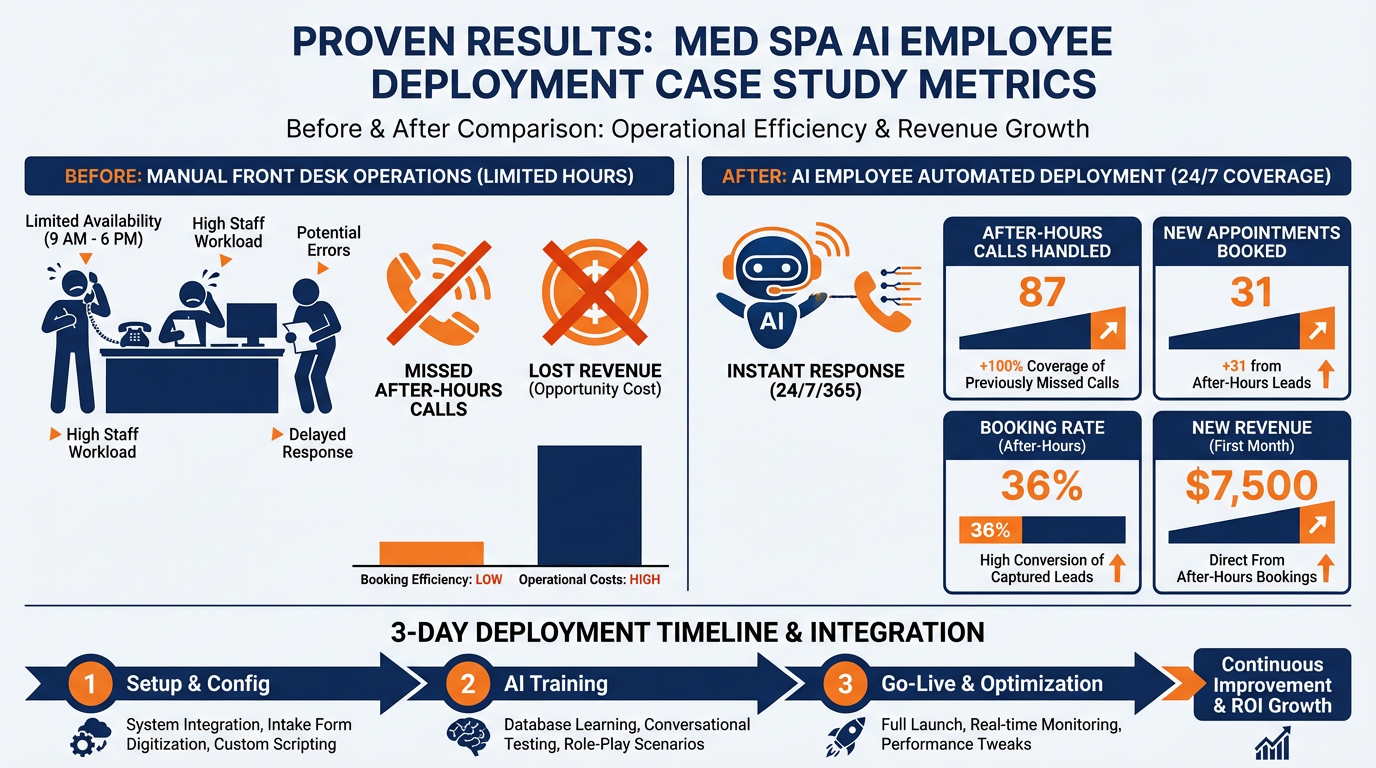
Figure 11:Case study results: 87 after-hours calls handled by Voice AI in the first 30 days, generating 31 new patient appointments at a 36% booking conversion rate.
Dr. Patel runs two chiropractic offices in suburban Atlanta — Alpharetta and Duluth. Between locations, his front desk team handles roughly 220 inbound calls monthly during business hours. Outside those hours, calls hit voicemail, and about 40% of callers never called back.
The pain was predictable: new chiropractic patients tend to make their decision during pain events — Saturday afternoons, Sunday evenings, Tuesday nights at 10 PM. These are not Monday morning decisions. And every off-hours call that reached voicemail and was never returned was a patient who booked with the practice down the road.
The Voice AI deployment took three days. Two agents were configured — one per location number — each with that location’s hours, services, and calendar access. The knowledge base covered 15 questions his front desk fielded most: insurance accepted, first-visit cost, parking, what to expect, same-day availability.
In the first 30 days:
87 after-hours calls were handled by Voice AI
31 resulted in booked new patient appointments (36% booking rate)
22 collected contact info for follow-up campaigns
Front desk staff handled zero additional calls from this volume
At an average new-patient value of 27,500 in new revenue from calls the team would not have answered. The agents cost Dr. Patel less than $200 in AI conversation credits for the month.
The agent’s opening line: “Hi, you’ve reached [Location Name]. I’m the virtual receptionist here — happy to help with scheduling or questions. What brings you in?”
That sentence, spoken by software at 10:47 PM, booked 31 people who might otherwise have called someone else.
11🎯 Your Turn: Apply It to Your Business
You now have the blueprint for a full AI workforce. The question is not whether your business can benefit — it can. The question is where to start.
1. Identify your highest-volume repetitive interaction. What question does your business answer most often? What request consumes the most of your team’s time that doesn’t genuinely require a human to resolve? Write it down. That interaction is your pilot use case. Start there — not with the most complex scenario.
2. Write your AI agent’s Knowledge Base offline first. Before opening GHL, draft your knowledge base in a document: business overview, top 10 FAQs with precise answers, booking process steps, and three things the AI must never say. The document becomes your agent’s onboarding manual. Gaps in the document become gaps in the agent’s performance.
3. Enable Conversation AI in Suggestive Mode for 48 hours. Log into GHL → Settings → AI Employee → Conversation AI. Toggle it on in Suggestive Mode on your web chat channel. For 48 hours, let the AI draft responses while your team reviews them. Note where the drafts are accurate and where they miss. Update the knowledge base with every correction. At the end of 48 hours, assess readiness to move channels into Auto-Pilot.
4. Configure Review AI for your Google Business Profile. In Reputation → Settings → AI Review Responder, connect Google Business Profile and set mode to Suggestive. Let it draft responses to your next five incoming reviews. Review each one — is the tone right? Edit, publish, refine. Once you’re satisfied with the quality, switch Google to Auto-Pilot. Keep monitoring negative review responses manually for at least two additional weeks.
5. Test-call your GHL number at 11 PM. After deploying Voice AI, call your GHL number from your personal mobile after business hours. Experience exactly what a late-night prospect experiences. Is the greeting warm? Does the agent handle your top FAQ accurately? Does booking work? Does the handoff feel right? Fix what you find. The 11 PM call is the definitive test.
12Chapter Summary
GHL’s AI Employee suite consists of five purpose-built tools: Voice AI for phone calls, Conversation AI for text-based channels, Review AI for reputation management, Content AI for copywriting, and Workflow AI for automation building. Together, they form a workforce capable of handling the repetitive, high-volume interactions that previously required dedicated human staff.
Effective AI Employee deployment depends on four training layers — Identity, Knowledge, Goals, and Guardrails — applied consistently across every agent you configure. The cleaner and more complete the training, the more capable and reliable the AI becomes.
Human handoff is not failure. It is design. Well-configured AI employees handle the routine so your human team can focus on the irreplaceable. The result is not fewer humans — it is humans working at a higher level, on the interactions that actually require them.
139.12 Conversation AI Across Industries: Real-World Configurations
The same Conversation AI engine behaves differently depending on how it is trained and which goals it is given. Here are four industry-specific configurations that demonstrate the breadth of what’s possible.
13.1Real Estate Agency
Primary goal: Qualify leads for property type, budget, and timeline. Book a 15-minute pre-screening call with a buyer’s agent.
Knowledge base highlights: Current listings overview, neighborhood descriptions, financing options available (own, partner lender), what the buyer’s consultation involves, why working with this agency matters.
Qualification questions: “Are you looking to buy or sell?” / “What’s your target price range?” / “Are you pre-approved for financing?” / “What’s your timeline for making a move?”
Escalation triggers: “lawsuit,” “broker complaint,” “I spoke with [competitor]” — immediate human handoff to senior agent.
Result: The AI filters cold inquiries from hot buyers. Agents spend their time on pre-qualified, timeline-confirmed leads instead of tire-kickers.
13.2Dental Practice
Primary goal: Book a new patient appointment or an emergency visit. Collect insurance information upfront.
Knowledge base highlights: Services offered (cleanings, Invisalign, implants, emergencies), insurance plans accepted, what to expect at a first visit, how to handle dental anxiety, payment plans available.
Qualification questions: “Are you a new or returning patient?” / “What brings you in today?” / “Do you have dental insurance? If so, which provider?” / “Are you experiencing any pain or urgency?”
Escalation triggers: Severe pain, dental emergency, child asking for appointment (requires parent confirmation), billing dispute.
Key configuration: Route contacts who indicate pain or urgency to the “emergency available” calendar slot with priority booking. Everyone else books standard new-patient slots.
13.3Marketing Agency
Primary goal: Qualify prospects for a discovery call. Determine industry, current tech stack, budget, and pain points before the meeting.
Knowledge base highlights: Services offered, ideal client profile, typical engagement sizes and timelines, what happens in the discovery call, case study summaries by industry.
Qualification questions: “What industry is your business in?” / “What marketing tools are you currently using?” / “What’s your monthly marketing budget?” / “What’s your biggest marketing challenge right now?” / “What’s your timeline for making a change?”
Escalation triggers: Budget below minimum threshold → politely redirect with free resources. Budget above premium threshold → flag as high-value, escalate to senior partner immediately.
Guardrail: Never quote a specific price. Always redirect to “we’ll discuss investment options during your discovery call.”
13.4Fitness Studio
Primary goal: Book a free trial class. Collect fitness goals and any relevant health information for the intro meeting.
Knowledge base highlights: Class types and schedule, membership options, what the first visit looks like, parking and check-in process, cancellation policy.
Qualification questions: “What type of fitness goals are you working toward?” / “Have you done [class type] before?” / “Are there any injuries or limitations our coaches should know about?”
Escalation triggers: Medical conditions mentioned that require clearance → offer to connect with head coach before booking. Complaints about current membership → route to member services.
Key advantage: This configuration captures warm inbound leads from ads at all hours — someone sees the Instagram ad at 7 AM, texts the number, qualifies themselves, and books the Saturday trial class before coffee. No staff needed.
149.13 Outbound Voice AI: Proactive Lead Reactivation
Most businesses deploy Voice AI defensively — answering inbound calls. But Voice AI can also work offensively, placing outbound calls to contacts in your database for lead reactivation, appointment reminders, and feedback collection.
14.1Setting Up Outbound Voice AI
In Settings → AI Employee → Voice AI → + Create Agent, select Outbound as the agent type. Configure:
Calling From: Your GHL business number (must be A2P registered — Chapter 5)
Goal: Reactivate lead, confirm appointment, collect feedback, or offer promotion
Script/Opening: “Hi [First Name], this is [Agent Name] from [Business Name]. I’m reaching out because [reason]. Do you have 60 seconds?”
Outbound Voice AI operates within workflow automation. In GHL → Automation → Workflows, add AI Phone Call as an action step. The workflow triggers the AI call, and the AI proceeds through the configured conversation goal.
14.2Outbound Use Cases With High ROI
Lead reactivation: Contacts who submitted a form 30–90 days ago and never converted. The AI calls, acknowledges the time gap, offers fresh information about a promotion or update, and attempts to re-book. Many businesses see 10–20% reactivation rates from cold contact lists using outbound AI calls — far higher than email re-engagement sequences alone.
Appointment confirmation calls: The day before a booked appointment, the AI calls to confirm attendance, remind the contact of prep instructions (bring your ID, arrive 10 minutes early), and offer to reschedule if needed. No-show rates drop measurably when confirmation is via voice rather than email alone.
Post-service feedback collection: 48 hours after a service is delivered, the AI calls to ask a simple satisfaction question. The response is logged to the contact record and triggers either a review request workflow (positive feedback) or an internal alert (negative feedback — catch the complaint before it becomes a 1-star review).
159.14 AI Employee Reporting and Optimization
Deploying AI employees without measuring their performance is the operational equivalent of hiring a salesperson and never reviewing their calls. GHL provides AI-specific reporting that lets you evaluate and improve every agent’s performance over time.
15.1Where to Find AI Reporting
Navigate to Reporting → AI Employee (or Settings → AI Employee → [Agent] → Analytics). You will find:
Voice AI Metrics:
Total calls handled vs. transferred to human
Average call duration
Booking conversion rate (calls that resulted in a booked appointment)
Top FAQ questions asked (what callers most frequently need to know)
Escalation rate (percentage of calls transferred to human — high rates indicate knowledge base gaps)
Conversation AI Metrics:
Messages handled vs. escalated
Response time averages
Qualification completion rate (contacts who completed all qualifying questions)
Top conversation topics by frequency
Sentiment analysis on conversations (positive, neutral, negative tone detection)
Review AI Metrics:
Response rate (percentage of reviews receiving AI responses)
Average response time
Breakdown by star rating
15.2The Weekly AI Audit
Set a standing 20-minute weekly review of your AI agent metrics. The questions to answer:
What is the escalation rate this week? If it increased, check which questions are triggering escalations — those are knowledge base gaps.
What are the top five questions asked this week? If new questions are appearing frequently, add them to the knowledge base.
What is the booking conversion rate? If it dropped, review recent calls for friction points in the booking flow.
Are there any negative-sentiment conversations that the AI handled that should have been escalated? Adjust escalation triggers accordingly.
The AI Employee is not a set-and-forget system. It is a system that improves with regular training updates — the same way a human employee improves with coaching. The difference is that coaching an AI requires updating a knowledge base document, not having a performance conversation.
16Glossary
AI Employee GHL’s umbrella term for its suite of five AI-powered tools: Voice AI, Conversation AI, Review AI, Content AI, and Workflow AI. Each tool handles a specific business function that previously required dedicated human staff.
Voice AI Agent An AI-powered virtual phone representative that handles inbound and outbound voice calls using speech recognition, large language model processing, and text-to-speech synthesis to conduct natural-language conversations toward a configured business goal.
Conversation AI A text-based AI chatbot integrated into GHL’s unified inbox. Handles SMS, web chat, Facebook Messenger, Instagram DMs, WhatsApp, and Google Business Messages using a configured knowledge base and qualification logic.
Suggestive Mode A Conversation AI or Review AI operating mode in which the AI drafts responses for human review before they are sent or published. Recommended during initial deployment and for high-stakes channels.
Auto-Pilot Mode A Conversation AI or Review AI operating mode in which the AI generates and sends or publishes responses automatically without human review. Appropriate for high-volume, lower-stakes interactions after Suggestive Mode has been validated.
Review AI A GHL AI tool that monitors incoming Google and Facebook reviews and generates contextually appropriate responses. Available in Suggestive and Auto-Pilot modes.
Content AI An AI writing assistant embedded in GHL’s funnel builder, email composer, blog editor, and social planner. Generates headlines, body copy, and CTAs from a brief text description.
Human Handoff The moment an AI agent determines it should transfer a conversation to a live human team member. Configured via trigger conditions including explicit requests, repeated misunderstandings, and keyword detection.
Knowledge Base The training document that defines what an AI agent knows and how it behaves. Structured in four layers: Identity (who the AI is), Knowledge (what it knows), Goals (what it’s trying to accomplish), and Guardrails (what it must never say or do).
Guardrails The fourth layer of AI agent training. Explicit instructions defining what the AI must never say, claim, promise, or do — protecting the business from liability and maintaining brand standards.
Outbound Voice AI A Voice AI agent configured to place outbound calls to contacts in the CRM database. Used for lead reactivation, appointment reminders, and post-service feedback collection. Requires documented TCPA consent for marketing calls.
Escalation Rate The percentage of AI-handled conversations or calls that required transfer to a human team member. High escalation rates indicate knowledge base gaps or misconfigured qualification logic.
Booking Conversion Rate The percentage of Voice AI or Conversation AI interactions that result in a booked appointment. The primary performance metric for AI agents whose goal is appointment generation.
Chapter 10 covers Reputation Management — how to systematically collect, monitor, and leverage reviews to dominate local search results and turn your online reputation into your most powerful sales asset.