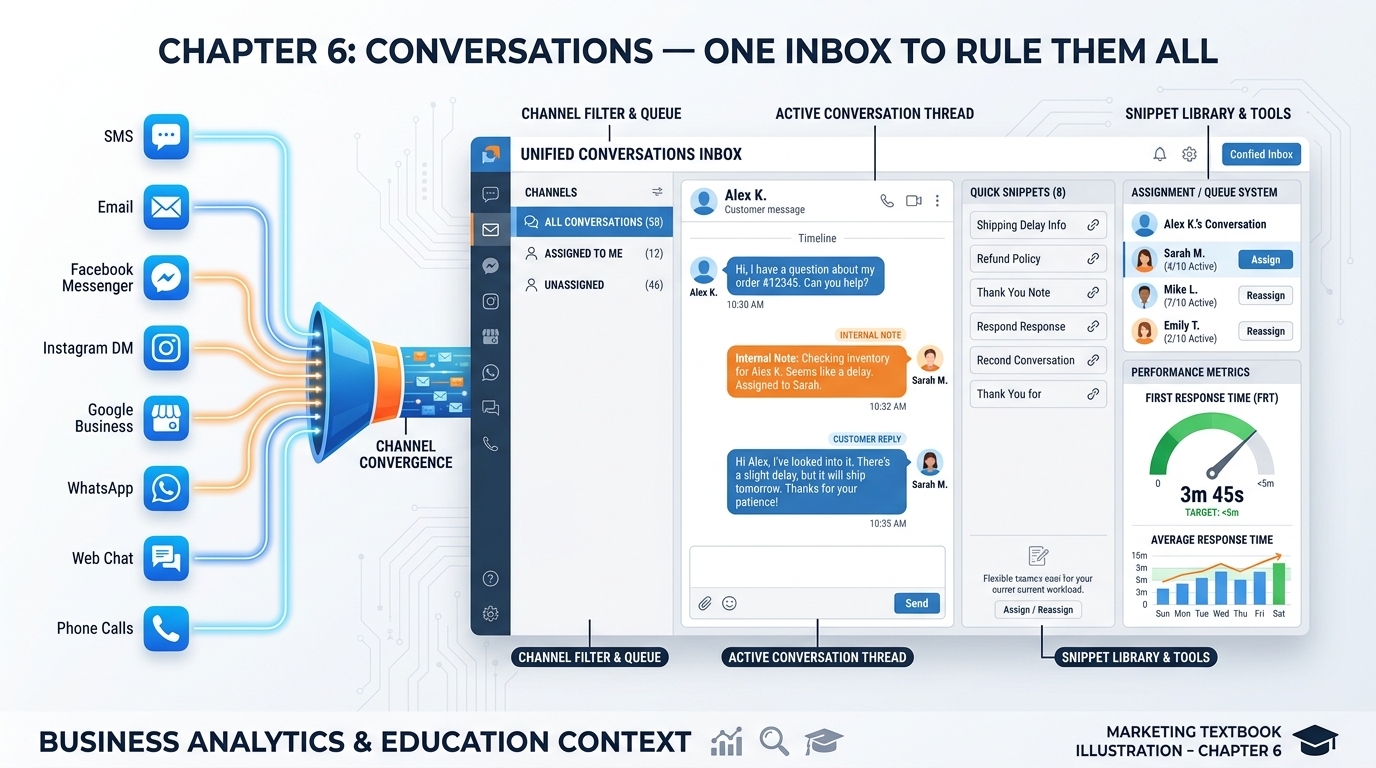
Figure 1:Chapter 6 overview: the unified inbox pulls every channel into one actionable command center — from incoming message to closed deal without switching apps.
16.1 The Cognitive Cost of Twelve Open Tabs
Picture a mission control room at NASA. Every screen has a purpose. Every data stream feeds one central display. Operators do not carry twelve walkie-talkies tuned to twelve different frequencies and hope they catch the right transmission at the right moment. They build a system where every critical signal converges — organized, prioritized, and instantly actionable.
Now picture the average small business handling customer communication in the real world. There is a Facebook Messenger tab open on the left. Gmail has forty-seven unread messages. The Instagram DM icon shows a badge of eight. There is a WhatsApp Web session running in one browser and Google Business Messages in another. The phone is ringing, and nobody is sure whose turn it is to answer. This is not a communication strategy. It is organized chaos — and it is costing your team far more than they realize.
The neuroscience is unambiguous. A landmark study by Gloria Mark at the University of California, Irvine found that after an interruption — even a self-initiated one like switching browser tabs — it takes an average of 23 minutes and 15 seconds to fully return to the original task. Not 23 seconds. Twenty-three minutes. Every time a team member toggles from Instagram to email to SMS to check a message, they sacrifice nearly half a productive hour of deep focus. Multiply that across a team of four people switching tabs fifteen times a day, and you have eliminated the equivalent of two full-time employees’ worth of focused work — before lunch.
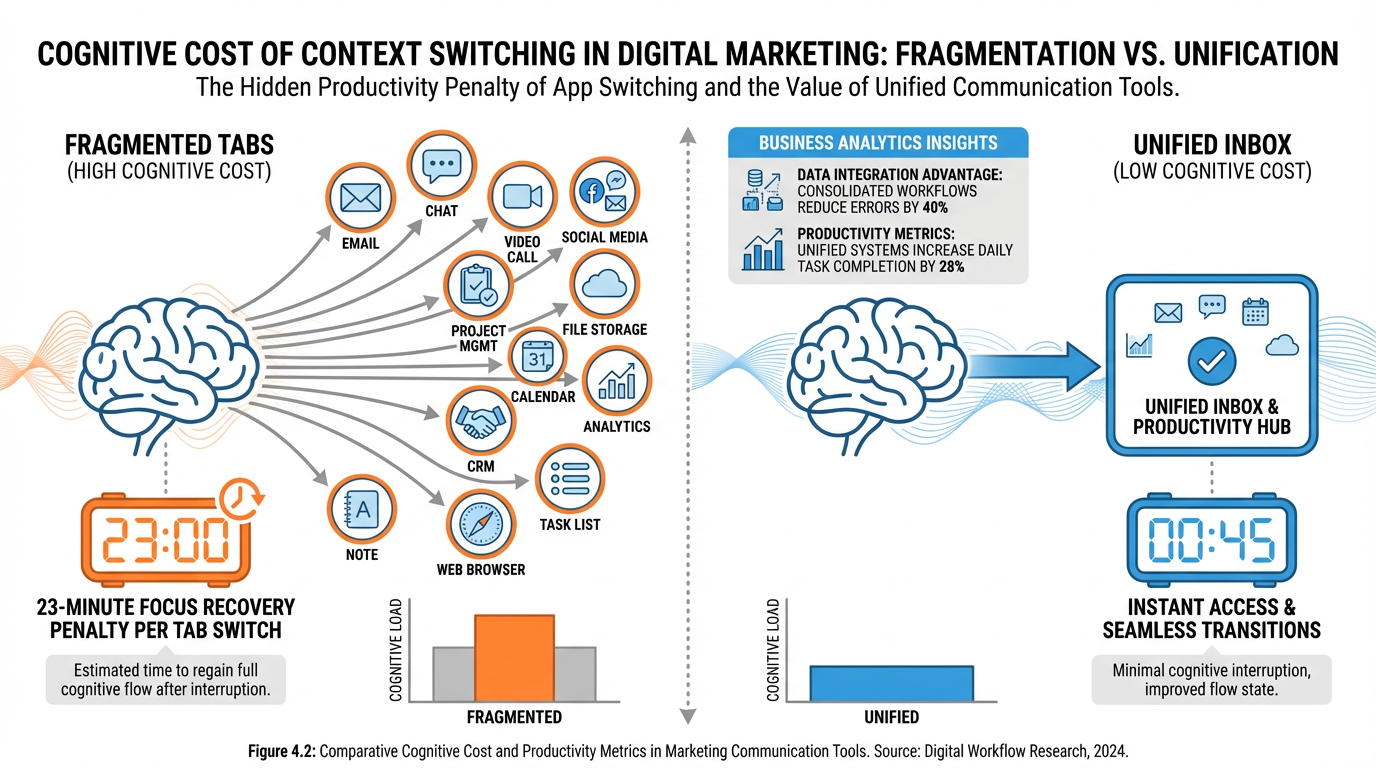
Figure 2:Every tab switch triggers a 23-minute focus recovery penalty. Twelve tabs means twelve potential interruptions — and potentially days of lost productive time per week per team member.
There is a second cost that rarely shows up on any spreadsheet: dropped context. When you return to a conversation after fifteen minutes in another app, you have forgotten the tone of the last three messages, the promise you made about pricing, and the name of the customer’s spouse who was mentioned in passing. You have to re-read. You reconstruct. You apologize for delays. The customer, meanwhile, has mentally moved on and is now evaluating your competitor.
The unified inbox is not a convenience feature. It is a neurological necessity for any team that wants to operate at the speed modern customers expect. It does not just save clicks. It preserves cognitive bandwidth — the single most valuable, non-renewable resource in your business.
So what does this mean for the humans in the room? It means the first and most important technology decision in your communication stack is not which channels to use. It is whether all of those channels converge in one place. Every channel you add without unifying it is not an asset. It is a liability wearing the costume of reach.
26.2 The Anatomy of the Unified Inbox: What Lands Here and Why
A unified inbox is precisely what the name implies — a single interface where inbound messages from every connected channel arrive, are displayed, and are replied to, regardless of where the customer originally sent them. But understanding what lands in a unified inbox, and why the architecture matters, requires looking under the hood.
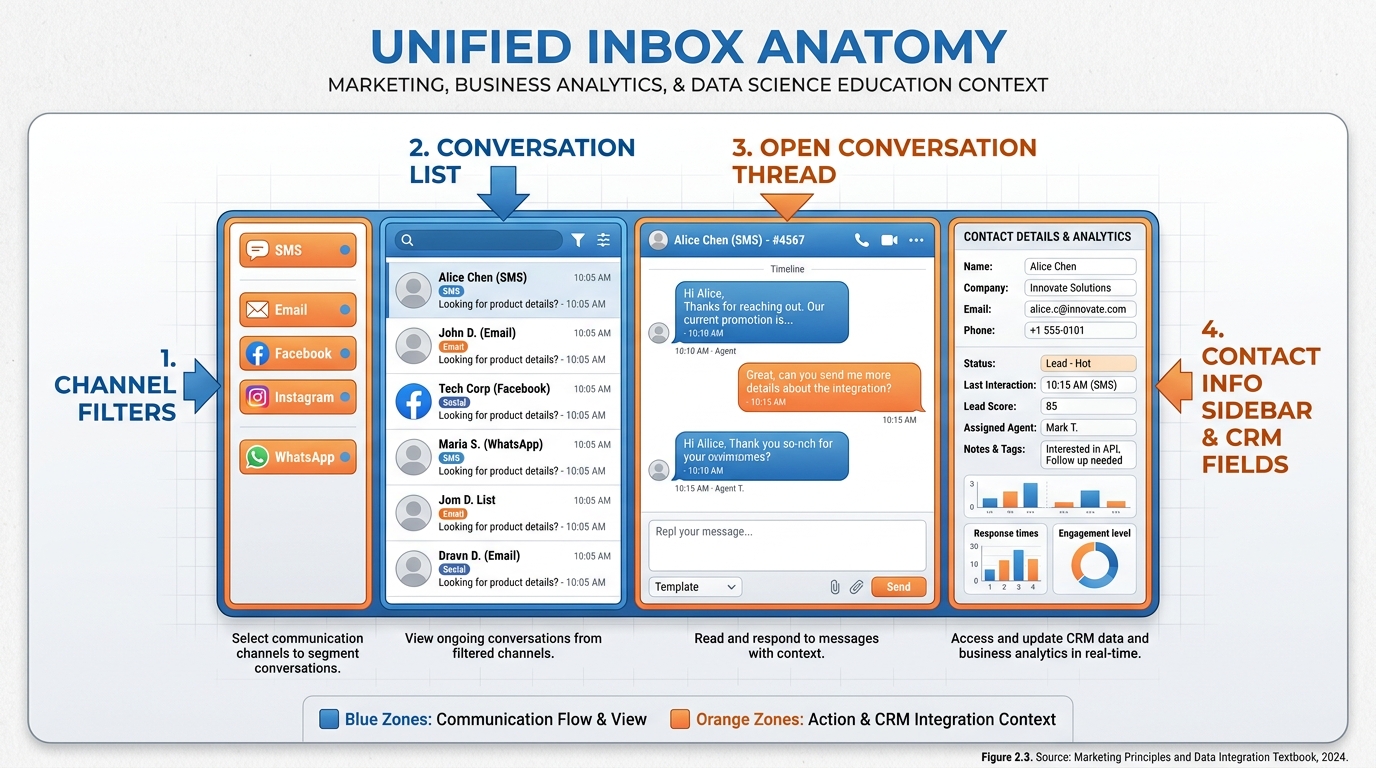
Figure 3:The four zones of the unified inbox: channel filter panel (left), conversation list (center-left), active thread (center-right), and contact context sidebar (right).
The anatomy of a well-designed unified inbox has four zones:
Zone 1 — Channel Filter Panel: The leftmost panel lets you filter conversations by channel source (All, SMS, Email, Facebook, Instagram, etc.) or by assignment status (Mine, Unassigned, All Open, Resolved). Think of this as the dispatch board. At a glance, any team member can see where volume is coming from and where attention is needed.
Zone 2 — Conversation List: The center-left panel shows every conversation matching the current filter, sorted by recency. Each entry shows the contact name, the channel icon (a small SMS or email icon), the last message preview, and a timestamp. Unread conversations are bold. Assigned conversations show the assigned agent’s avatar.
Zone 3 — Active Thread: The center-right panel is the actual conversation — a chronological message thread just like a messaging app, except it spans channels. If a customer texted you on Tuesday, emailed on Wednesday, and then sent a Facebook DM on Friday, all three appear in one continuous thread with channel-source labels. This eliminates the classic “I already told you” customer frustration.
Zone 4 — Contact Sidebar: The rightmost panel shows the contact’s CRM record without navigating away. Name, phone, email, tags, pipeline stage, assigned agent, notes, and custom fields are all visible while you are reading and replying. You know exactly who you are talking to, where they are in your sales process, and what they have already been told — without opening a second tab.
All inbound messages from connected channels — SMS texts, email replies, Facebook Messenger messages, Instagram DMs, Google Business Messages, WhatsApp messages, web chat sessions, and inbound call records.
Marketing broadcast blasts (outbound campaigns), internal system notifications, and messages from channels that have not been connected. If a channel is not integrated, its messages do not appear here.
Each contact has one master conversation thread per channel. If the same customer texts and emails, there are two conversation entries (one SMS, one email) linked to the same CRM contact record.
The critical insight is that the inbox does not just collect messages. It contextualizes them. Every message arrives next to the contact’s full history, current pipeline status, and tags — turning a simple reply interface into a decision-making cockpit.
36.3 Channels in One Place: SMS, Email, Facebook, Instagram, Google Business, WhatsApp, Web Chat, Calls
The power of a unified inbox scales directly with the number of channels connected. Each channel has different setup requirements, different typical use cases, and different audience expectations around response time.
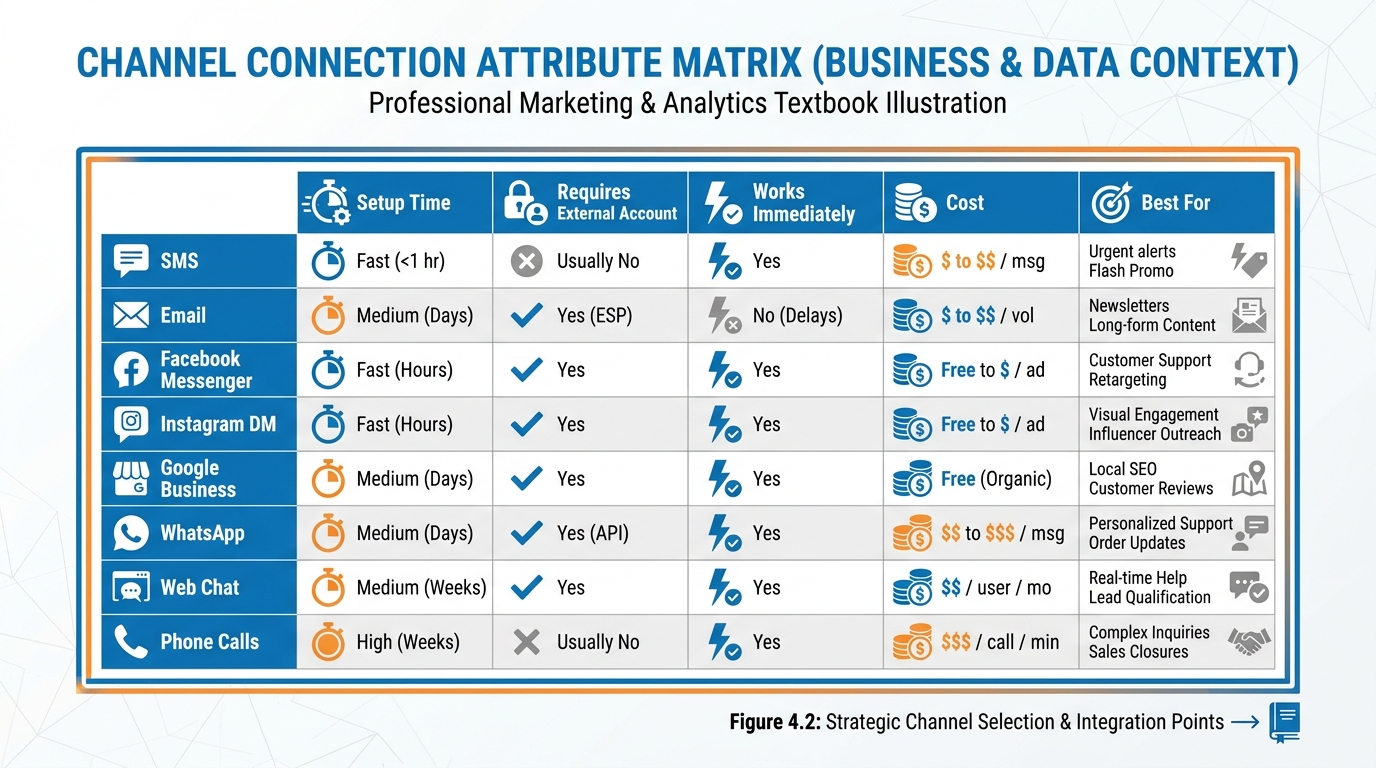
Figure 4:Channel connection matrix: eight communication channels compared across five dimensions — setup complexity, external account requirements, immediacy, cost, and primary use case.
SMS: The highest-engagement channel in existence. Open rates consistently exceed 95%, with most texts read within three minutes of receipt. In VibeReach, SMS uses the phone number provisioned in Chapter 5. However, outbound SMS requires A2P 10DLC registration approval, which can take one to three weeks. Inbound SMS works immediately after the number is provisioned.
Email: The workhorse. Every business already has email, and VibeReach integrates directly with your sending domain via SMTP. Replies sent from the unified inbox carry your branded domain, maintaining deliverability and professional appearance. Email is the only channel that works immediately for both inbound and outbound on day one.
Facebook Messenger: Requires connecting a Facebook Business Page. Once connected, all Messenger conversations from that page appear in the inbox. Facebook has time-window rules (the 24-hour messaging window policy) for promotional outreach, but service replies are unrestricted.
Instagram DMs: Requires a connected Instagram Business Account linked to the Facebook Business Page. Instagram is the channel for visual-brand businesses — beauty, fitness, real estate, coaching — where leads often initiate contact through story replies or profile DMs.
Google Business Messages: Requires a verified Google Business Profile. Customers who find you on Google Maps or Google Search can message you directly, and those messages land in the inbox. This channel captures high-intent leads — people who were already searching for your category.
WhatsApp: Requires a WhatsApp Business API account, typically set up through an approved provider. WhatsApp dominates in international markets and is growing rapidly in U.S. Hispanic communities. Template message approval is required for outbound initiated messages.
Web Chat: A live chat widget embedded on your website. VibeReach generates an embed code (a small JavaScript snippet) you paste into your website’s <head> or body. When a visitor types in the chat widget, the conversation appears instantly in the inbox. Web chat is often the fastest-response channel because visitors are on your site right now.
Calls: Inbound and outbound calls made through the VibeReach phone system (Chapter 5) log to the conversations view as call records, including recording links and call duration. You can leave notes on call records and assign follow-up tasks without leaving the inbox.
The compounding effect of connecting each channel is not additive — it is multiplicative. Each new channel provides a new entry point for leads, and every entry point that feeds into the same inbox means zero additional cognitive overhead for your team.
46.4 Snippets, Templates, and the Rule of Three Seconds
The average human types at approximately 40 words per minute. A typical professional reply to a customer inquiry runs 60–80 words. That is roughly 90–120 seconds per reply — before accounting for thinking time, re-reading, and editing. Across a team handling 50 conversations per day, that is two to three hours of typing the same recurring answers to the same recurring questions.
Snippets solve this.
The Rule of Three Seconds is simple: if a customer’s question can be answered with a template, that answer should be deployable in under three seconds. Not three minutes. Not thirty seconds. Three seconds. The moment a team member can identify the reply type they need, the snippet should be available, selectable, and composable in the time it takes to glance at a menu.
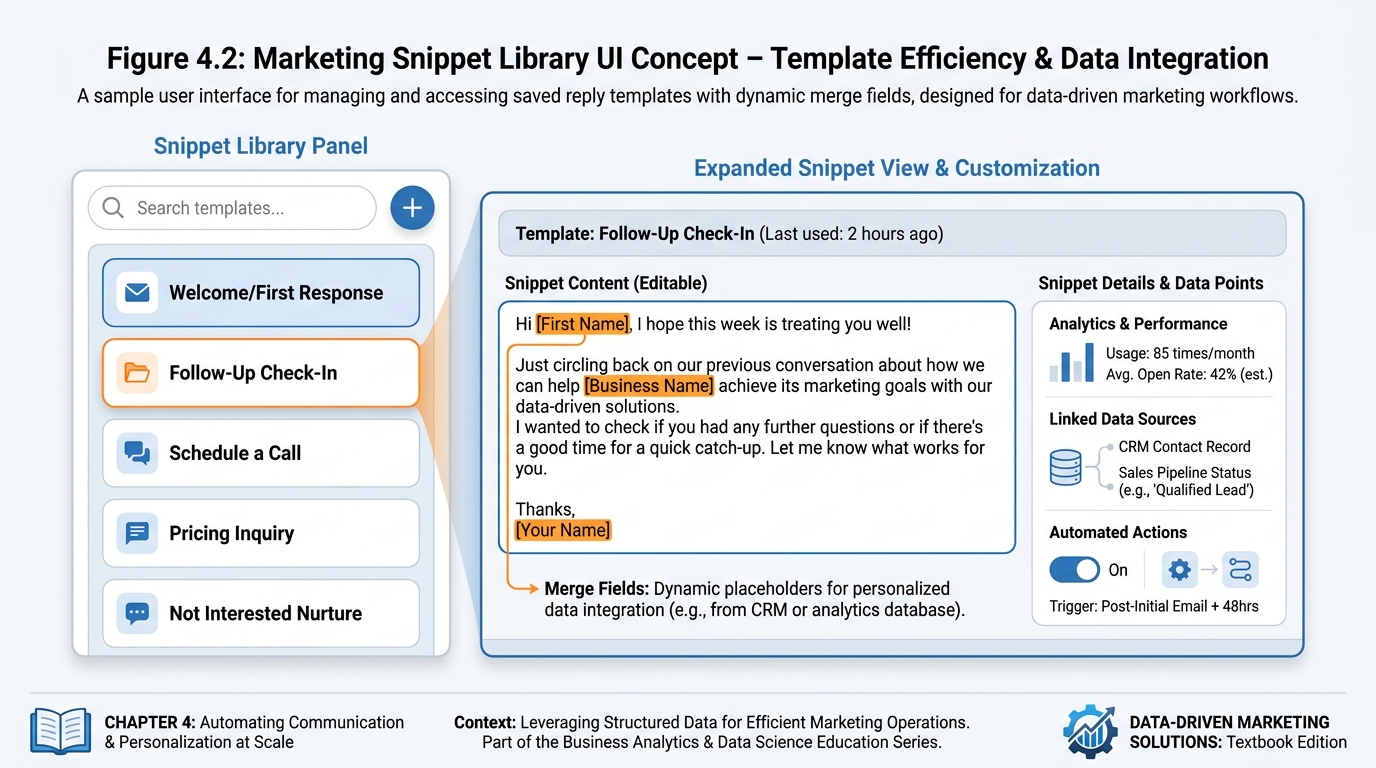
Figure 5:A snippet library in action: five saved templates with merge fields like {{contact.first_name}} highlighted in orange, ready to deploy in under three seconds.
Snippets are not just speed tools. They are consistency tools. Without snippets, different agents give different answers to the same question. One agent says the consultation is free; another says to fill out a form first. Snippets enforce message consistency across every customer-facing reply, which matters enormously for brand trust and legal accuracy in regulated industries.
The anatomy of an excellent snippet:
The opener with merge field — “Hi {{contact.first_name}},” personalizes instantly without typing
The core message — the actual answer, offer, or next step
The call to action — one specific next step (book, reply, click)
The closer — “Looking forward to connecting, [Your name]” or similar
Well-designed snippet libraries cover the five most common conversation scenarios: first contact, follow-up after no reply, scheduling, pricing, and graceful handling of “not interested” leads. We will build all five in Lab 6.
56.5 Internal Notes vs. Customer Replies — The Feature That Saves Teams
Every conversation management platform worth using has a distinction that new users often overlook until the moment they desperately need it: the difference between an internal note and a customer reply.
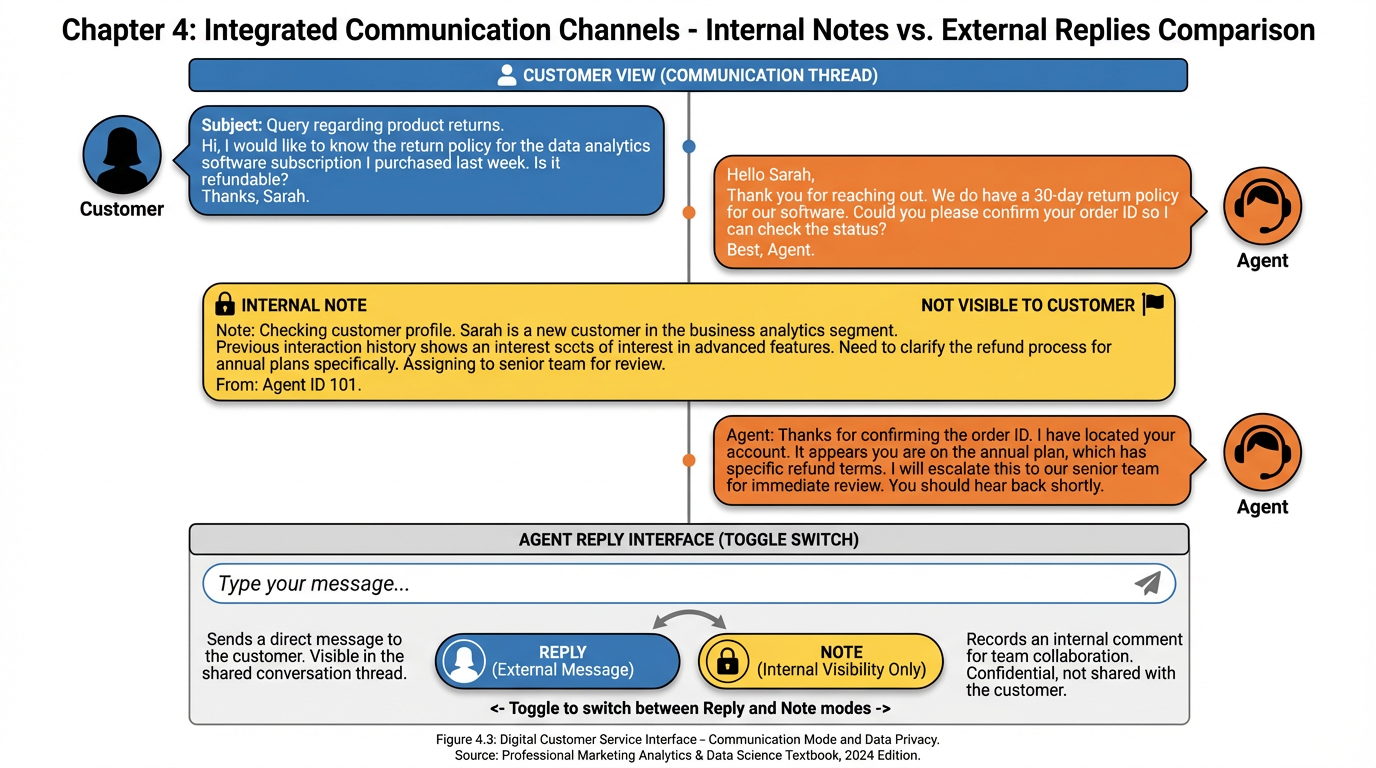
Figure 6:Internal notes appear as yellow thread entries visible only to team members. Customer-facing replies appear as standard message bubbles — both live in the same conversation thread.
In VibeReach’s conversations view, the reply box at the bottom of every conversation thread has a toggle. Switch it to Note mode, and anything you type becomes an internal note — visible to every team member who can see that conversation, but completely invisible to the customer. Switch it to Reply mode, and whatever you type goes out to the customer on whatever channel the conversation started on.
This single toggle is responsible for more saved client relationships than most people realize. Here are the use cases where it matters:
Handoff context: When Agent A hands a conversation to Agent B, Agent A can leave a note: “This is the owner of the Coral Gables location. She’s already received the Pro proposal. She’s comparing us to HubSpot. Price sensitivity is moderate. DO NOT send the introductory pricing sheet — she’s past that.” Agent B reads this before saying a word to the customer and picks up exactly where Agent A left off.
Escalation flags: “URGENT: Customer is threatening churn. Ping Sarah before responding.” A manager sees the note, intervenes before an agent sends a tone-deaf reply, and the relationship is preserved.
Context from a call: “Just got off the phone with Marcus. He confirmed decision will be made by Friday. He mentioned his business partner David will also need to review the contract.” This call note now lives next to all future messages from Marcus, so whoever follows up has full context.
Compliance documentation: In regulated industries (financial services, healthcare-adjacent coaching), internal notes serve as documentation of what was discussed and what commitments were made — a paper trail inside the conversation itself.
66.6 Assignments, Queues, and Owning a Conversation to Completion
A conversation without an owner is a conversation that falls through the cracks. The assignment system in a unified inbox solves the accountability problem that plagues every growing team.
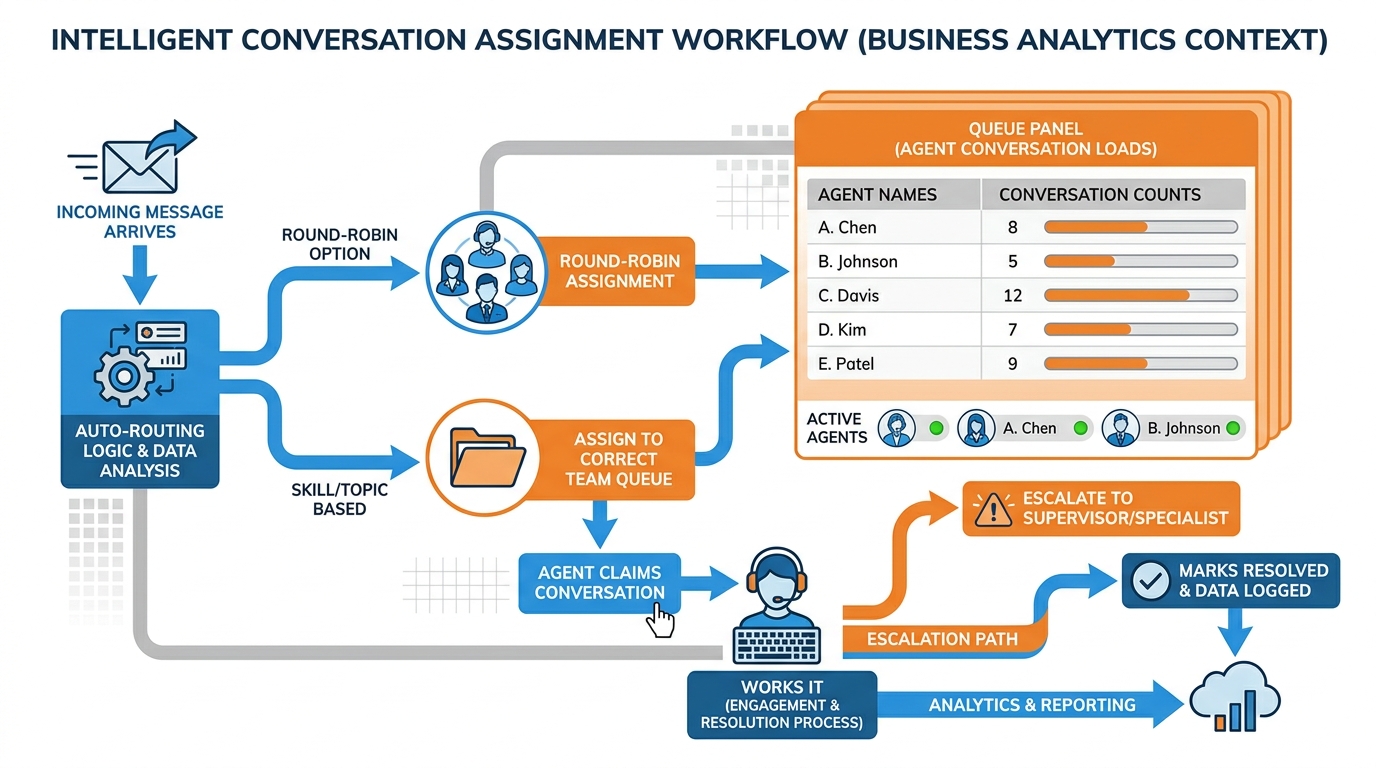
Figure 7:Conversation assignment workflow: inbound message triggers auto-routing logic, lands in the correct queue, agent claims ownership, works to resolution, and marks complete.
In VibeReach, every conversation can be assigned to a specific user (team member) or left in an unassigned queue. The assignment model works as follows:
Unassigned Queue: New inbound conversations arrive here by default unless a workflow automation assigns them. This is the shared triage queue — any available agent can pick up conversations from here. It is the equivalent of a shared mailbox.
My Conversations: Each agent sees only conversations assigned to them. This creates clear ownership. If a lead is assigned to Sofia, Sofia is accountable for that conversation’s resolution time, tone, and outcome.
Round-Robin Auto-Assignment: Workflows can be configured to automatically assign new conversations to team members in rotation, ensuring even workload distribution without a manager having to manually dispatch.
Conversation Status: Every conversation has a status: Open, In Progress, or Resolved. Resolved conversations are archived but searchable. If a resolved customer messages again — even days later — the conversation automatically reopens and is reassigned to the original agent, maintaining continuity.
The accountability flywheel works like this: when every conversation has an owner, resolution times drop because individual agents can be measured. When resolution times drop, customer satisfaction climbs. When customer satisfaction climbs, repeat business and referrals increase. The assignment system is not bureaucratic overhead — it is the accountability infrastructure that makes every metric in Section 6.9 meaningful.
76.7 Conversation AI: Replies That Sound Human Because They Understand Context
Artificial intelligence has arrived in the reply box — and the best implementations are nearly indistinguishable from a skilled human agent who has read every previous message and knows the customer’s full history.
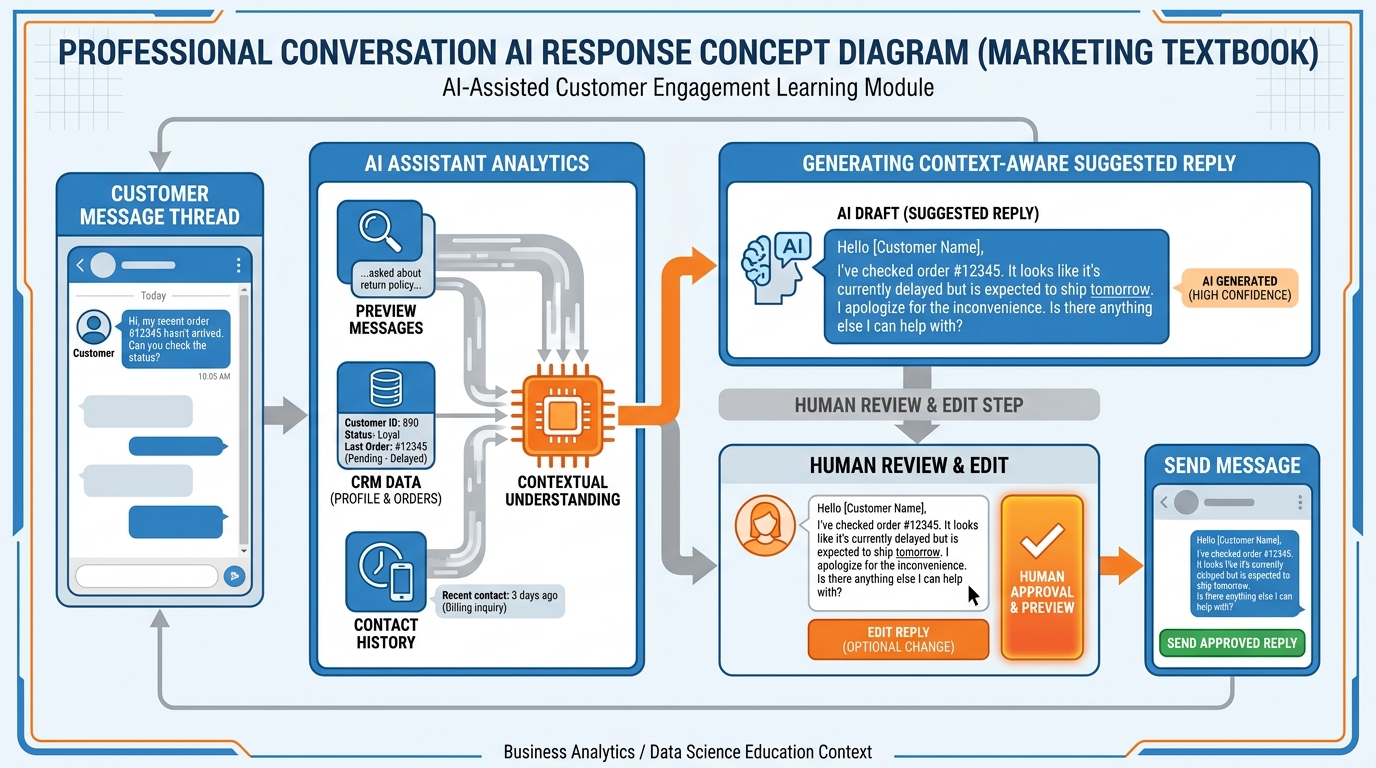
Figure 8:Conversation AI reads the thread history and CRM context before drafting. The human reviews and edits before sending — AI speeds the process without removing human judgment.
The distinction between a scripted chatbot and conversation AI is critical, and it is one students frequently conflate. A scripted chatbot follows a predetermined flowchart — if the customer says “pricing,” show the pricing message; if they say “support,” route to support. It cannot handle “I was wondering about the thing Marcus mentioned last week” because it has no concept of Marcus or last week.
Conversation AI, by contrast, reads the actual text. It knows from the thread that the customer is referencing a proposal sent three days ago. It knows from the CRM that the contact’s name is Jennifer, that she is a business owner in the retail sector, and that she has been engaged for 21 days. It drafts a reply that addresses her specific question in a tone consistent with the previous messages — and then presents that draft to the human agent for a three-second review before sending.
The practical application in VibeReach follows this workflow:
Customer sends a message
Conversation AI analyzes the message and thread history
A suggested reply appears in the reply box as a draft
The agent reads it (3–10 seconds), edits if needed, and hits Send — or discards and writes their own
The AI learns from accepted and rejected suggestions over time
The key design principle is human-in-the-loop: AI suggests, human decides. This is the correct model for customer communication, where tone, empathy, and relationship nuance matter enormously and mistakes carry real consequences.
86.8 Trigger Links, Merge Fields, and the Personal Touch at Scale
Two features separate merely functional CRM messaging from genuinely intelligent communication: trigger links and merge fields.
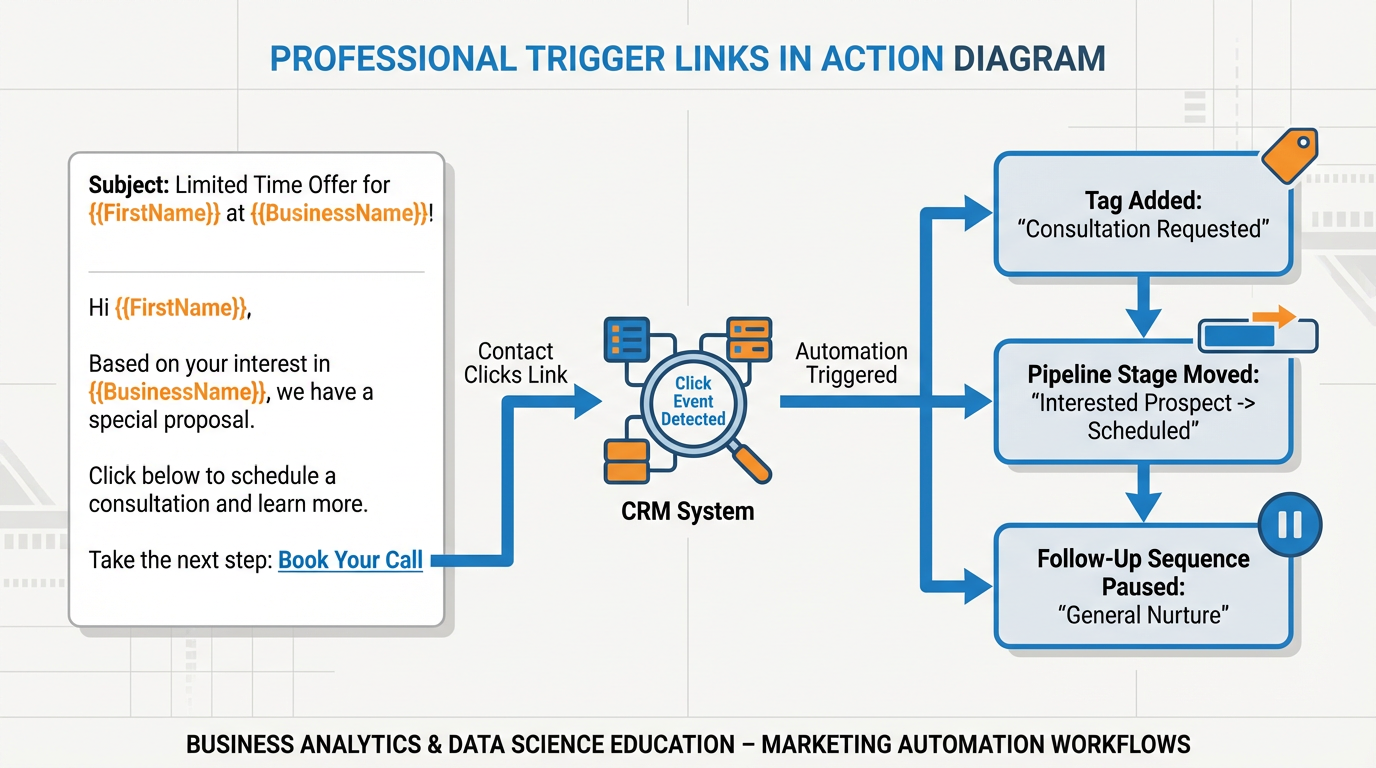
Figure 9:When a contact clicks a trigger link, two things happen simultaneously: they are taken to the destination page, and the CRM fires the configured automation — tagging, stage movement, or sequence enrollment.
Merge fields in practice: A snippet that reads “Hi {{contact.first_name}}, thanks for reaching out about your {{contact.business_name}} project!” becomes “Hi Jennifer, thanks for reaching out about your Coral Gables Boutique project!” the moment it is sent. The personalization is instantaneous and automatic. The customer experiences a message that feels handcrafted. The agent spent zero extra time on personalization.
Trigger links in practice: A follow-up message contains a trigger link labeled “Click here to schedule your free strategy call.” When Jennifer clicks it, she lands on the scheduling page (as expected), AND the CRM simultaneously: (1) removes her from the “Awaiting Response” follow-up sequence so she does not receive another follow-up tomorrow, (2) adds the tag “Interested — Scheduling,” and (3) moves her from the “Nurturing” stage to “Appointment Set” in the pipeline. All of this happens without any agent action.
The combination of merge fields and trigger links creates the personal touch at scale paradox: the more contacts you have, the more “personal” your communication becomes, because both tools ensure that personalization is baked into the system architecture rather than depending on individual agent effort.
96.9 Conversation Metrics: First Response Time, Resolution Time, Sentiment Trend
What gets measured gets managed. The unified inbox is also a measurement instrument — and the three metrics that matter most for a communication operation are first response time, resolution time, and sentiment trend.
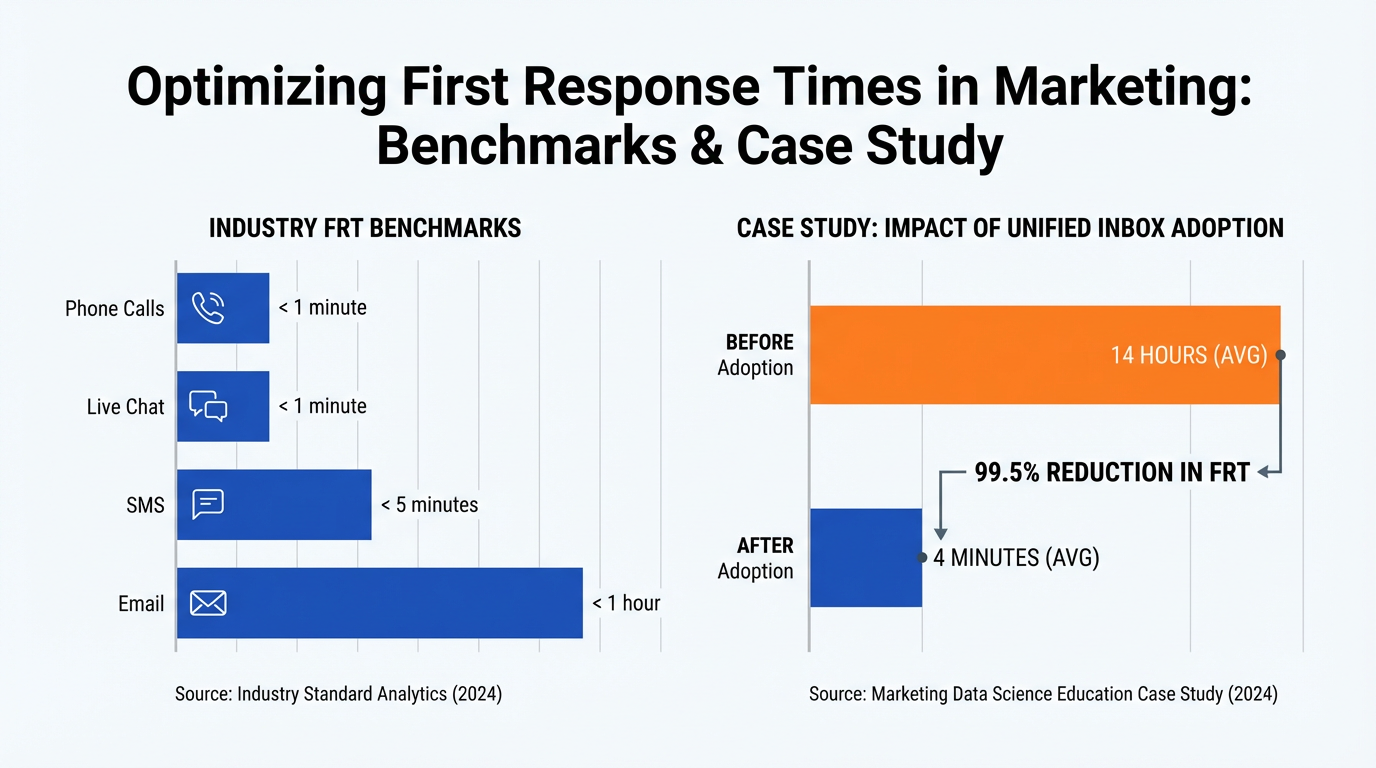
Figure 10:Industry FRT benchmarks by channel: web chat under 1 minute, SMS under 5 minutes, email under 1 hour. Unified inbox adoption typically reduces FRT by 60–90% by eliminating the need to monitor multiple platforms.
The three key metrics defined:
First Response Time (FRT) — measures speed. The goal is channel-appropriate: under 5 minutes for SMS and web chat, under 4 hours for email during business hours. Anything beyond these thresholds dramatically increases churn probability for new leads who are still comparison shopping.
Resolution Time — measures completeness. How long from first message to marked-resolved? Resolution time reflects not just speed, but the efficiency of your conversation process — whether agents know your products, have the tools they need, and can make decisions without escalation. Long resolution times often reveal training gaps or tool gaps, not just effort gaps.
Sentiment Trend — measures relationship health. Conversation AI can analyze the emotional tone of messages over time: is the customer’s language becoming more positive (moving toward a decision) or more frustrated (at risk of churning)? Sentiment trend analysis surfaces at-risk accounts before they cancel or complain publicly, allowing proactive intervention.
The reporting dashboard in VibeReach aggregates these metrics by team member, by channel, by time period, and by conversation type. A team that reviews these metrics weekly will systematically identify its own bottlenecks — the channel where FRT is lagging, the agent who resolves quickly but leaves customers feeling unheard, the time of day when unassigned conversations pile up.
106.10 The Closer’s Cockpit: Working a Lead From Hello to Signed Without Leaving the Screen
The ultimate value proposition of a unified inbox is not about any single feature. It is about the complete workflow — from the moment a lead sends their first message to the moment a contract is signed — without a single app switch.
Consider the journey of a new lead named Marcus who finds your coaching business through a Google search on a Tuesday morning. He sends a Google Business Message: “Do you work with restaurant owners?”
Here is what happens inside the closer’s cockpit:
The message arrives in the unified inbox, tagged with the Google Business channel icon. VibeReach creates a new contact record for Marcus automatically.
The agent sees context immediately. The contact sidebar shows Marcus is a new contact, no prior conversations, located in Fort Lauderdale (from Google profile data).
A snippet is deployed in under three seconds. The agent clicks the snippet icon, selects “WEL-First Response,” and the reply populates: “Hi Marcus, absolutely — restaurant owners are one of our specialties. Tell me more about where you’re at with your business right now.” Personalized. Sent in 8 seconds total.
Marcus replies. He has three locations. Revenue is solid but team turnover is a problem. He has tried two coaches before with mixed results. The agent leaves an internal note: “Skeptical buyer — prior bad experience with coaches. Lead with results/case studies, not methodology.”
A trigger link goes out. The agent sends a follow-up message with a trigger link to the scheduling page. Marcus clicks it. His contact record instantly updates: tagged “Appointment Set,” moved from “New Lead” to “Consultation Booked” in the pipeline, and removed from the follow-up sequence.
After the consultation call, the agent finds the call recording automatically logged in the conversation. They leave a note: “Great call — Marcus is ready to move forward. Sending proposal tonight.” Then they create a document from the template library (Chapter 7) and send it directly from the conversation thread.
Marcus signs electronically. The signature event triggers a workflow (Chapter 4) that sends a welcome sequence, creates his onboarding task list, and notifies the fulfillment team.
At no point in this sequence did the agent open a second tab, copy-paste a phone number into a dialer, search for Marcus in a separate CRM, or wonder which email address was current. Everything happened inside one screen. The cognitive overhead was near zero. The entire sequence — from hello to signed — was orchestrated without ever leaving the conversation.
This is the closer’s cockpit. And once agents experience it, returning to twelve tabs feels like being asked to navigate by compass when GPS exists.
116.11 Case Study: From 14 Hours to 4 Minutes — A Coaching Agency’s Unified Inbox Transformation
Background: A six-person business coaching agency based in South Florida was generating strong inbound interest — roughly 40–60 new inquiries per week — through a combination of Facebook ads, organic Instagram content, Google search, and referrals. Their communication setup was a symptom of growth pains: Facebook Messenger monitored by one team member, Instagram by another, Gmail by the owner personally, and a separate phone number for SMS that only the sales rep checked.
The Problem: With no unified system, leads fell through cracks with alarming regularity. The agency’s self-measured first-reply time averaged 14 hours — meaning that on average, a prospective client who reached out on a Monday morning would not hear back until the following morning. Analysis of their CRM records (such as it was — a spreadsheet) showed that approximately 35% of inbound inquiries received no response at all within the first 48 hours.
The Intervention: Over one weekend, the team migrated to a unified inbox platform. All four channels were connected. A snippet library of seven templates was created covering their five most common inquiry types. Two agents were designated as “inbox owners” during business hours, with a 10-minute response time standard. An after-hours automation was set up to send an instant acknowledgment message when inquiries arrived outside business hours, setting a response expectation for the next business day.
The Results (measured at 30 days post-implementation):
| Metric | Before | After |
|---|---|---|
| Average First Response Time | 14 hours | 4 minutes |
| Inquiry-to-Consultation Rate | 28% | 61% |
| Leads with No 48h Response | 35% | 3% |
| Weekly Consultations Booked | 11 | 27 |
The increase in consultations booked — from 11 to 27 per week — was achieved with the same inbound lead volume, the same team size, and zero increase in advertising spend. The only variable was response time. The only tool was the unified inbox.
The Lesson: Speed is a feature. Not a nice-to-have feature. A revenue-generating feature. The coaching agency did not get better at coaching by installing a unified inbox. They got better at catching the leads they were already generating. In most businesses, the fastest path to more revenue is not more marketing spend — it is making sure the marketing spend that is already working does not go to waste in the gap between “lead arrived” and “first reply.”
126.12 Lab 6: Connect Every Channel and Build Your Snippet Library
Your Conversations inbox is the nerve center of all two-way communication with your contacts. But it only works if all your channels — email, SMS, Facebook, Instagram, Google Business Messages, live chat — are actually connected to it. In this lab, you connect every relevant channel to your VibeReach.io account and build a reusable snippet library of your most frequently sent responses. By the end, every inbound message from any channel lands in one inbox, and your most common replies are available with a single keystroke — ending the copy-paste chaos permanently.
12.1Step 1: Connect Your Facebook Page and Instagram DMs
In the left sidebar, click ⚙️ Settings → Integrations.
Find Facebook in the integrations list → click Connect.
Click Connect with Facebook — a Facebook authorization window opens.
Log in with the Facebook account that manages your Business Page.
Grant all requested permissions (required for Messenger access).
In the “Select Pages” step, check the box next to your Business Page → click Continue → Done.
Back in GHL Integrations, your Facebook Page should appear as “Connected.”
To connect Instagram:
After connecting Facebook, Instagram connection is available in the same Integrations panel:
Find Instagram in the integrations list → click Connect.
Select the Instagram Business account linked to your Facebook Page.
Grant messaging permissions.
Confirm the Instagram account shows “Connected.”
You’ll know you did this right when: In Settings → Integrations, both Facebook (with your Page name listed) and Instagram (with your account listed) show green “Connected” status.
12.2Step 2: Connect Google Business Messages
⚙️ Settings → Integrations → find Google Business Profile (or Google My Business) → Connect.
Authorize with the Google account that owns your Google Business Profile.
Select your business location from the list → confirm.
Back in Integrations, your GBP listing should show “Connected.”
You’ll know you did this right when: Your Google Business Profile listing appears with “Connected” status. Messages sent to your GBP via Google Maps / Google Search will now route to your GHL Conversations inbox.
12.3Step 3: Add the Live Chat Widget to Your Website
⚙️ Settings → Chat Widget (or look for Website Chat in the Integrations panel).
Click Configure Chat Widget.
Customize:
Widget Headline: “How can we help?” or your brand message
Widget Color: Match your brand primary color (hex code)
Agent Name and Photo: Add your name and a professional headshot
Auto-Greeting: “Hi! We typically respond in under 5 minutes. What can we help you with?”
Click Save.
Click Get Code → copy the JavaScript embed code.
Paste the code in the
<head>section of your website (or add it via your website platform’s header scripts: WordPress → header.php or a plugin like Insert Headers and Footers; Squarespace → Settings → Advanced → Code Injection).
You’ll know you did this right when: The chat widget appears on your website (open it in a browser after adding the code). Send a test message — it should appear in your GHL Conversations inbox within seconds.
12.4Step 4: Verify Your Phone/SMS Channel
If your A2P 10DLC registration from Chapter 5 is approved:
⚙️ Settings → Phone System → confirm your provisioned number shows “Active.”
Navigate to Conversations and confirm the SMS channel icon is available in the message compose area.
Send a test SMS to yourself: click + New Conversation, select your own number, choose SMS channel, type “Test” → send.
Reply from your personal phone — confirm the reply lands in GHL Conversations.
You’ll know you did this right when: Your provisioned number can send and receive SMS, and the conversation thread appears in GHL Conversations with both outbound and inbound messages shown.
12.5Step 5: Build Your Snippet Library
Snippets are pre-written text blocks you insert into any message with / shortcut. You are going to create 8 core snippets that handle your most common reply scenarios.
In the left sidebar, click Conversations → look for the Snippets option (usually in the Conversations settings or under the compose toolbar → three-dot menu → “Snippets”).
Alternative path: ⚙️ Settings → Conversations → Snippets tab.
Click + New Snippet for each of the following:
Snippet 1 — Initial Response (Fast Reply)
Shortcut:
/hiContent: “Hi {{contact.first_name}}! Thanks for reaching out to [Business Name]. I’m [Your Name] — how can I help you today?”
Snippet 2 — Appointment Booking
Shortcut:
/bookContent: “I’d love to set up a time to connect! Here’s my calendar link so you can grab a spot that works for you: [Calendar URL]. It’s a [X]-minute call — completely free, no obligation.”
Snippet 3 — Pricing Inquiry
Shortcut:
/priceContent: “Great question! Our pricing depends on a few factors specific to your situation. The best way to get an accurate number is a quick 15-minute call where I can learn more about what you need. Want to grab a time? [Calendar URL]”
Snippet 4 — Not Ready Yet (Nurture)
Shortcut:
/nurtureContent: “Totally understand — timing is everything. I’ll make a note to follow up with you in [timeframe]. In the meantime, feel free to reply to this message anytime with questions. We’re always here.”
Snippet 5 — Documents Needed
Shortcut:
/docsContent: “To move forward, I’ll need the following: [list your required documents]. The easiest way to send them is [method]. Once I have those, we can typically [next step] within [timeframe].”
Snippet 6 — Closed Won — Handoff to Onboarding
Shortcut:
/wonContent: “Welcome aboard, {{contact.first_name}}! I’m so excited to get started. Your onboarding coordinator will reach out within 24 hours with next steps. If you have any questions before then, I’m always reachable here.”
Snippet 7 — Review Request (Manual)
Shortcut:
/reviewContent: “{{contact.first_name}}, it was such a pleasure working with you on this! If you have 60 seconds, a Google review would mean the world to us and help other clients find us: [Google Review Link]. Thank you!”
Snippet 8 — Out of Office / After Hours
Shortcut:
/oooContent: “Thanks for your message! Our team is currently unavailable but will respond by [next business day/time]. For urgent matters, call [phone number] and leave a voicemail — we’ll return your call as soon as possible.”
Click Save after each snippet.
You’ll know you did this right when: In a Conversations compose window, type / and see your snippet shortcuts appear in a dropdown. Click one and confirm it populates the message field with the correct text and merge fields.
Troubleshooting Common Issues
Facebook “Connect” redirects to an error page: Clear your browser cache and disable any pop-up blockers. GHL opens the Facebook OAuth flow in a new window — if pop-ups are blocked, the connection fails silently. Allow pop-ups for your GHL domain and try again.
Instagram shows connected but DMs aren’t appearing: Instagram DM routing requires that your Instagram account be a Business or Creator account (not Personal) and that it is linked to your Facebook Business Page. Check this in Instagram → Settings → Account → Switch to Professional Account (if needed), then re-link to your Facebook Page.
Google Business Profile connection succeeds but no messages come through: Google Business Messages must be enabled for your GBP listing. In your Google Business Profile Manager, check that messaging is turned on (Profile → Messaging → Enable). Messages typically take 24 hours to start routing after connection.
Chat widget code was added but the widget doesn’t appear on the website:
Confirm the code is in the <head> section (not the <body> or <footer>). Test in an incognito window (some browser extensions block chat widgets). If using WordPress, confirm the plugin that injects header code is active and not cached — clear your CDN cache.
Snippets / shortcut doesn’t trigger in Conversations:
The shortcut only works in the message compose box within the Conversations module, not in campaign email composers. Type / and wait — there may be a brief delay before the popup appears. If no popup appears, check that snippets are created and saved correctly in Settings → Conversations → Snippets.
136.13 Chapter Takeaways & Reflection Questions
13.1Key Takeaways
Context-switching carries a measurable neurological cost — 23 minutes of focus recovery per interruption — making fragmented communication tools an invisible but significant drain on team productivity and revenue.
The unified inbox aggregates all channels (SMS, email, Facebook, Instagram, Google Business, WhatsApp, web chat, calls) into one interface where messages are read, replied to, and resolved without switching applications.
Snippets are not just speed tools — they are consistency tools that enforce uniform, high-quality messaging across every customer interaction, regardless of which team member is handling the conversation.
Internal notes create invisible continuity — the ability to leave context for teammates without the customer seeing it is one of the most operationally powerful features in a communication platform.
Conversation assignment transforms accountability — named ownership of conversations converts vague team responsibility into individual accountability and enables meaningful performance measurement.
Conversation AI accelerates without replacing human judgment — AI-suggested replies work best as a first-draft tool that humans review and refine, particularly for routine inquiries.
Trigger links and merge fields together create personalization at scale — a 1,000-contact outreach can feel as personal as a handwritten note when both tools are used correctly.
First Response Time is the single most impactful communication metric — research consistently shows that leads contacted within 5 minutes are dramatically more likely to convert than those contacted later.
The unified inbox is a closer’s cockpit — the entire sales and relationship cycle, from first message to signed contract, can be executed without leaving a single screen.
Speed is a revenue feature — the coaching agency case study demonstrates that faster response times, with no additional marketing spend, can more than double consultation-booking rates.
13.2Reflection Questions
Think about the last time you reached out to a business and waited more than an hour for a response. Describe the experience. Did the delay affect your perception of that business’s professionalism or competence? How does your answer inform how you want your own customers to experience reaching out to you?
Snippets enforce communication consistency. But some argue that over-reliance on templates makes communication feel robotic and transactional. Where is the right balance? How would you design a snippet library that maintains efficiency without sacrificing genuine human connection?
The internal notes feature allows team members to share context that the customer never sees. What ethical boundaries should govern what gets written in internal notes? Are there things that should never be written in a note, even if they are true?
First Response Time is measurable and directly linked to revenue outcomes. But is speed always the right optimization? Can you think of a business context where responding too quickly might actually undermine trust or perceived value?
The case study shows that the same team, handling the same lead volume, can produce dramatically different results simply by changing their response infrastructure. What does this imply about where businesses should prioritize their operational investment — generating more leads, or serving existing leads more effectively?
14Glossary
Unified Inbox A single communication interface that aggregates messages from multiple channels (SMS, email, social DMs, web chat, etc.) into one organized view for reading, replying, and resolving.
Snippet A pre-written, reusable reply template accessible during a conversation, insertable in under three seconds, often containing merge fields for automatic personalization.
Internal Note A message added to a conversation thread that is visible only to team members and completely hidden from the customer — used for handoff context, escalation flags, and compliance documentation.
First Response Time (FRT) The elapsed time between a customer’s inbound message and the first outbound reply. The most impactful single metric for customer satisfaction in digital communication.
Resolution Time The elapsed time from the first message in a conversation to the moment the conversation is marked Resolved by an agent.
Sentiment Trend An AI-measured indicator of the emotional tone progression in a conversation over time — whether customer language is becoming more positive (buying signal) or more frustrated (churn risk).
Conversation AI AI-powered reply drafting and suggestion functionality that reads conversation history and CRM context to generate contextually appropriate suggested replies for human review.
Merge Field
A placeholder variable in a message template (e.g., {{contact.first_name}}) that is automatically replaced with live CRM data at the moment the message is sent.
Trigger Link A trackable URL that, when clicked, simultaneously opens the destination page and fires a pre-configured CRM automation — such as adding a tag, moving a pipeline stage, or pausing a sequence.
Unassigned Queue The shared inbox pool where new inbound conversations land when no automatic assignment rule applies, available for any agent to claim.
Round-Robin Assignment An automatic conversation distribution method that assigns incoming conversations to team members in rotation, ensuring equitable workload distribution.
A2P 10DLC Application-to-Person 10-Digit Long Code — the U.S. carrier compliance framework for business SMS messaging. Requires registration and approval before outbound SMS campaigns can be sent from a 10-digit local number.
Web Chat Widget A live chat interface embedded on a website via JavaScript code that routes visitor conversations directly to the unified inbox in real time.
Channel Filter A toggle in the unified inbox that narrows the conversation list to messages from a specific source (e.g., showing only Facebook Messenger conversations or only unread SMS messages).
Conversation Status The state of a conversation in the inbox system — typically Open, In Progress, or Resolved — used to manage workflow, reporting, and queue routing.
Google Business Messages A messaging channel that allows customers who find a business on Google Search or Google Maps to send direct messages that route to the unified inbox.
Personalization at Scale The practice of using merge fields and automation to deliver individually personalized communication across a large number of contacts simultaneously, without additional per-contact effort.
Contact Sidebar The CRM record panel visible alongside an active conversation thread, showing the contact’s name, tags, pipeline stage, custom fields, and history without requiring navigation to a separate screen.
15Exercises
End of Chapter 6
16🎯 Your Turn: Apply It to Your Business
Every channel you manage outside the unified inbox is a tax on your focus. Today you close the tabs and route everything through one command center. Your response times will drop. Your missed conversations will drop. Your close rate will climb.
1. Connect every active communication channel to GHL Conversations. Log into GHL → Settings → Integrations. Connect each platform you actually use: Facebook Page (via Meta Business Suite), Instagram (via the same Meta connection), Google Business Profile, WhatsApp Business (if applicable). Then go to Settings → Email Services and confirm your email is connected. Check Conversations — do you see messages from all channels in one inbox? Any missing channel is a blind spot in your customer communication.
2. Build your first Snippet Library. Think about the five questions you or your team answers most often. In GHL → Conversations → Snippets → + New Snippet, build a saved reply for each one. Give each snippet a short, searchable trigger name (e.g., “pricing,” “hours,” “booking,” “refund”). Test them in the Conversations inbox by typing “/” — does the snippet autosuggest appear? Are they accurate and on-brand? A snippet library saves 20–30 minutes per day for any team that handles more than 20 conversations.
3. Set up conversation assignment rules. In GHL → Settings → Conversations → Routing Rules (or via workflow: Trigger = New Inbound Message → Action = Assign to User), define who handles what. If you have more than one team member, create channel-based or keyword-based routing. New Facebook DMs → assign to the social media manager. Inbound email with “billing” in subject → assign to accounts. This ensures every conversation has a clear owner within seconds of arrival.
4. Measure your current First Response Time. In GHL → Reporting → Conversations Report, pull the last 30 days of data. What is your average First Response Time across all channels? Industry benchmark: under 5 minutes for high-intent channels (SMS, phone), under 1 hour for email. If your FRT is over these benchmarks, identify which channel is lagging and build a workflow alert that notifies the assigned team member if a conversation goes unresponded for more than 15 minutes.
5. Test the web chat widget on your funnel or website. In GHL → Sites → Chat Widget, configure and grab the embed code for your website or GHL funnel. Install it. Open your site in a private browser window and send a test message. Does it arrive in Conversations? Who does it assign to? Does the contact get automatically created? Verify the full loop from widget submission to CRM contact creation to conversation assignment.