The Workshop
“A craftsman’s finest work doesn’t happen in the field. It happens at the bench — where the tool is fitted, calibrated, and tested before the mission.”
You’ve met the field operative. Now let’s go deeper.
Gemini at gemini.google.com is where you talk to AI. It’s polished, ready to go, and built for conversation. But there’s another place in the Google AI ecosystem — a place most people on your team have never heard of — where the real configuration happens. Where you set the rules before the conversation starts. Where you choose the model, tune the settings, plug in real-world tools, and build applications without writing a line of code.
That place is Google AI Studio.
And once you’ve spent an hour there, you’ll never think about AI the same way.
This chapter is your orientation. By the end, you’ll understand every knob and why it exists, every tool and what it unlocks, and every model in the carousel and when to reach for which one. You’ll run hands-on labs that go from five-minute confidence builders to twenty-five-minute moments where the room goes quiet because what just happened on screen is genuinely remarkable.
Let’s get to work.
13.1 What AI Studio Is — The Gunsmith’s Bench
Here’s an analogy that will make the whole chapter click into place.
Imagine Gemini at gemini.google.com as your field operative — trained, capable, deployed. You send it prompts, it executes. Clean, fast, purpose-built for mission work.
Now imagine Google AI Studio as the gunsmith’s bench.
Before the field operative ships out, someone had to fit the weapon to the operator. Calibrate the sights. Select the right ammunition for the environment. Maybe add an optic or a suppressor. That work doesn’t happen in the field — it happens at the bench, deliberately, before the mission. The gunsmith doesn’t fight; the gunsmith makes sure that what does fight is configured exactly right.
AI Studio is that bench.
At AI Studio, you configure the AI before it talks to anyone. You decide what persona it adopts. You set how much creative latitude it has. You choose which tools it can use. You pick the exact model that matches the task. You test your configuration until it behaves exactly how you need it to behave — and then you deploy it.
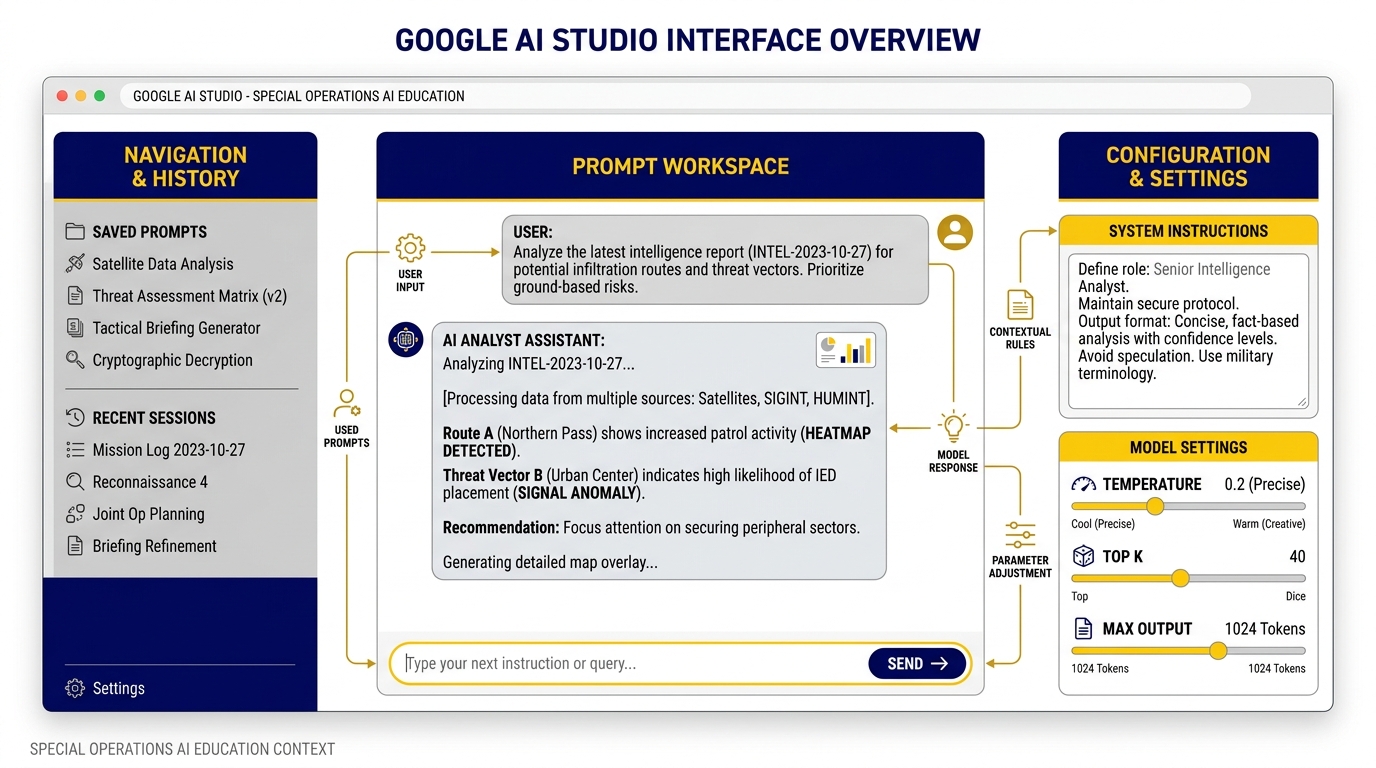
Figure 3.1 — The Gunsmith’s Bench. Google AI Studio’s interface: left panel for settings, center for the prompt workspace, and right panel for configuration knobs. System Instructions live at the top — this is where you define who the AI is before the conversation starts.
Why AI Studio Exists
Google built AI Studio for a specific gap in the ecosystem. The Gemini app is fantastic for conversation. But what if you want to:
Build a custom AI assistant with a specific persona that’s consistent across every session?
Test whether your prompt works better at low or high creativity before deploying it?
Have the AI return structured data (not just readable text) so it plugs directly into a spreadsheet?
Build a quick prototype application — a real tool, not just a chat window — in under 30 minutes?
For all of that, you need the bench.
AI Studio is also where Google ships new capabilities first. Before a feature reaches the Gemini app or the enterprise Vertex platform, it often appears in AI Studio. If you want early access to the newest models and tools — and you do, because staying ahead of the capability curve is a competitive advantage — AI Studio is where you live.
It’s Free to Start
Here’s the operational detail that surprises most people: AI Studio is free for prototyping. You don’t need a billing account to begin. You sign in with your Google account — the same one you use for Gmail — and you’re in. The free tier gives you access to Gemini Flash models with rate limits that are more than sufficient for learning and light experimentation.
When you’re ready to move to production — higher volumes, faster speeds, no rate limits — you add a billing account and flip to paid access. But for everything in this chapter? Free.
Getting There: Step by Step
Open any browser (Chrome recommended)
Go to aistudio.google.com
Click “Sign in” — use your Google account (personal Gmail or Google Workspace)
You’ll land on the AI Studio home screen
You’re looking at a dashboard with three main areas:
Left panel — Navigation: your saved prompts, recent sessions, and the main menu
Center workspace — Where you type prompts and see responses; this is your primary working area
Right configuration panel — The knobs. Model selection, Temperature, Thinking Level, Top-P, System Instructions. This is where the bench work happens.
At the top of the center workspace, you’ll see buttons for “New prompt” and “Build.” The Prompt tab is where you configure and test. The Build tab is where you deploy. We’ll get to Build in Section 3.5.
For now: click “New prompt.” You’re at the bench.
23.2 The Knobs — And What They Actually Do
Look at the right panel. You’ll see four primary controls: System Instructions, Temperature, Thinking, and Top-P. These aren’t mysterious settings that only developers understand. They’re intuitive once you know the mental model behind each one. Let’s go through them one by one.
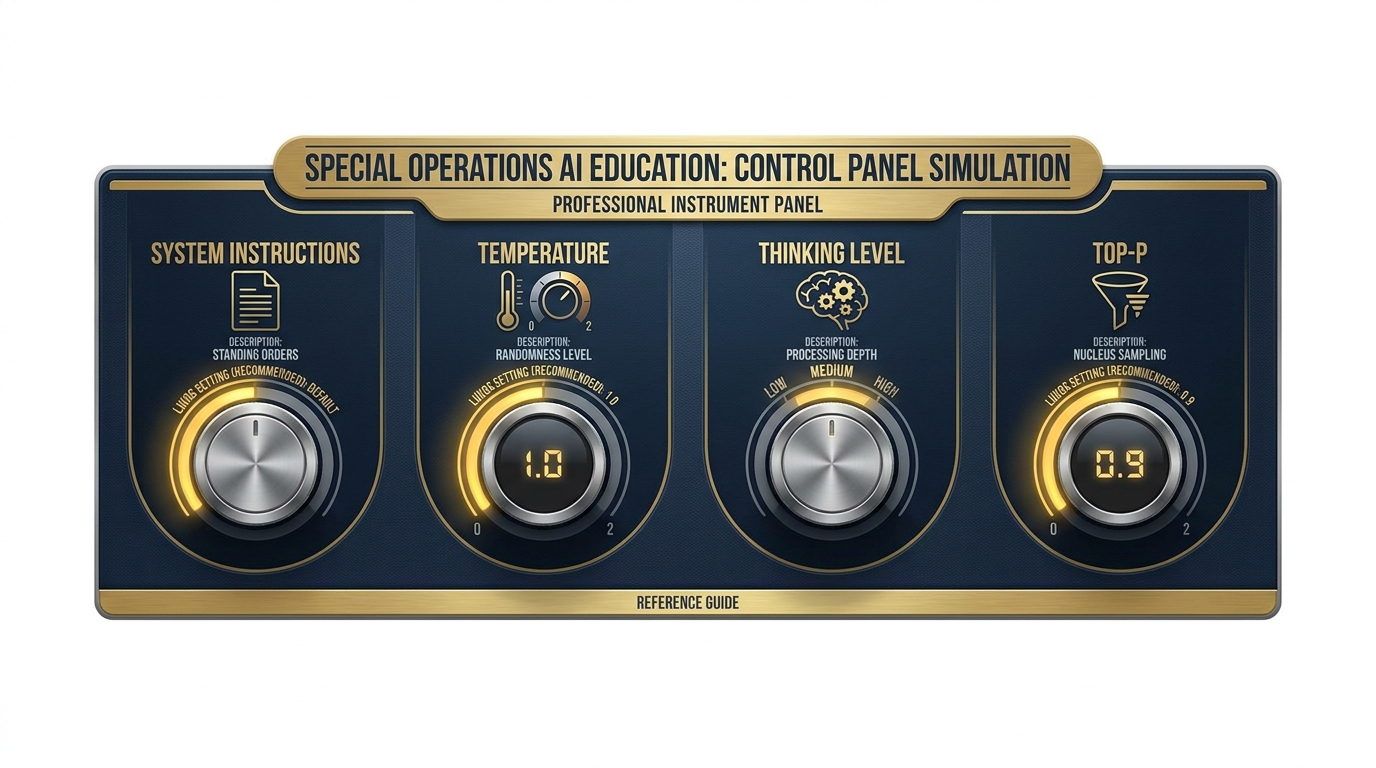
Figure 3.2 — The Control Panel. The four knobs that determine how the AI behaves on every single prompt. Understanding these is the difference between a tool that sometimes works and a tool you can trust.
System Instructions — The Standing Orders
Every military operation runs on standing orders. Before the mission launches, the commander issues guidance that governs everything: rules of engagement, communication protocols, chain of command, priority of effort. Those orders don’t get re-read before every decision — they’re internalized, always operating in the background.
System Instructions are the AI’s standing orders.
They’re a block of text you write once, at the top of your configuration, that the model reads before it reads anything you type in the conversation. They define who the AI is, how it behaves, what format it uses, what it prioritizes, and what it never does. And unlike instructions you type into the chat window, System Instructions are persistent — they apply to every single message in the session, even if the conversation goes twenty turns deep.
Here’s why this is powerful: imagine you’re building an AI assistant for your Lessons Learned team. Without System Instructions, every analyst who opens the tool has to type a lengthy persona instruction at the start of every session — or they forget to, and the output is generic. With System Instructions, the persona is baked in. The AI is already the Lessons Learned analyst before the first message arrives.
They’re also invisible to the conversation. The person using the tool sees only the chat interface. They don’t see the System Instructions. The AI just behaves the way you configured it to behave, consistently, every time.
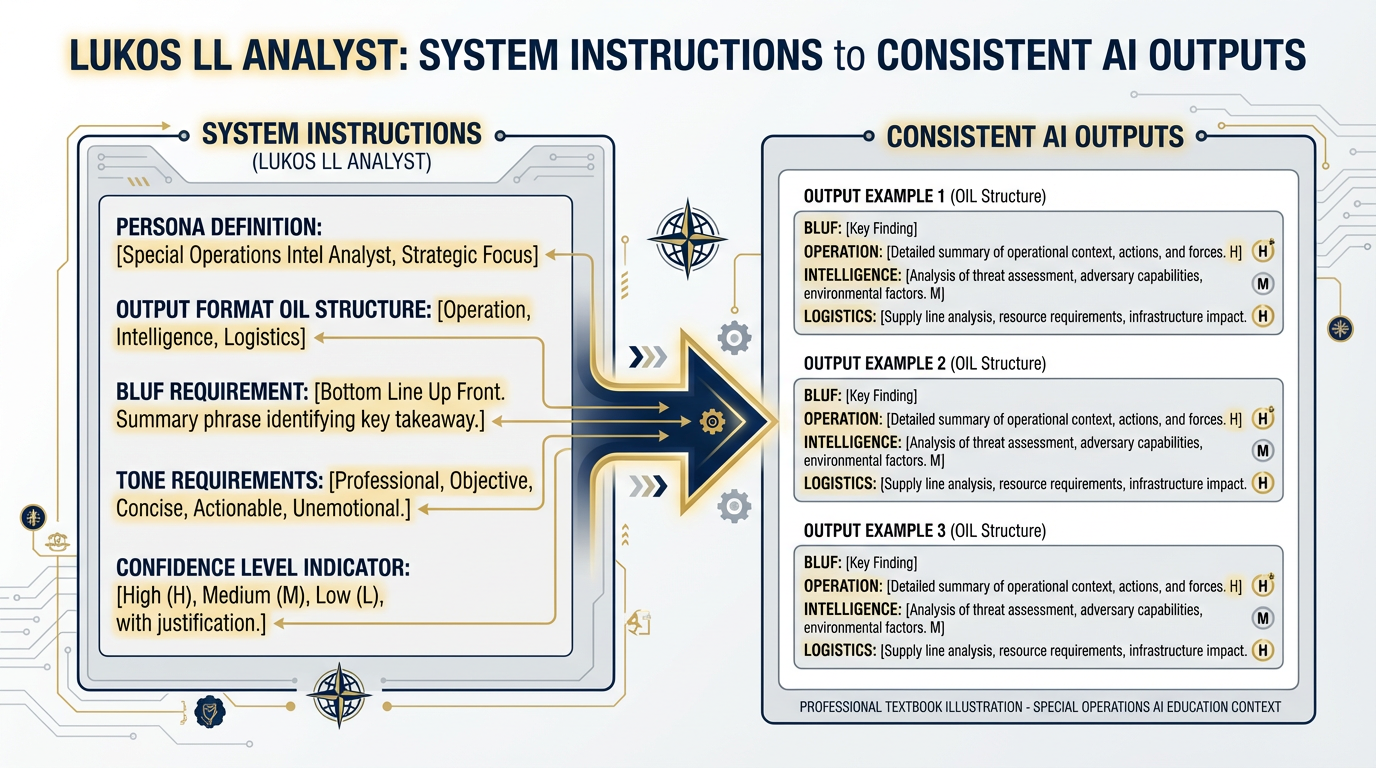
Figure 3.3 — Anatomy of a System Instruction. Each component of a well-crafted system instruction serves a distinct purpose. Persona defines who the AI is. Format sets the output structure. Tone governs register. Constraints enforce quality standards.
Temperature — The Confidence Dial
Here’s the question at the heart of Temperature: How creative do you want the AI to be?
Temperature is a number between 0 and 2 that controls how much randomness — how much creative latitude — the model exercises when it generates each word.
At Temperature 0, the model is fully deterministic. Every time you run the same prompt, you get (very nearly) the same answer. The model picks the statistically most likely next word at every step — it double-checks, it plays it safe, it gives you the most probable response.
At Temperature 2, the model is wide open. It’s sampling from a much broader range of possible next words, including surprising ones. The output is creative, varied, sometimes brilliant — and sometimes incoherent.
Think of Temperature like this: imagine the confidence dial on a new analyst.
Low temperature (0.0–0.3): This is the analyst who double-checks everything before speaking. Before they say anything in the briefing, they’ve verified it twice. They’re precise, consistent, formal. You know exactly what you’re going to get. Perfect for analysis, accuracy, and any output that’s going to a decision-maker.
Mid temperature (0.5–0.7): This is the analyst in a working session. Confident, thoughtful, willing to suggest something unexpected — but still grounded in the facts.
High temperature (0.8–2.0): This is the analyst riffing in a brainstorm. Ideas are coming fast, some are gold, some are tangents. You don’t want this analyst writing the final J7 slide — but you do want them in the ideation session, because they’ll say the thing nobody else thought to say.
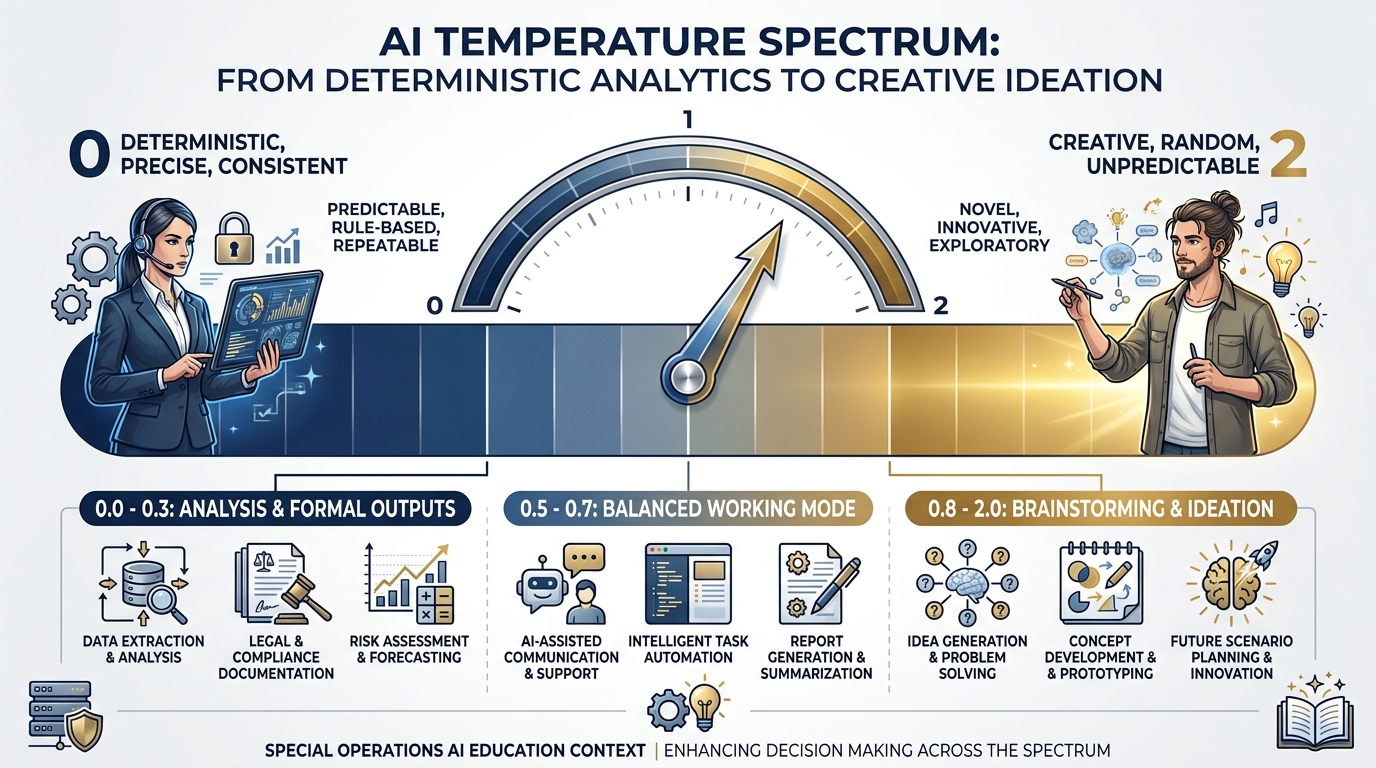
Figure 3.4 — The Temperature Dial. From deterministic precision at 0 to unconstrained creativity at 2. Temperature 2 is the maximum — not 1.0. The Lukos rule: under 0.3 for analysis and formal outputs; 0.7 and above for brainstorming and ideation.
Thinking Level — How Hard Should It Think?
This is one of the newer knobs in AI Studio, and it’s one of the most consequential for mission-critical work.
Thinking Level controls how much internal reasoning the model does before generating its response. In AI terms, this is called a “thinking budget” — measured in tokens, meaning chunks of text that the model processes internally. You’ll see it as Low, Medium, or High in the interface (some models also offer a specific token budget slider).
Here’s the intuition: when you ask someone a simple question, they answer immediately. But if you ask them a genuinely hard analytical question — “What are the systemic factors behind this unit’s recurring coordination failures?” — you want them to think before they answer. You want them to consider multiple possibilities, weigh evidence, check their reasoning, and then give you a synthesized conclusion.
Thinking Level does exactly that for the AI. Higher thinking means the model spends more internal processing on your question before generating the response. The output is more accurate, more nuanced, more likely to catch the thing you didn’t think to ask about.
The tradeoff: higher thinking = slower response and higher API cost. At Low, the model responds in seconds. At High, it can take 20–60 seconds for complex queries.
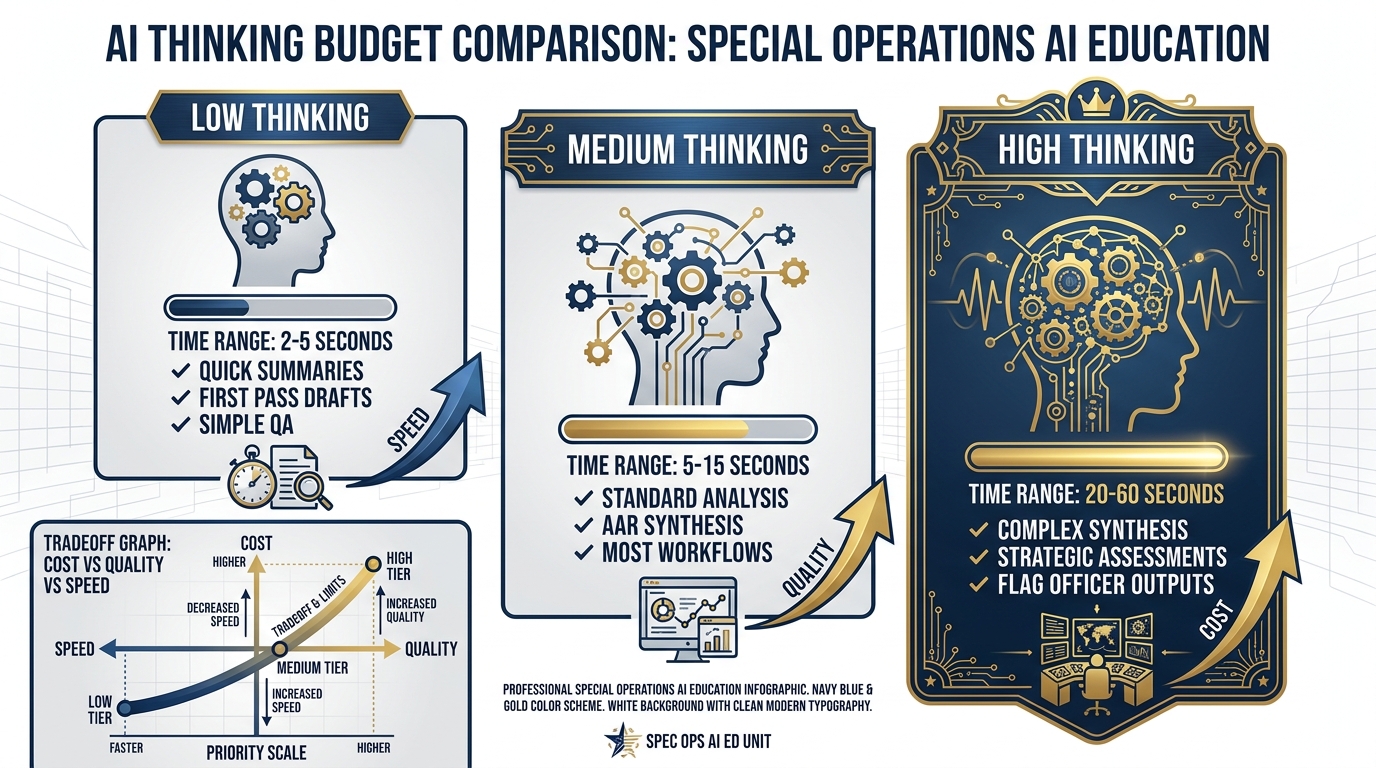
Figure 3.5 — The Thinking Budget. Low thinking for speed, High thinking for depth. The tradeoff is explicit: every step up the thinking ladder costs time and tokens but delivers meaningfully better outputs for complex tasks.
Top-P — The Other Randomness Control
Top-P (also called “nucleus sampling”) is the second randomness dial. If Temperature controls how broadly the model samples possible words, Top-P controls which pool of words it samples from.
At Top-P = 1.0, the model considers all possible words when choosing what to generate next. At Top-P = 0.1, it restricts itself to only the top 10% most likely words.
Here’s the honest operational guidance: leave Top-P at its default for all Lukos work. Temperature and Thinking Level give you all the control you need for mission-relevant outputs. Top-P is a fine-grained parameter for model researchers and ML engineers. Changing it without a specific, validated reason can produce unpredictable interactions with Temperature that degrade output quality.
The only time you’d touch it: if you’re building a production application and have a specific, validated reason to constrain the vocabulary pool. For everything in this book? Default. Move on.
33.3 Tools — The Game Changers
The knobs make the AI smarter and more consistent. The tools make it capable of things that weren’t possible before.
Here’s the shift in mental model: without tools, AI is a text generator. It reads your prompt and writes a response. Sophisticated, yes. Incredibly useful, yes. But ultimately, it’s still just generating text based on patterns learned during training.
With tools, the AI becomes an analytical system. It can return structured data. It can run real calculations. It can search the live web. It can read a specific document at a URL. It can call external functions you define.
That’s not text generation anymore. That’s a thinking, working, capable AI teammate.
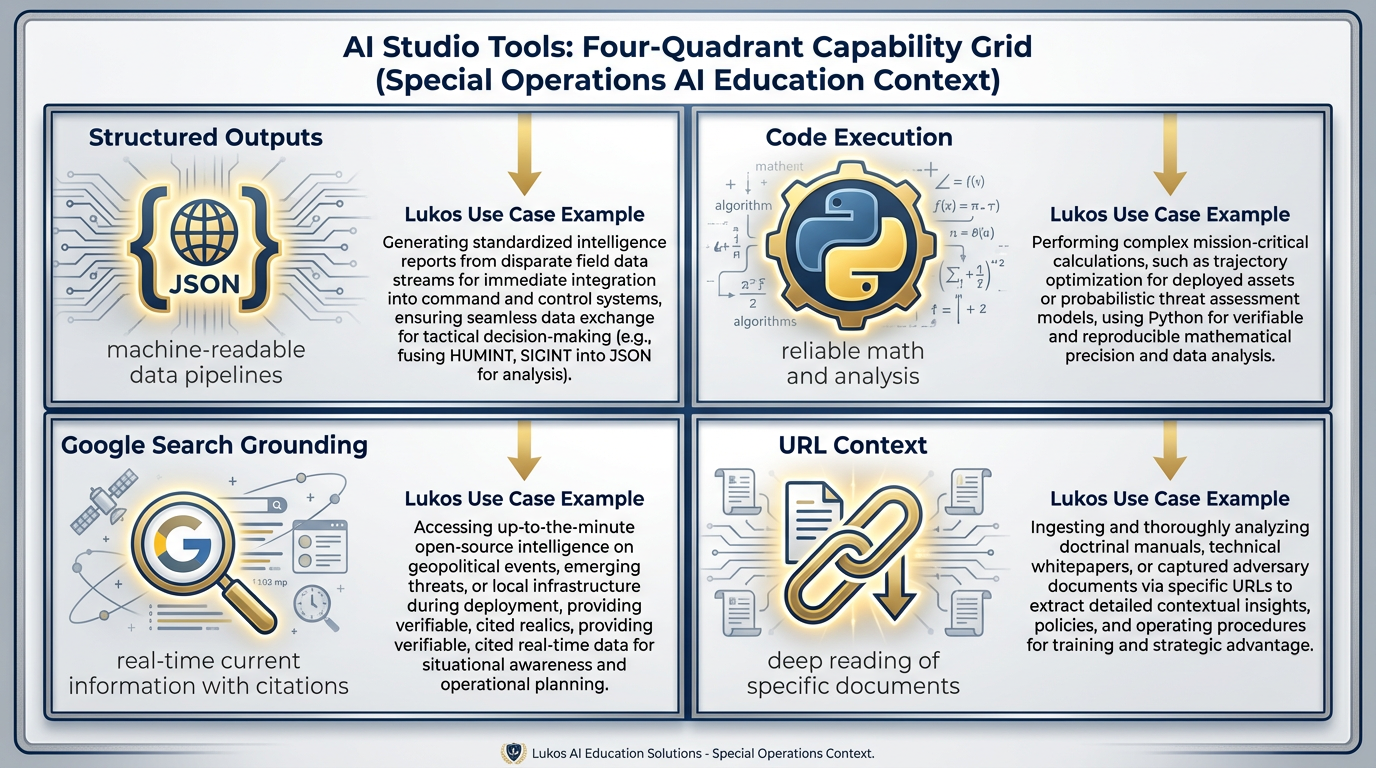
Figure 3.6 — The Four Tools. Each tool transforms what AI can do. Structured Outputs make it machine-readable. Code Execution makes math reliable. Google Search makes it current. URL Context makes it targeted.
Structured Outputs — The Killer Feature for Analysts
BLUF: This is the tool that turns an AI assistant into an analyst pipeline.
Without Structured Outputs, the AI gives you readable text — paragraphs, bullet points, prose. Great for reading. Terrible for integrating into a spreadsheet, database, or automated workflow.
Structured Outputs let you specify an exact output format — called a JSON schema — and the model guarantees its response matches that format. JSON (JavaScript Object Notation) is simply a standardized way of organizing data with labels. Think of it as a spreadsheet that a computer can read.
Here’s the Lukos use case that should make this click:
You have a 15-page AAR. You need to extract every observation, categorize it by type, tag it with unit and date, and enter it into the Lessons Learned database. Right now, an analyst does that manually. It takes two hours per AAR, and the categories aren’t always consistent.
With Structured Outputs, you paste the AAR and tell the AI:
“Extract all observations from this AAR and return them as JSON with fields: observation (the finding), issue (what went wrong or right), location, unit, date, category (one of: Tactical, Technical, Leadership, Coordination, Equipment).”
The model returns clean, structured data — every observation extracted, every field populated, every entry categorized consistently. You copy that JSON into Google Sheets. The two-hour manual process becomes a two-minute automated one.
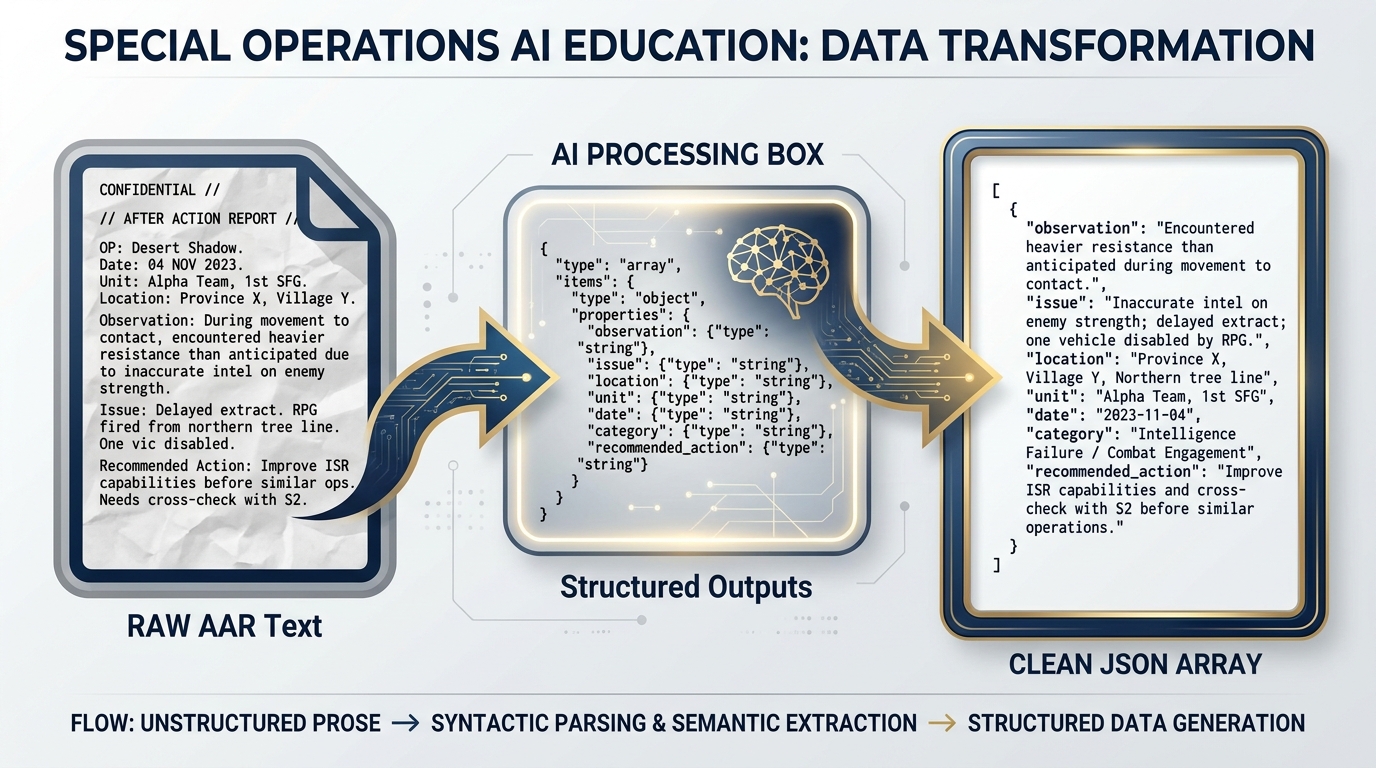
Figure 3.7 — The Extraction Pipeline. Raw AAR text in. Structured, machine-readable observation data out. What used to take an analyst two hours now takes two minutes.
This is the tool that moves Lukos from “AI helps me write things” to “AI processes and structures mission data.” That’s a different order of magnitude.
Code Execution — Math You Can Trust
Here’s an uncomfortable truth about large language models: they’re not great at math. Not because they don’t understand mathematical concepts — they do, deeply. But because they generate answers word by word, probability-driven, and numbers calculated that way can be slightly wrong in ways that compound.
Code Execution solves this completely.
When Code Execution is enabled, the AI doesn’t just describe how it would analyze your data — it actually writes Python code, runs it in a sandboxed environment, and reports the real results. The math is done by an actual Python interpreter, not by the language model’s probability engine.
The Lukos use case: you have a training evaluation dataset — six months of exercise scores, equipment readiness rates, and time-to-complete metrics across multiple units. You paste it into AI Studio with Code Execution enabled and ask:
“Analyze this training dataset. What’s the trend in readiness scores over the last six months? Which unit has the highest variance? Are there any outliers that warrant follow-up?”
Without Code Execution: the model gives you its best guess based on the data you provided — a plausible analysis that might have rounding errors or misread correlations.
With Code Execution: the model writes Python code to parse the data, calculate statistics, identify trends, and flag outliers. It runs that code. It gives you verified numbers. Then it explains what they mean in plain English.
That’s the difference between an AI that guesses and an AI that computes.
Grounding with Google Search — Staying Current
Every AI model has a training cutoff — a date beyond which it knows nothing, because its training data ended there. Ask Gemini about a report published last month and it may tell you it doesn’t have that information, or worse, it may confabulate (the technical term for what happens when AI makes things up that sound plausible).
Grounding with Google Search fixes this by giving the AI access to live web search at inference time. When you enable this tool, the model can search Google during your conversation, retrieve current information, and cite its sources.
The analogy: your analyst was on a six-month deployment with no internet. They came back incredibly smart but behind on current events. Grounding gives them a phone to look things up in real time.
The Lukos use cases:
“What are the current SOCOM training standards for partner nation forces?” — with grounding, the model searches for current doctrine and cites it
“Summarize recent GAO findings on special operations training effectiveness” — with grounding, it retrieves actual recent reports
“What’s the current status of [partner nation] military reform efforts?” — with grounding, it can pull current news and analysis
When to turn it off: Grounding adds latency (the model has to search, retrieve, and process results) and cost. For work where you’re analyzing your own documents — AARs, internal reports, proprietary data — grounding with web search adds nothing and slows you down. Turn it off for internal document work. Turn it on when you need current external information.
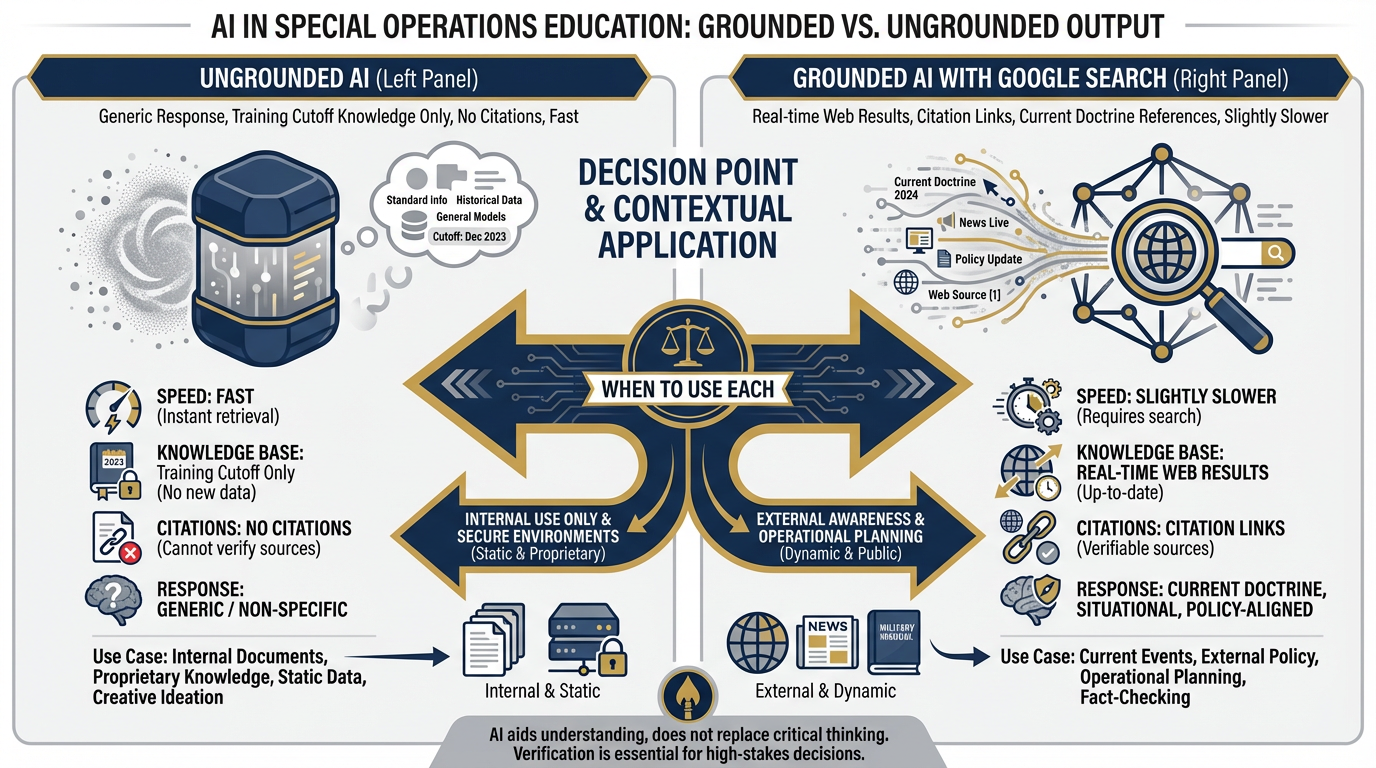
Figure 3.8 — Grounded vs. Ungrounded. Grounding with Google Search adds real-time citations and current information. For internal document analysis, it’s overhead. For external policy and current events, it’s essential. Know when to flip the switch.
URL Context — Read This Specific Document
URL Context lets you hand the model a web address and have it read that page deeply before responding. Not a search — a direct read of a specific document.
The Lukos use case: There’s a GAO report on special operations training that just dropped. It’s 180 pages. You paste the URL into AI Studio with URL Context enabled and ask:
“Read this report and give me: 1) a BLUF summary, 2) the three findings most relevant to partner nation training effectiveness, 3) any recommendations that Lukos should flag for J7 review.”
Instead of spending two hours reading the report, your analyst gets a targeted three-minute summary — and the citations link back to the actual pages in the document.
You can also use URL Context for training materials, doctrine references, partner nation documents, publicly available exercise reports, and any web-accessible resource you want the AI to analyze in context.
Function Calling — Your Own Tools
Function Calling is the most advanced tool in AI Studio — the one you don’t need to build yet, but absolutely need to know exists.
Here’s what it does: it lets you define your own custom tools and give them to the AI. The model decides when to use them, calls them with the right parameters, and integrates their results into the response.
Example: you define a function called query_lessons_learned_database that searches your internal Lukos database for observations matching specific criteria. The model, in the middle of a conversation, decides it needs to search that database to answer your question. It calls your function. Your function returns results. The model incorporates those results into its answer.
You don’t need to build this in week one. But understanding it exists changes your sense of what’s possible. A Lukos AI system with Function Calling isn’t just an assistant — it’s an analyst with access to your full institutional knowledge base.
43.4 The Model Carousel — What’s Available
Not every mission calls for the same weapon. You don’t bring the M110 to a close-quarters drill. AI models are the same: different models optimized for different tasks, with different tradeoffs of accuracy, speed, and cost.
AI Studio gives you access to the full Gemini model family — and understanding who to reach for when is an operational skill. The full current model list lives at ai
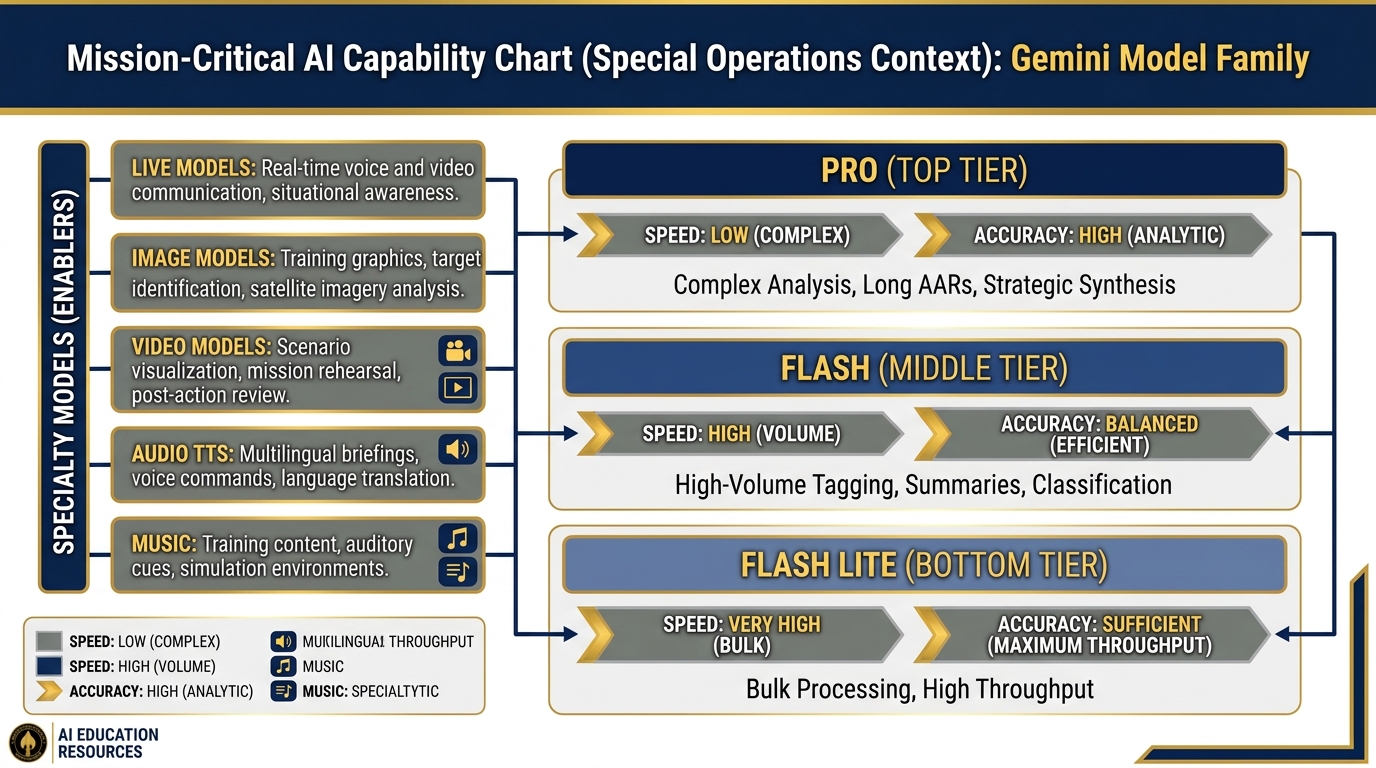
Figure 3.9 — The Model Carousel. From high-accuracy strategic analysis (Pro) to high-throughput bulk processing (Flash Lite). Matching the model to the task is the analyst’s skill.
Gemini 3.1 Pro — The Brain
Gemini 3.1 Pro is Google’s most advanced model as of early 2026, available in Preview in AI Studio. It delivers the highest benchmark scores in the Gemini family — including ARC-AGI-2 (novel problem-solving) and GPQA (expert-level reasoning) — and is the right choice when accuracy and depth matter most.
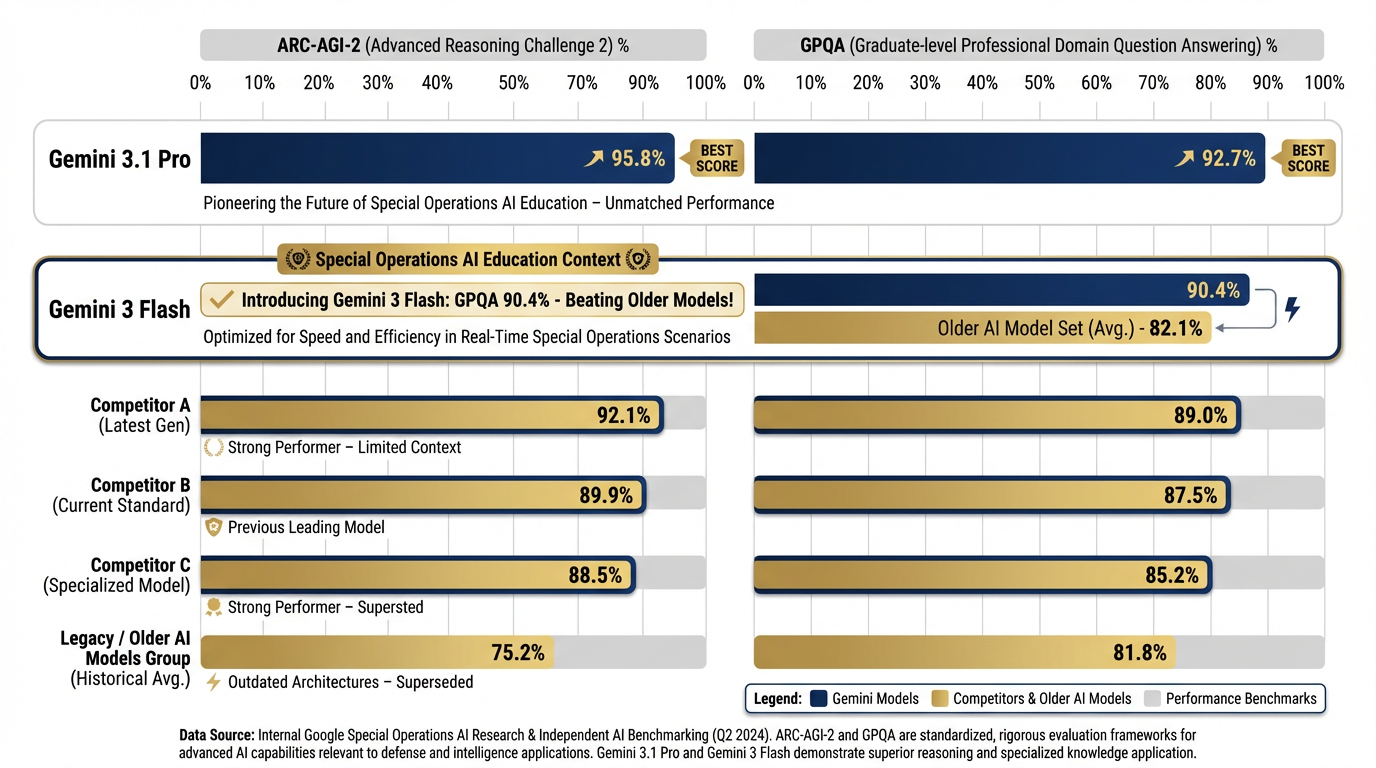
Figure 3.10 — Gemini 3.1 Pro Benchmarks. Gemini 3.1 Pro leads on complex reasoning (ARC-AGI-2) while Gemini 3 Flash’s GPQA score of 90.4% exceeds older flagship models from any vendor. Benchmark scores from ai
Gemini 3.1 Pro has the largest context window in the family — enough to hold hundreds of pages of text in a single session — and the most sophisticated multi-step analysis capabilities.
When to use 3.1 Pro:
Complex, multi-document analysis requiring synthesis across many sources
Long AARs requiring deep extraction and pattern identification
Strategic assessments going to senior leadership
Any analysis where accuracy matters more than speed
Tasks requiring the highest level of nuance and judgment
The tradeoff: 3.1 Pro is slower than Flash and costs more per token in API usage. For one-off complex tasks, this is irrelevant. For bulk processing of hundreds of documents, use Flash.
Lukos example: “Synthesize these twelve AAR documents from the last three exercises and identify systemic patterns in coordination failures.” That’s a 3.1 Pro task — you want the brain fully engaged, even if it takes 45 seconds.
Gemini 3 Pro — The Production Workhorse
Gemini 3 Pro is the GA (generally available) flagship — meaning it’s out of preview and ready for production use. When you need Gemini’s full analytical power in a stable, production-quality deployment, 3 Pro is your anchor.
When to use 3 Pro:
Production pipelines where stability matters more than cutting-edge preview features
Accuracy-critical outputs at scale
Any workflow where 3.1 Pro preview access might be intermittent
Gemini 3 Flash — The Daily Driver
Gemini 3 Flash is the model you’ll use most often. It’s fast, exceptionally capable, and purpose-built for the high-volume, steady-state analytical work that defines a Lessons Learned operation. Its GPQA score of 90.4% exceeds what older flagship models achieved — this is not a “lite” model in any meaningful sense.
Flash costs approximately $0.50 per million tokens and runs at a fraction of Pro’s latency while still delivering genuinely impressive reasoning. For 80% of Lukos use cases, Flash is the right call.
When to use Flash:
High-volume first-pass classification of observation sets
Quick summaries of single documents
Draft generation that gets reviewed before use
Real-time responses in interactive tools
Any workflow where you’re processing many documents
Lukos example: “I have 200 observation entries from the quarterly exercise. Classify each one by category (Tactical, Technical, Leadership, Coordination, Equipment) and flag anything that needs analyst review.” That’s a Flash task — volume and speed matter, and Flash handles it with room to spare.
Gemini 3.1 Flash-Lite — High Throughput
Gemini 3.1 Flash-Lite (Preview, ~$0.25/1M tokens) is optimized for the highest possible throughput at the lowest cost. It sacrifices some reasoning depth for speed and scalability.
When to use Flash-Lite:
Bulk classification of very large datasets (thousands of entries)
Simple extraction tasks where the schema is rigid and the task is unambiguous
Preprocessing pipelines that generate data for human review rather than final outputs
Lukos example: “I have 3,000 training evaluation records. For each one, extract the date, unit, exercise type, and score, and return them as structured JSON.” Flash-Lite handles bulk extraction efficiently at the lowest cost point in the family.
Gemma 4 — Open-Weight, On-Premises Option
Gemma 4 (released April 2, 2026) is Google’s open-weight model family — available for download, self-hosting, and fine-tuning under the Apache 2.0 license. This is significant for Lukos because it means running AI on a classified network or air-gapped environment without sending data to Google’s servers.
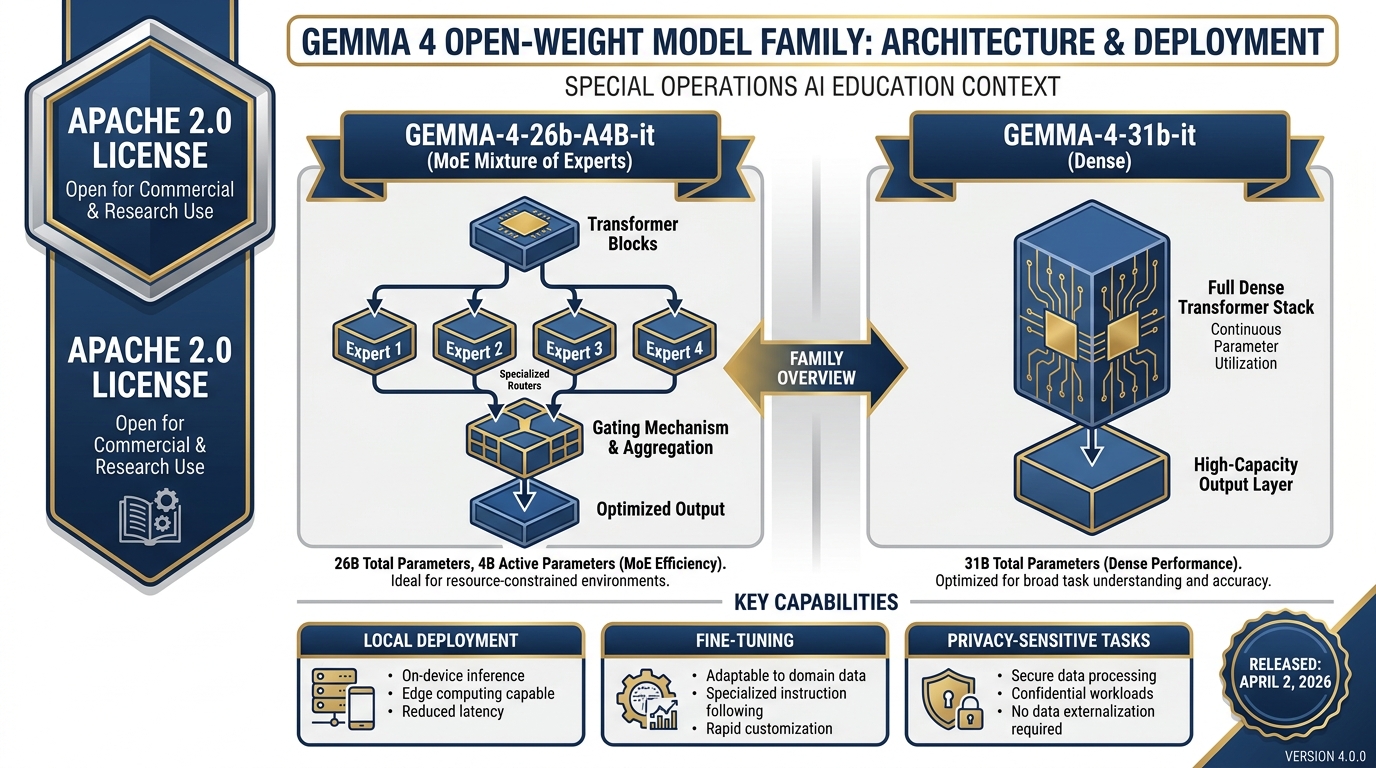
Figure 3.11 — Gemma 4 Open-Weight Models. Two variants — a 26B MoE (sparse, efficient) and a 31B dense model — both available for self-hosting under Apache 2.0. Available in AI Studio for prototyping; deployable anywhere for production. Full changelog at ai
Two variants are available:
gemma-4-26b-a4b-it — 26B parameter Mixture-of-Experts (MoE) architecture. Efficient — only activates a fraction of parameters per token, making it faster and cheaper to run than its parameter count suggests.
gemma-4-31b-it — 31B parameter dense model. Heavier but more consistent for complex reasoning tasks.
Lukos applications for Gemma 4:
CUI (Controlled Unclassified Information) processing on a Lukos-controlled server
Fine-tuning on Lukos-specific terminology, doctrinal language, and AAR formats
Air-gapped environments where no external API call is permitted
Reducing dependency on cloud APIs for cost-sensitive high-volume work
Note: Gemma 4 is prototypable in AI Studio before you commit to a self-hosted deployment. Test capability there first.
Live Models — Real-Time Voice and Video
This is where AI Studio gets genuinely remarkable for certain Lukos applications.
Gemini Live models support real-time bidirectional audio and video. You speak, the AI speaks back — with natural conversational turn-taking, not the stilted pause-and-respond pattern of older voice interfaces. You can share your screen or camera feed and have the AI analyze what it sees in real time.
Lukos applications:
AI tutor during training events: A facilitator runs a tabletop exercise. A Live AI is available as a subject-matter resource — units can ask it questions in natural voice and get immediate, informed responses without pulling the facilitator away from facilitation.
Ghost teammate during workshops: In a design sprint or lessons learned extraction session, the Live AI sits in as an active participant — listening, taking notes, flagging connections across what different people are saying, and summarizing every 30 minutes without being asked.
After-hours study partner: An analyst doing self-directed professional development can have a live conversation with an AI tutor about doctrine, TTPs, or case studies — much more effective than reading alone.
Image Models — Imagen / Gemini Image
The image generation capability in the Gemini ecosystem — sometimes called Nano Banana in Lukos internal shorthand, officially Imagen on the Google side — generates high-quality images from text descriptions.
Lukos applications:
Training scenario visualizations: “Generate an aerial diagram of a two-vehicle overwatch position at a T-intersection in urban terrain”
Briefing graphics: “Create a professional infographic showing the three phases of partner nation capability development”
Exercise materials: “Illustrate a command post setup for a battalion-level training event”
Course graphics and instructional materials
Video — Veo 3.1
Veo 3.1 is Google’s current text-to-video model. You describe a scene in text; Veo generates a video clip. As of April 2026, Veo 3.1 is available free to all Google accounts — no enterprise plan required.
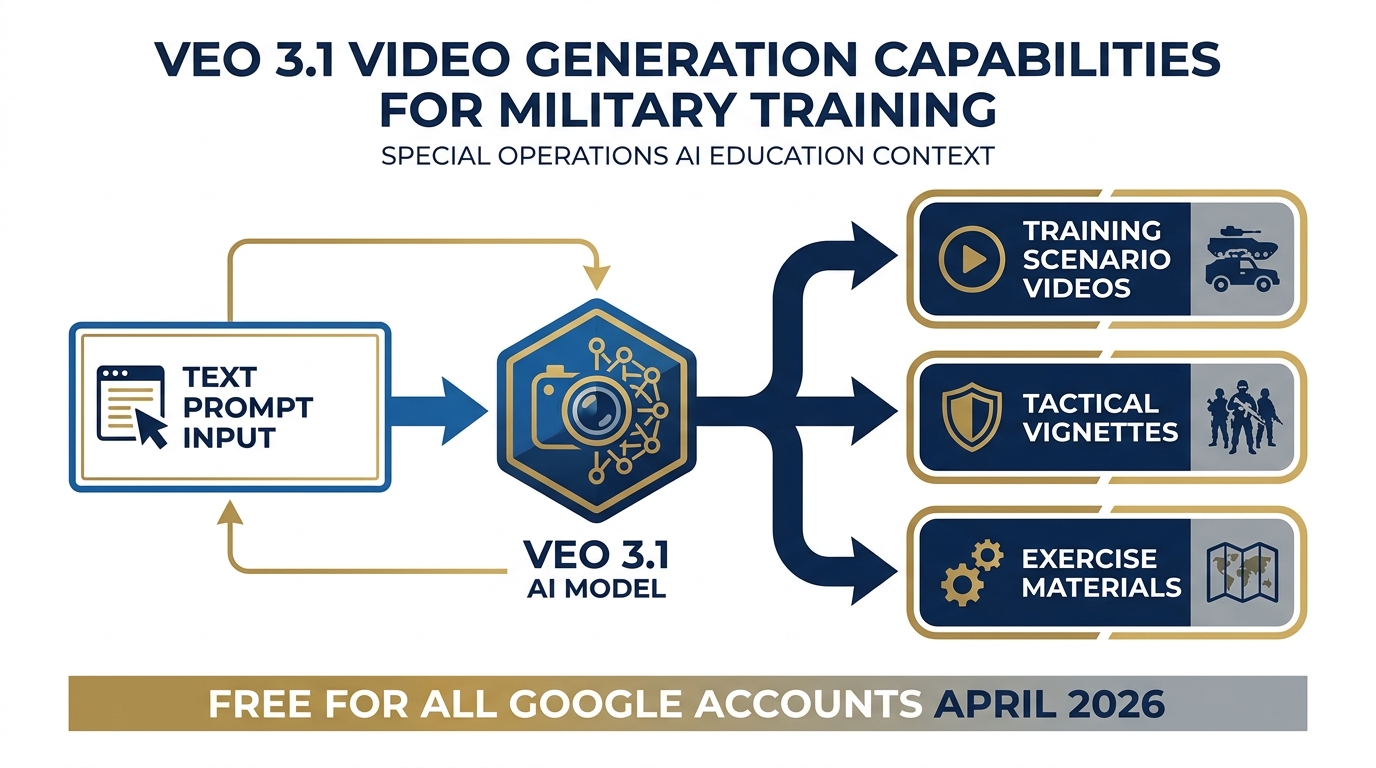
Figure 3.12 — Veo 3.1 Capabilities. From text description to training video in minutes. Free for all Google accounts as of April 2026. Veo 3.1 produces cinematic-quality clips useful for exercise vignettes, scenario illustrations, and capability demonstrations.
Lukos applications:
Training video prototypes: rapid creation of scenario visualizations without film crews or production budgets
Exercise vignettes: illustrating complex tactical situations for classroom instruction
Concept demonstration videos for program proposals
Note: Veo outputs require review before use in official training materials. The model is powerful but not infallible, and generated videos should always be verified for accuracy.
Audio TTS — 70+ Languages
Gemini’s audio TTS (Text-to-Speech) capability generates high-quality spoken audio from text in over 70 languages.
Lukos applications:
AAR audio briefings: convert written lessons learned summaries into spoken audio for distribution to units without reading time
Multilingual partner support: generate briefings in partner nation languages for distribution
Accessibility: ensure training materials are accessible to personnel with reading difficulties
Music — Lyria 2
Lyria 2 is Google’s current AI music generation model, available on Vertex AI. It generates original music from text descriptions of style, mood, instrumentation, and tempo.
Lukos applications:
Training video underscores: appropriate background music for exercise documentation and training videos
Podcast pilots: background scoring for audio productions
Presentation ambiance: opening music for training events and workshops
53.5 The Build Tab — From Prompt to Prototype App
Now we cross from configuration to creation.
Everything you’ve done in the Prompt tab — setting system instructions, tuning knobs, enabling tools, testing prompts — has been configuration and testing. The Build tab takes that configuration and turns it into an application.
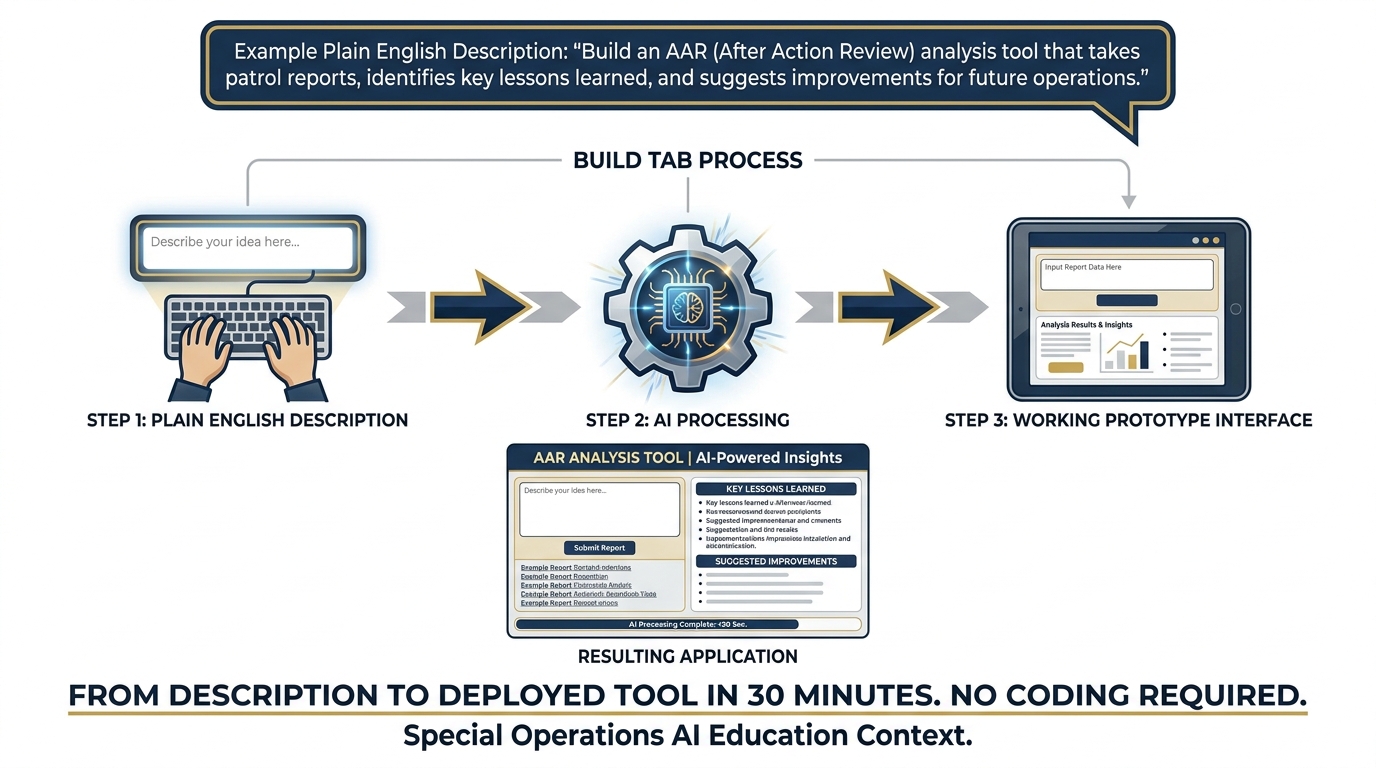
Figure 3.13 — From Description to App. The Build tab takes your AI configuration and a plain-English description, and produces a working prototype application. No coding required.
What “Vibe Coding” Means
You may hear the term “vibe coding” — a phrase that captured the tech world’s imagination in 2024 and 2025. It describes a new paradigm for building software: instead of writing code, you describe what you want in plain English and watch the AI build it.
The Build tab in AI Studio is a vibe coding interface. You describe your application in natural language — “I want a tool where I paste an AAR and it returns a BLUF summary, a numbered list of observations, and a list of recommended lessons” — and the system generates a working prototype. Not a mockup. Not a wireframe. A functional application you can test immediately.
For the Lukos team, this is operationally significant. Your analysts, ORSAs, and program managers have deep subject-matter expertise. They know exactly what tools would make their work better. What they’ve lacked is the ability to build those tools. Vibe coding changes that equation.
The skill required is no longer “can you write Python?” It’s “can you clearly describe what you need?” Operators who are highly articulate about their workflow — which describes every person on the Lukos team — are natural builders in this paradigm.
API Keys — What They Are and Why They Matter
When you click Build and begin creating applications, you’ll encounter API keys. Understanding what these are is essential before you generate one.
An API key is a secret string of characters — typically something like AIzaSyBxxxxxxxxxxxxxxxx — that authenticates your application’s requests to Google’s AI services. Think of it as a password that your application uses to access the AI on your behalf.
Why it matters: your API key is linked to your billing account. Every time code uses your key to make a request to the Gemini API, Google charges that cost to your account. If your key is compromised — if someone else gets access to it — they can make requests at your expense. Depending on their usage, those charges could be substantial.
The two rules you must internalize:
Never check an API key into version control. If you’re storing code in GitHub, GitLab, or any repository, never put your API key in the code. It becomes public the moment you push. Use environment variables instead.
Never paste an API key into a chat window. Not here. Not in email. Not in Slack. Not anywhere. If you accidentally expose a key, immediately go to console
.cloud .google .com, find the key, and revoke it. Generate a new one.
Getting your API key:
In AI Studio, click “Get API key” in the left navigation
Click “Create API key”
Select your Google Cloud project (or create a new one)
Copy the key immediately — store it in a password manager, not a text file on your desktop
63.6 Lukos Build Ideas Worth Prototyping Today
Theory without application is just vocabulary. Here are three concrete applications you could prototype in AI Studio’s Build tab right now, today, with the tools you’ve already learned in this chapter.
Each one addresses a real Lukos workflow bottleneck. Each one would take an experienced developer days to build from scratch. In AI Studio, each is a 30-minute prototype.
Prototype 1: PDF AAR to Structured Observation Set
The problem: An analyst receives a 20-page AAR. They need to extract all observations, categorize them, and enter them into the Lessons Learned database. This process takes two to three hours, involves manual transcription, and introduces inconsistencies when different analysts handle different AARs.
The prototype: A tool with a single input (paste AAR text) and a structured output: every observation extracted as JSON, pre-categorized, ready to import into a spreadsheet or database.
What you’d describe in the Build tab:
“I want a tool where I paste the text of an After Action Review (AAR). The tool analyzes the text and returns every observation in structured format with these fields: observation (the finding), issue (what problem or success it reveals), unit, date (if mentioned), location (if mentioned), category (Tactical / Technical / Leadership / Coordination / Equipment), and recommended_action (what should be done with this finding). Format the output as a clean table I can copy into Google Sheets.”
The impact: A two-hour manual process becomes a two-minute automated one. Analysts spend their time on judgment and synthesis, not transcription.
Prototype 2: Foreign-Language Partner Document Translator with Embedded Glossary
The problem: Partner nation documents arrive in Arabic, Spanish, Portuguese, French, or other languages. Translation takes time, and standard machine translation misses military-specific terminology — creating ambiguity in the translated output.
The prototype: A tool that translates partner documents and builds an embedded glossary of military terms, flagging any terms where the translation required judgment and noting the original-language term alongside the English equivalent.
What you’d describe in the Build tab:
“I want a translation tool for military documents. I paste a document in any language. The tool returns: 1) a complete English translation maintaining military precision, 2) an embedded glossary of all military/technical terms with the original-language term, the English translation, and a brief contextual note about the term’s meaning in military context, 3) any flagged passages where translation was ambiguous or required interpretation. Maintain the original document structure (sections, headings, lists) in the translation.”
The impact: Partner coordination moves faster. Ambiguities are surfaced explicitly rather than buried. The glossary accumulates over time into a Lukos-specific military translation reference.
Prototype 3: Training Evaluation Trend Analyzer
The problem: Exercise data accumulates across quarters — unit scores, readiness metrics, time-to-complete data, equipment availability rates. Identifying trends requires someone to build formulas in spreadsheets, generate charts, and write an analysis narrative. That takes a skilled analyst several hours and doesn’t happen consistently.
The prototype: A tool that accepts tabular training data, runs statistical analysis using Code Execution, generates visualization descriptions, and produces a narrative trend analysis ready for a J7 briefing.
What you’d describe in the Build tab:
“I want a training trend analysis tool. I paste training evaluation data (in CSV or table format) covering multiple units and time periods. The tool: 1) calculates trend lines for each key metric (readiness score, exercise completion rate, equipment availability), 2) identifies the three most significant positive trends and three most significant negative trends, 3) flags any unit or metric that is outlier-level underperforming or overperforming, 4) writes a BLUF narrative summary of findings suitable for inclusion in a J7 quarterly briefing. Use code to perform actual statistical calculations.”
The impact: Quarterly training analysis that took half a day becomes a 15-minute process. The narrative is consistent in format across quarters. The analyst’s time is spent validating and contextualizing the output, not generating it.
73.7 Hands-On Labs
Every concept in this chapter becomes real through practice. The following labs are structured for the Lukos team environment — a mix of group work and individual exploration, with progressively increasing depth.
Read through the full lab instructions before starting. Tier 1 gets you comfortable. Tier 2 builds the core skill. Tier 3 is the moment the room goes quiet.
Group Lab: The Knob-by-Knob Drill
Objective: Understand how System Instructions and Temperature change AI behavior in ways you can see, compare, and make informed decisions about.
Setup: One facilitator, all participants on their own laptops. Facilitator walks through Tier 1 together, then Tier 2 and Tier 3 run simultaneously across the group with facilitator circulating.
Tier 1 — The On-Ramp (5 minutes)
Step 1. Go to aistudio.google.com and sign in with your Google account.
Step 2. Click “New prompt” in the top left.
Step 3. In the right panel, find “System instructions” and click to expand it. Paste the following text exactly:
You are a Lessons Learned Analyst supporting the Lukos Group, a special operations support organization working with USSOCOM partner units. Your role is to extract, categorize, and synthesize observations from After Action Reviews (AARs), training event reports, and operational debriefs. Format all outputs using standard OIL structure: Observation, Issue, Lesson. Always write in BLUF format — Bottom Line Up Front. State the key finding in the first sentence, then support it with evidence. Maintain a professional, precise military tone.
Step 4. In the center prompt field, type exactly:
What are the three most common failure modes in special operations training exercises?
Step 5. Click the Send button (or press Enter). Read the output.
Observe: Notice the tone. Notice the format. Notice how the response defaults to BLUF and military structure — because the system instruction set that standard before you typed a single word.
Tier 2 — The Core Rep (15 minutes)
Now you’re going to observe the temperature effect directly.
Step 1. In the right panel, find Temperature. Note the current setting. Change it to 0.1.
Step 2. In the prompt field, type the exact same question as Tier 1:
What are the three most common failure modes in special operations training exercises?
Send it. Read the output.
Step 3. Change Temperature to 1.8. Run the same question again.
Step 4. You now have two outputs (0.1 and 1.8). Compare them using this table — fill it out for each output:
| Low Temp (0.1) | High Temp (1.8) | |
|---|---|---|
| Tone (formal / casual) | ||
| Structure (consistent / variable) | ||
| Surprising observations (yes / no) | ||
| J7 brief ready? (yes / needs edit / no) | ||
| Best use case |
Group discussion (5 minutes): Which output would you actually use in a J7 briefing? Why? Which output generated something you hadn’t thought of before? When would that matter?
Tier 3 — The Wow Moment (25 minutes)
This is the one that changes how analysts think about their workflow.
Step 1. In AI Studio, click “New prompt” to start fresh. Re-paste the Lukos Lessons Learned system instruction from Tier 1.
Step 2. In the right panel, scroll down to “Output” or “Response format” and find Structured output (or JSON mode — the label varies slightly by interface version). Enable it.
Step 3. When structured output is enabled, you’ll see a JSON schema editor appear. Set the schema to the following (you can type or paste this):
{
  "type": "array",
  "items": {
    "type": "object",
    "properties": {
      "observation": {"type": "string"},
      "issue": {"type": "string"},
      "location": {"type": "string"},
      "unit": {"type": "string"},
      "date": {"type": "string"},
      "category": {
        "type": "string",
        "enum": ["Tactical", "Technical", "Leadership", "Coordination", "Equipment"]
      },
      "recommended_action": {"type": "string"}
    }
  }
}
Step 4. In the prompt field, paste the following sanitized AAR excerpt, then add the extraction instruction below it:
AFTER ACTION REVIEW — EXERCISE IRON BEAR 24-3 Unit: 3rd SFG (A), 1st Battalion | Location: Camp Mackall, NC | Date: 14-18 October 2024
Phase 1 (Infiltration): The SF ODA successfully infiltrated the objective area via vehicle patrol, arriving 22 minutes ahead of schedule. Rehearsal was thorough and evident in the patrol’s movement discipline. No deviations from the planned route. One vehicle experienced a tire failure at grid coordinate 34S NC 45210 87630; the team executed immediate action drills correctly and recovered in under 8 minutes without compromising the mission timeline.
Phase 2 (Link-Up with PN Forces): Link-up with the partner nation platoon was delayed 47 minutes due to a communication mismatch between the ODA’s Harris radios and the partner unit’s legacy VHF equipment. This failure was identified in pre-mission planning but not resolved. The ODA commander improvised with handheld consumer radios, which worked but created an OPSEC concern. This is the third consecutive exercise in which PN communication compatibility has caused delays.
Phase 3 (Objective): The objective was executed within acceptable parameters. The assault element breached the outer perimeter in 6 minutes against a targeted 8-minute standard. The support element, however, did not establish overwatch before the breach commenced, creating a 90-second window of unsupported assault. The assault element leader noted the gap in real time but proceeded rather than delay — a judgment call that worked, but that would have been catastrophic in a high-threat environment.
Phase 4 (Exfiltration): Weather conditions deteriorated during exfiltration. The team adapted effectively, demonstrating strong small-unit leadership in dynamic conditions. One medical kit was left at the objective — discovered during post-mission accountability. No casualties or significant equipment losses otherwise.
Extract all observations from this AAR. Return them as structured JSON matching the provided schema. For each observation, identify the finding, the issue it reveals, location, unit, date, category, and a recommended action.
Step 5. Send the prompt.
Step 6. The model returns a JSON array. Each observation is extracted, categorized, and formatted. Now:
Copy all the JSON output (Ctrl+A in the output box, then Ctrl+C)
Open a new browser tab and go to sheets.google.com
Create a new spreadsheet
Click on cell A1 and paste (Ctrl+V)
Google Sheets will ask if you want to split the JSON data. If it doesn’t automatically parse it, you can use Data → Split text to columns or paste into a JSON-to-CSV converter at csvjson
You now have a structured spreadsheet of every observation from the AAR, consistently categorized and ready for the Lessons Learned database.
That pipeline — AAR text in, structured database entries out — is what Lukos analysts spend hours building manually.
Individual Lab: Build Your First AI Studio Prototype
Objective: Move from configured AI assistant to a deployed prototype application.
Setup: Individual work. Tiers build sequentially — complete each before moving to the next.
Tier 1 — Your Real Question (5 minutes)
Step 1. Open aistudio.google.com.
Step 2. Create a new prompt. Paste the Lukos Lessons Learned Analyst system instruction from the Group Lab.
Step 3. Think of one real question from your actual work this week. Not a test question — a real one. Something you actually need to know or analyze.
Examples (use yours, not these):
“What are the most common causes of coordination failure during multinational exercises?”
“Help me outline an AAR synthesis for a training event that had mixed unit performance”
“Draft talking points for a J7 brief on partner nation training gaps”
Step 4. Type your question. Send it. Read the output carefully.
Evaluate: Does the response treat you as a subject matter expert? Is it formatted in a way that’s useful for your actual workflow? Would you use any part of this in real work?
Tier 2 — Grounded vs. Ungrounded (15 minutes)
Step 1. In the right panel, find Tools and enable “Ground with Google Search.”
Step 2. Run the same question from Tier 1 again (copy and paste it). Read the output.
Step 3. Compare the two outputs (ungrounded from Tier 1, grounded from Tier 2):
Did the grounded output cite any specific sources? (Look for citation links in the response)
Did it introduce any information the ungrounded version missed?
Did grounding add value for your specific question, or did it add noise?
Was the grounded response noticeably slower?
Analysis: For most Lukos internal-document analysis tasks, grounding adds latency and introduces external information that may not be relevant. For questions about current doctrine, external policy, or recent events, grounding is essential.
Tier 3 — Your First Prototype App (25 minutes)
This is the tier where you stop being a user of AI and start being a builder of AI tools.
Step 1. In AI Studio, click “Build” in the top navigation (next to “Prompt”).
Step 2. You’ll see a description field. Type the following in plain English — exactly as written:
I want a simple tool for Lessons Learned analysts. The user pastes the text of an After Action Review into a text box. When they click “Analyze,” the tool returns three things: 1) a BLUF summary (one paragraph, bottom line up front), 2) a numbered list of observations in OIL format (Observation, Issue, Lesson), and 3) a numbered list of recommended actions the unit should take based on the findings. The interface should be clean and professional, appropriate for a military analytical environment.
Step 3. Click “Build” or “Generate” (the exact button label varies). Wait 15–30 seconds.
Step 4. The system generates a prototype application. You’ll see a working interface — a text input area, an Analyze button, and output sections. It is functional. You can test it now.
Step 5. Click into the text input area of your prototype and paste the AAR excerpt from Tier 3 of the Group Lab (the EXERCISE IRON BEAR text). Click Analyze.
Step 6. Read the output. Evaluate:
Does it produce a clear BLUF?
Does it identify observations in OIL format?
Does it suggest actionable recommendations?
Step 7. Take a screenshot of your prototype in action (on Mac: Cmd+Shift+4; on Windows: Win+Shift+S). This is your first prototype application, built in under 30 minutes, with zero coding.
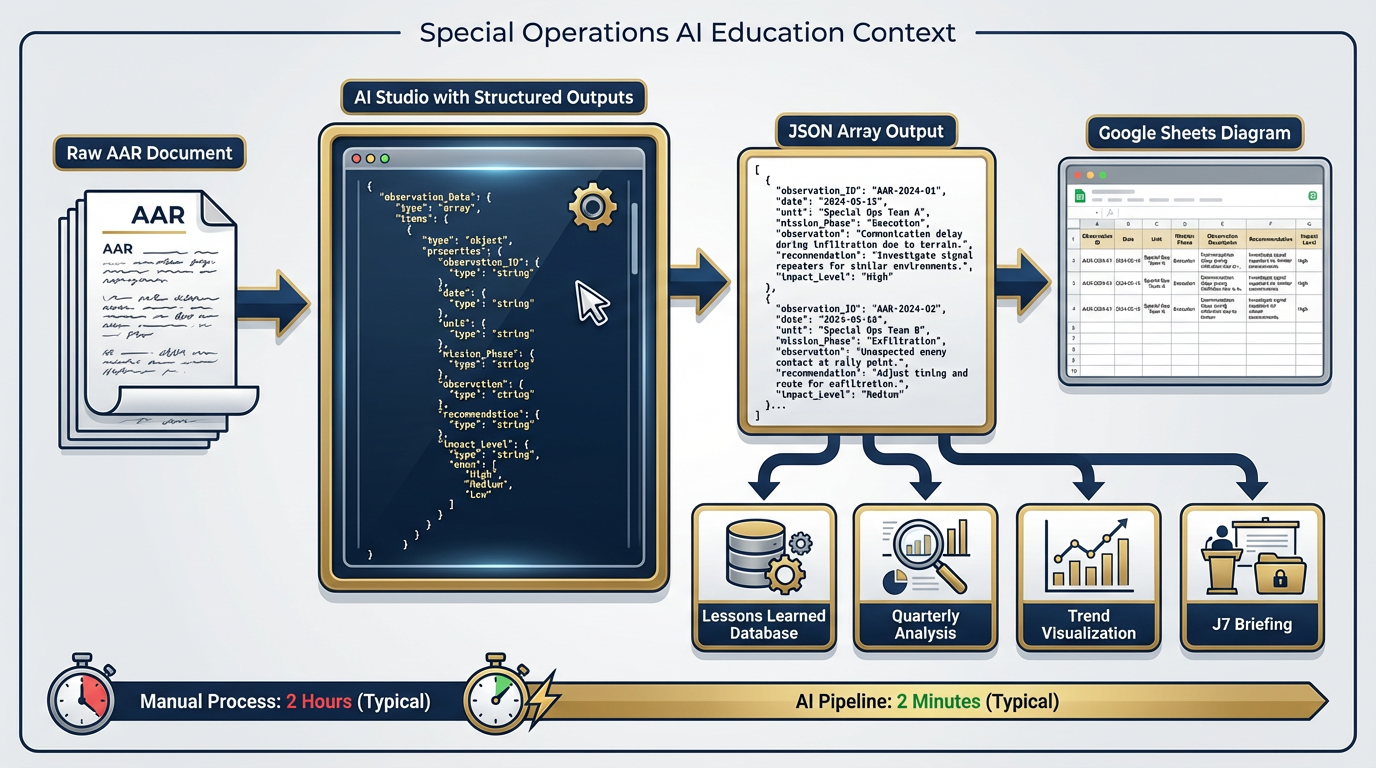
Figure 3.14 — The Full Pipeline. From raw AAR document to structured database entries. Each step is executable today with the tools covered in this chapter. This is what operational AI integration looks like — not replacing analysts, but removing the manual bottleneck from the workflow.
8Chapter 3 Summary
The bench is set up. Let’s inventory what you built.
AI Studio is the gunsmith’s bench — the place where you configure AI tools before they deploy. Free to start, early access to the newest capabilities, and the bridge from individual experimentation to team-wide deployment. Access it at aistudio.google.com.
The four knobs are the configuration layer:
System Instructions set the standing orders — who the AI is, what format it uses, what it never does. Set these once; they persist for every message.
Temperature controls creative latitude — ranges from 0 (deterministic) to 2 (maximum creative). Under 0.3 for analytical precision, 0.7+ for generative brainstorming.
Thinking Level controls reasoning depth — Medium for most work, High for complex synthesis going to decision-makers.
Top-P you leave alone unless you’re a production ML engineer.
The four tools move AI from text generator to analytical system:
Structured Outputs return machine-readable JSON — the killer feature for analyst data pipelines
Code Execution makes math reliable by running actual Python
Grounding with Google Search provides current information with citations
URL Context reads specific documents on command
The model carousel matches capability to task. Current models as of April 2026 (see ai
Gemini 3.1 Pro (Preview) for the hardest analytical work — deepest reasoning, highest accuracy
Gemini 3 Pro (GA) for production-grade accuracy at scale
Gemini 3 Flash for the daily driver — GPQA 90.4%, $0.50/1M tokens, fast
Gemini 3.1 Flash-Lite (Preview) for bulk classification at $0.25/1M tokens
Gemma 4 (Apache 2.0) for self-hosted, air-gapped, or fine-tuned deployments
Gemini Live for real-time voice and video interactions
Imagen, Veo 3.1, TTS, and Lyria 2 for visual, video, audio, and music outputs
The Build tab is where analysts become builders. Plain-English descriptions become working prototype applications in under 30 minutes, no coding required.
The three prototype ideas — AAR-to-structured-data, partner document translator, training trend analyzer — are not hypothetical. They are buildable today, by any person on the Lukos team who completed this chapter.