Social Media & Social Planner: One Hub, Every Platform
Stop logging into six apps to post the same message on six platforms.
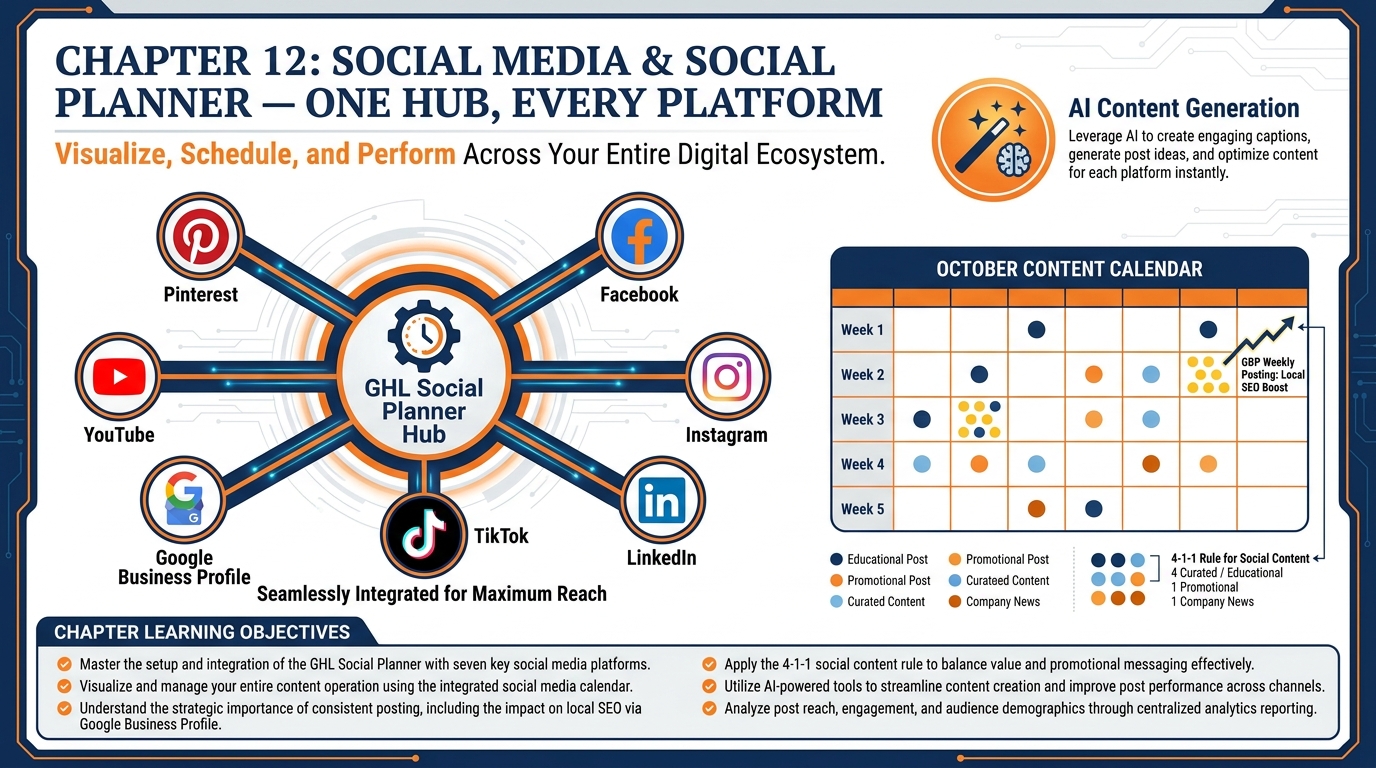
Figure 1:Chapter 12 overview: GHL’s Social Planner is a unified scheduling, publishing, and content generation hub for every major social platform — replacing multiple disconnected tools with a single command center.
112.1 The Twelve-Tab Problem
It is 9:15 AM on a Tuesday. The marketing coordinator at a mid-size real estate agency is starting their social media workday. They open Facebook Business Suite. Then Creator Studio. Then Instagram — on mobile, because desktop scheduling is clunky. Then LinkedIn’s native scheduler. Then the Google Business Profile app to create a post for the listing that just went active. Then a separate tool for TikTok. Then a spreadsheet for tracking which post went where and when.
By 9:40 AM they have published nothing. They have switched contexts seven times. They are exhausted by logistics before the actual creative work has begun.
This is not a time management problem. It is a tool architecture problem. When every social platform is a separate app with a separate login, a separate drafting interface, and a separate publishing flow, the cognitive overhead of simply managing social media consumes the energy that should go into creating it.
GHL’s Social Planner closes all those tabs. It connects Facebook Pages, Instagram, LinkedIn, Google Business Profile, TikTok, YouTube, and Pinterest in a single interface. You draft once, schedule across all relevant platforms simultaneously, use built-in AI to generate captions, and view everything in a unified calendar. Approvals, client review, revision history, and team collaboration — all in one place.
For agencies managing social media for multiple clients, the arithmetic is even more compelling. Instead of maintaining separate Hootsuite seats, Buffer subscriptions, and client credentials for each account, every client sub-account in GHL has its own Social Planner with its own platform connections — managed from the agency dashboard without ever logging out and back in.
This chapter teaches you how to set it up, what each platform connection requires, and how to run a social media operation that is consistent, efficient, and scalable.
212.2 Accessing the Social Planner
Navigate to Marketing → Social Planner in your GHL sub-account’s left sidebar.
If this is your first time here, you will see an empty calendar with an invitation to connect your first social account. If Social Planner is not visible in your sidebar, check that it is enabled for your sub-account in Settings → Launchpad (or ask your agency admin to enable it).
The Social Planner interface has four main views:
Calendar View — A monthly or weekly calendar showing every scheduled post across all connected platforms. Color-coded by platform. The view you will use daily to see what is going out and when.
Posts View — A list of all scheduled, published, and draft posts. Filterable by platform, date range, status, and assigned team member.
Content AI — The built-in AI writing assistant for generating platform-optimized captions and post copy from a brief.
Analytics — Basic engagement metrics per post and per platform, including reach, impressions, likes, comments, and shares (where the platform API makes this data available).
312.3 Connecting Each Platform — Step by Step
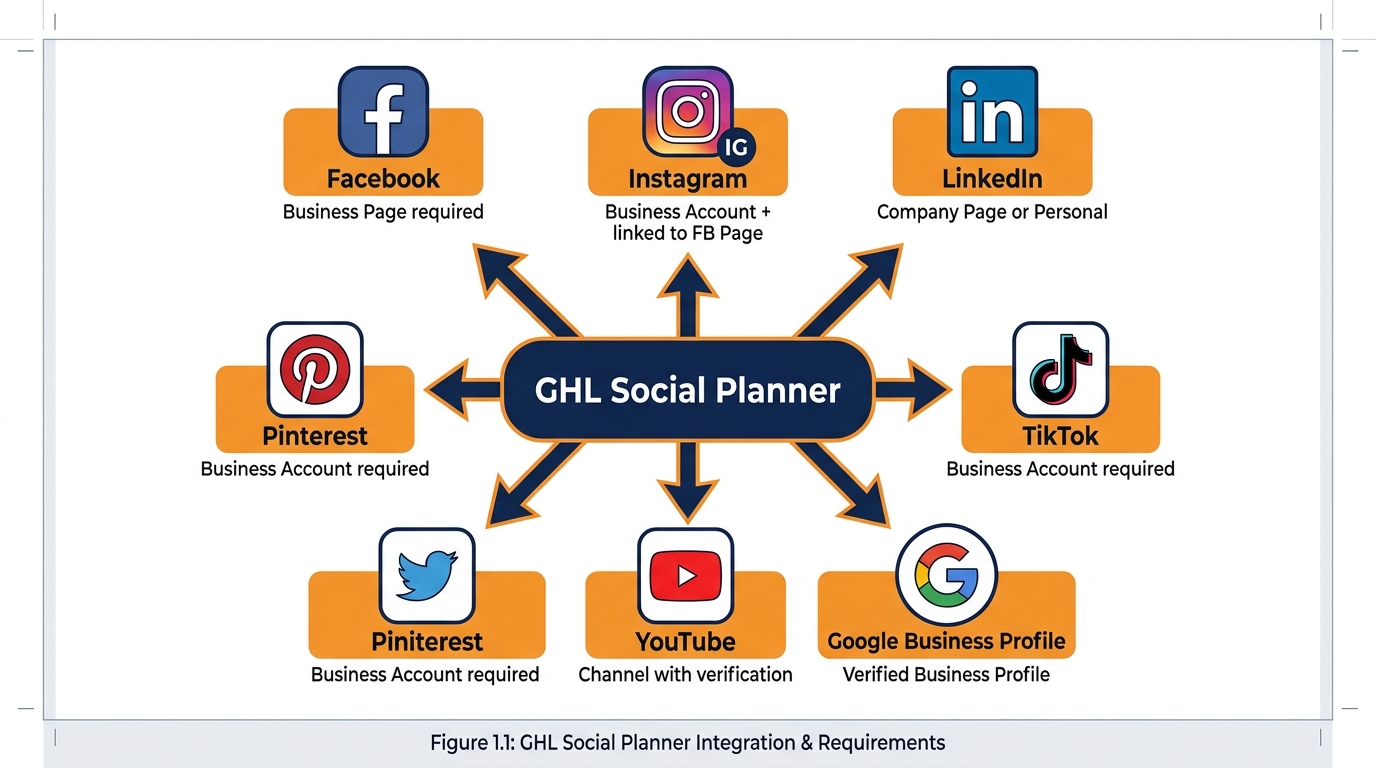
Figure 2:GHL Social Planner platform connections: seven platforms, all managed from one hub. Each platform has specific account type requirements before connection is possible.
Every platform connection follows the same high-level pattern: you authorize GHL via OAuth to access your account, select the specific page or profile to connect, and confirm. However, each platform has specific requirements that will block the connection if not met first. This section walks through each one.
3.1Facebook Pages
Requirement: You must be an Admin of the Facebook Page you want to connect (not just an editor). The Page must also be connected to a Facebook Business Manager account if you are connecting on behalf of a client.
Steps:
In Social Planner → Settings (gear icon) → Add Account → Facebook
Click Connect. A Facebook authorization window opens.
Log in with the Facebook account that has Admin access to the Page.
Grant GHL permission to manage your Pages, read Page content, and publish content.
Select the specific Facebook Page(s) you want to connect from the dropdown.
Click Connect Selected Pages. The page(s) appear in your Social Planner account list.
Post types supported: Text, image, video, link posts, Stories (via the Stories post type), Events.
Limitation: Facebook Groups are not supported through GHL’s Social Planner — only Pages.
3.2Instagram Business Profile
Requirement: Instagram must be a Business or Creator account (not personal). The Instagram account must be connected to a Facebook Page via your Facebook Business settings. GHL accesses Instagram through the Facebook API — if the Facebook-Instagram connection is not made, the Instagram connection will fail.
Steps:
Connect your Facebook Page first (above).
In Add Account → Instagram, click Connect.
Authorize via Facebook (same flow as Facebook Pages).
Select the Instagram account linked to your connected Facebook Page.
Click Connect.
Post types supported: Image posts, video posts, Reels, carousels (multiple images). Stories are supported via API on Business accounts.
Important note (2025–2026): Instagram’s API requires that images meet minimum resolution requirements (minimum 150x150 pixels for square posts; recommended 1080x1080 for best quality). Posts failing resolution checks will not publish — GHL will flag these in the post preview.
3.3LinkedIn
Requirement: You can connect either a LinkedIn Company Page (for business posting) or a LinkedIn Personal Profile (for individual professional content). For company pages, you must be a Page Super Admin.
Steps:
In Add Account → LinkedIn, click Connect.
Authorize via your LinkedIn credentials.
Select: Personal Profile or Company Page.
For Company Pages: select the specific page from the dropdown.
Confirm.
Post types supported: Text-only posts, image posts (single or carousel), video posts, document/PDF posts, link posts.
Limitation: LinkedIn polls and LinkedIn Stories are not supported via the GHL Social Planner API integration as of 2026.
3.4Google Business Profile
Requirement: Your Google Business Profile must be claimed and verified. Unverified listings cannot receive posts through the API.
Steps:
In Add Account → Google Business Profile, click Connect.
Authorize via the Google account that manages your GBP listing.
Grant the requested permissions (manage posts, read reviews).
Select the specific business location from your account.
Confirm.
Post types supported: Updates (standard GBP posts with text and optional image), Events (with start/end date), Offers (with promo details and redemption date).
Important: GBP posts expire after seven days unless you set them as Events or Offers. GHL does not automatically repost expired GBP posts — build this into your scheduling cadence.
Dual purpose: When your Google Business Profile is connected to Social Planner, it also feeds the Reputation Management module (Chapter 10). One connection serves both features.
3.5TikTok
Requirement: A TikTok Business Account or TikTok for Business account. Personal TikTok accounts cannot be connected to third-party publishing tools.
Steps:
In Add Account → TikTok, click Connect.
A TikTok authorization window opens. Log in with your TikTok Business account credentials.
Grant GHL the permissions requested (publish content, read account info).
Select your TikTok account and confirm.
Post types supported: Video posts (TikTok’s native format). Static image posts to TikTok are available in some configurations but TikTok’s API support for non-video content varies — check current GHL release notes for the latest supported formats.
Important limitation: GHL’s TikTok integration publishes content but does not support TikTok’s “Direct Post” API for all account types. Some accounts may experience the post being sent to “draft” in TikTok’s native app rather than publishing directly. Verify with a test post before relying on TikTok scheduling for time-sensitive content.
3.6YouTube
Requirement: A YouTube channel associated with a Google account. The channel must be set up as a Brand Account or creator channel with publishing permissions.
Steps:
In Add Account → YouTube, click Connect.
Authorize via Google. Select the YouTube channel from your Google account.
Grant permissions to upload and manage videos.
Confirm.
Post types supported: Video uploads (supports MP4 and other common video formats). GHL publishes the video with your configured title, description, and tags.
Note: YouTube Shorts are supported as a post type — upload vertical-format videos (9:16 aspect ratio) and select “YouTube Shorts” as the post type during scheduling.
3.7Pinterest
Requirement: A Pinterest Business Account. Personal Pinterest accounts cannot use the publishing API.
Steps:
In Add Account → Pinterest, click Connect.
Authorize via Pinterest Business account credentials.
Select the specific Pinterest boards you want to post to.
Confirm.
Post types supported: Standard Pins (image + description + link), Idea Pins (video-based, multi-page format) — check current GHL Pinterest API documentation for the latest supported Pin types, as Pinterest’s API capabilities evolve frequently.
412.4 Scheduling and Publishing Posts
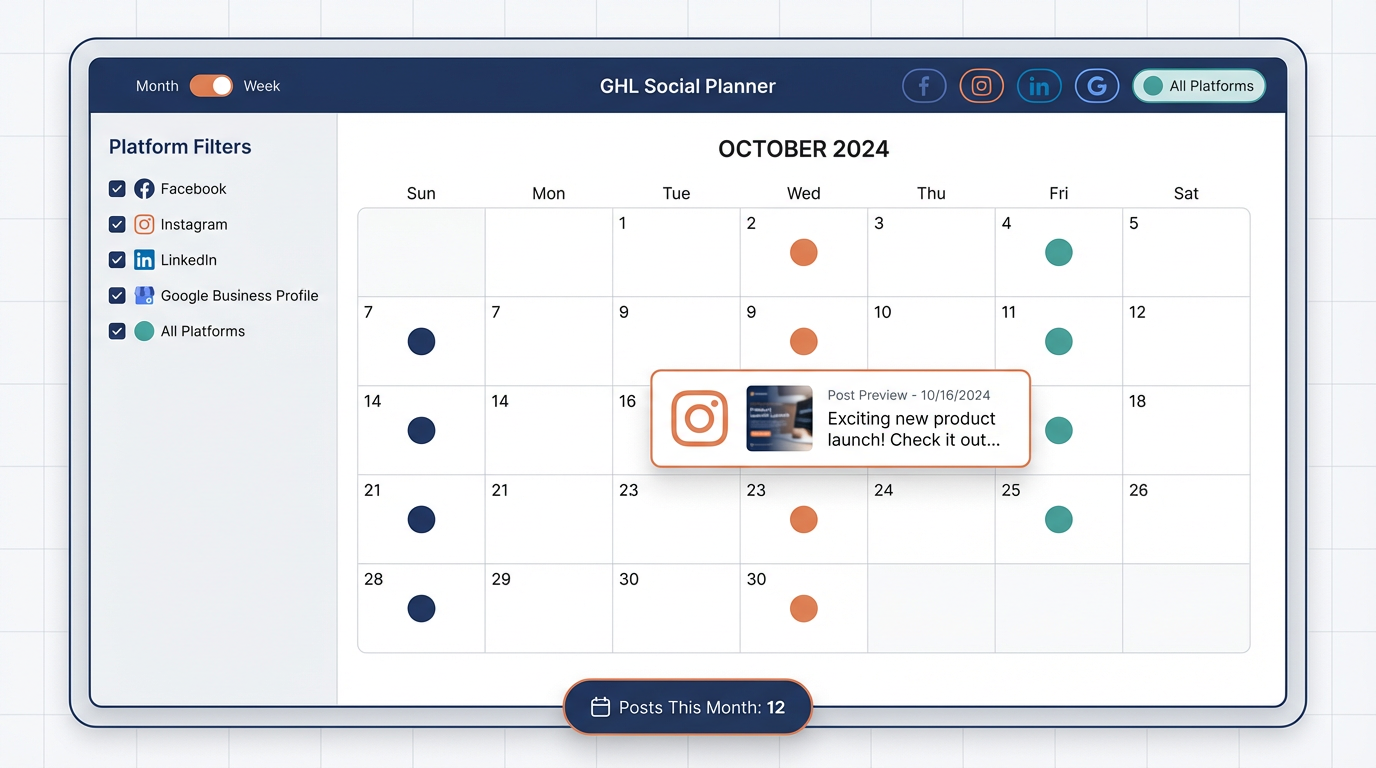
Figure 3:The Social Planner Calendar View: color-coded posts by platform, hover preview cards, and monthly distribution at a glance — the difference between “posting when you remember” and “posting on a system.”
With at least one platform connected, you can begin scheduling content.
4.1Creating a New Post
In Social Planner, click + New Post (or the + icon on a specific calendar date).
The post composer opens:
1. Select Platforms. Choose one or more connected platforms to publish to. GHL shows you a preview of how the post will appear on each selected platform (previews are approximate — always verify in the native platform after publishing).
2. Write Your Caption. Type your post copy in the caption field. Use the character counter to stay within platform limits (Twitter/X: 280; LinkedIn: 3,000; Facebook: 63,206; Instagram: 2,200).
3. Add Media. Upload images or video directly from your computer or from GHL’s integrated media library. Supported formats: JPG, PNG, GIF, MP4. Maximum file sizes vary by platform — GHL enforces these limits at upload and flags non-compliant files before scheduling.
4. Add a Link (optional). For platforms that support link posts (Facebook, LinkedIn, GBP), paste your URL. GHL generates a link preview automatically.
5. Use Content AI. Click the AI Content (wand icon) next to the caption field. Enter a brief: what is this post about, what tone do you want, and which platform is the primary audience. GHL generates two to three caption options. Select the strongest, edit for your voice and specifics, and finalize.
6. Set the Schedule. Choose “Publish Now” for immediate posting or “Schedule” to select a future date and time. GHL defaults to the sub-account’s timezone — verify this is correct before scheduling.
7. Add to Content Queue (optional). If you have a content queue configured (see Section 12.6), add the post to the queue instead of scheduling it manually. The queue system manages optimal posting times automatically.
8. Preview and Publish. Review the platform-specific previews. Click Schedule Post (or Publish Now).
512.5 AI Content Generation: Creating Posts in Seconds
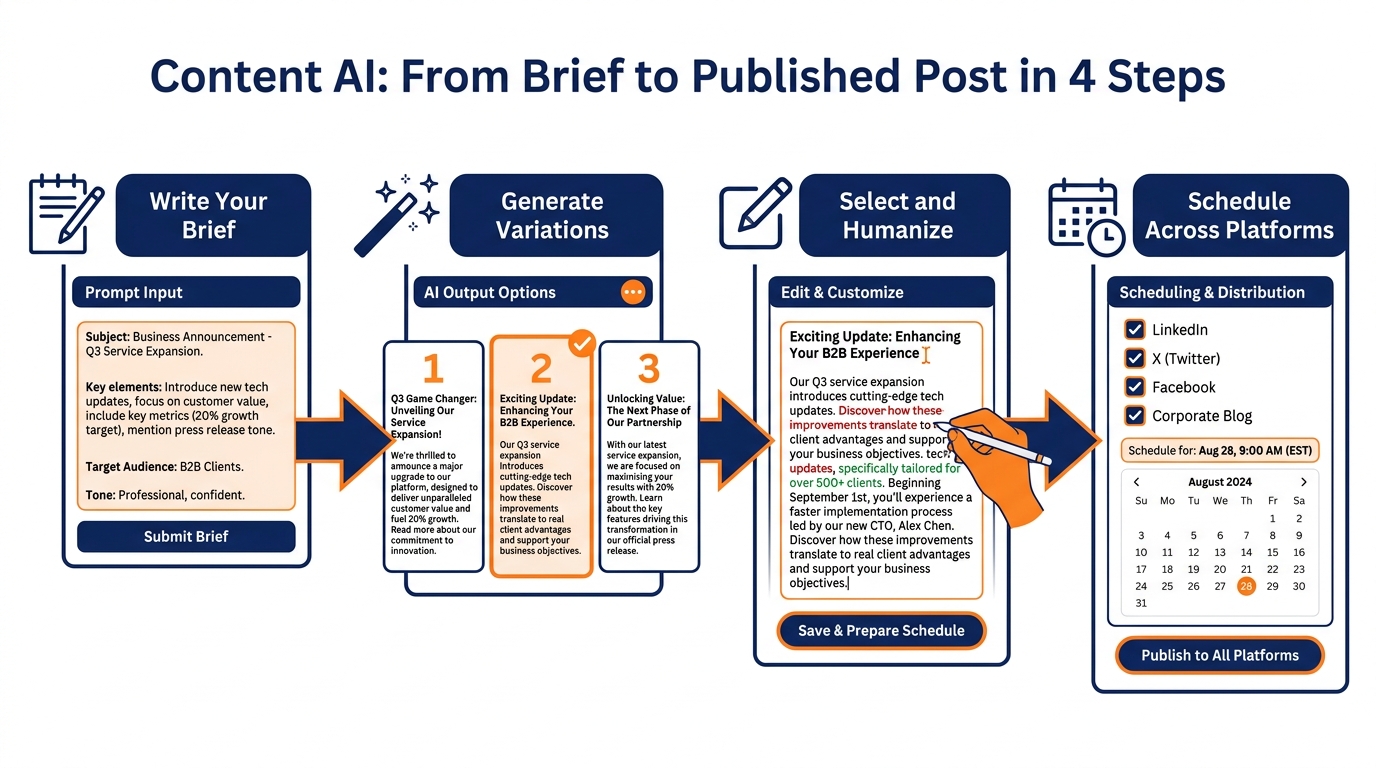
Figure 4:Content AI workflow: four steps from blank brief to scheduled post. The AI handles the blank-page problem; you handle the authenticity. Every AI post should be edited before scheduling.
GHL’s Content AI in the Social Planner is your first-draft machine. It does not replace strategy or creativity — it eliminates the blank-page problem and the time it takes to write the first version of every post.
5.1How to Use Social Planner Content AI
In the post composer, click the AI Generate (wand icon) or the Content AI button.
A prompt window opens. Fill in:
Topic or brief: “A post announcing our new patient special — $99 first visit for chiropractic care. Warm, welcoming tone. Target audience is adults 35–55 dealing with back pain.”
Tone: Professional, casual, urgent, educational, inspiring — select or type
Platform: Primary platform (AI optimizes caption length and style accordingly)
Hashtag preferences: Include hashtags, exclude hashtags, or let AI decide
Click Generate. GHL produces two to three caption variations. Select the best one and edit.
5.2AI Prompt Best Practices
Be specific about the outcome, not just the topic. “A post promoting our service” generates generic copy. “A post for a dental practice targeting first-time invisalign patients, with a limited-time $200 off promotion, emphasizing the adult-friendly clear aligner experience” generates useful copy.
Mention the platform. LinkedIn captions are longer and more professional. TikTok captions are short and conversational (the video does the heavy lifting). Instagram captions can be mid-length with heavy emoji use if brand-appropriate. The AI adapts when you tell it the platform.
Use the outputs as first drafts, not final copy. The AI generates based on patterns across training data. Your specific offer, your client’s name, your local market references — these require human addition. Edit every AI output before publishing. A post that reads as obviously AI-generated performs poorly on every platform.
612.6 Content Queue and Best-Time Scheduling
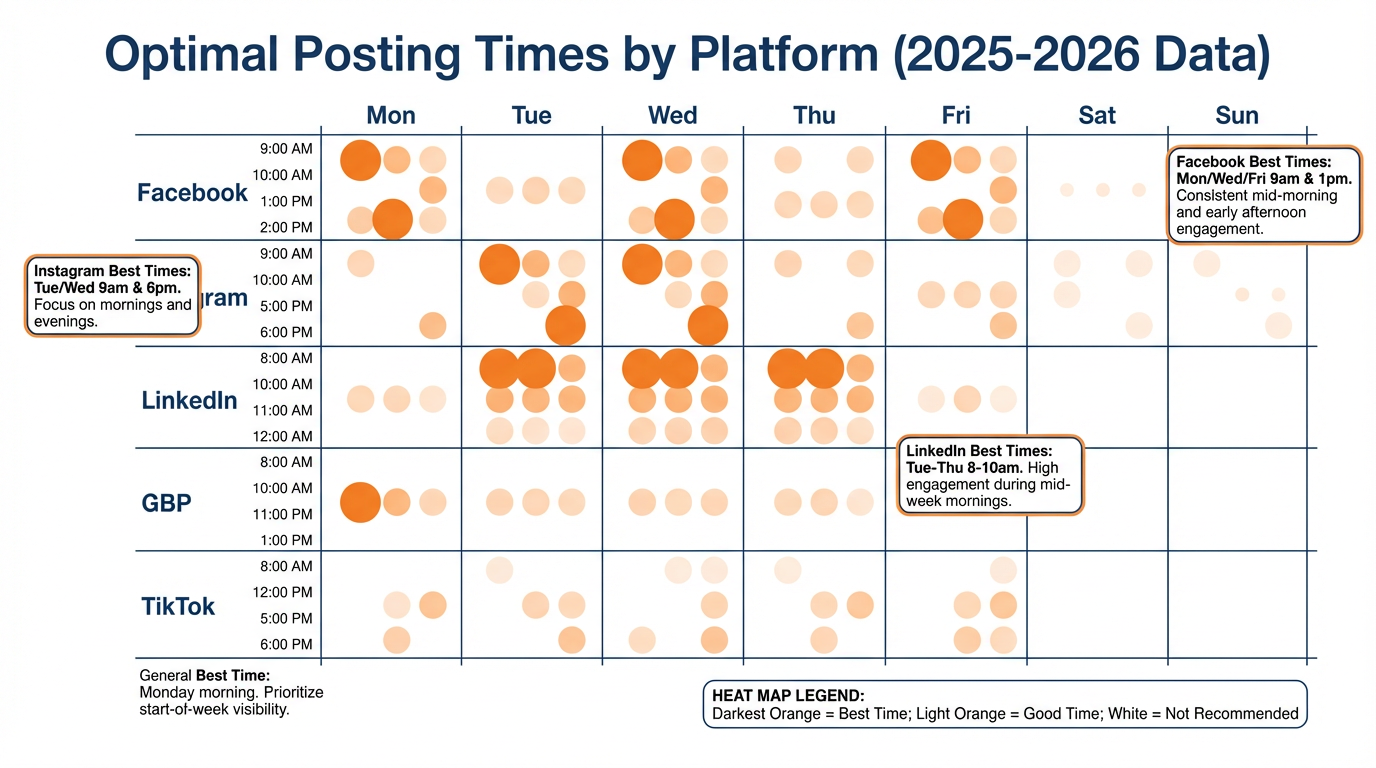
Figure 5:Platform-optimized posting windows (2025–2026 data): configure your Content Queue to match these windows for each platform and let GHL distribute your scheduled content automatically.
Instead of manually choosing a specific time for every post, GHL’s Social Planner includes a Content Queue feature that distributes scheduled content across your preferred posting windows automatically.
6.1Setting Up Your Content Queue
Navigate to Social Planner → Settings (gear icon) → Posting Schedule.
Configure:
Posting days: Which days of the week you publish (e.g., Mon/Wed/Fri)
Posting times: What times on those days posts are released (e.g., 9 AM, 12 PM, 5 PM)
Platform-specific schedules: Different cadences per platform
When you create a post and choose “Add to Queue” instead of scheduling manually, GHL places it in the next available slot in your defined schedule. Posts flow into the calendar in order without manual time selection.
6.2Platform-Specific Posting Frequency Guidelines (2025–2026 Benchmarks)
Based on current algorithm and engagement data across platforms:
Facebook Pages: 3–5 posts per week. Consistency outperforms volume.
Instagram: 4–7 posts per week (feed + Reels). Reels receive 2–3x the organic reach of static image posts.
LinkedIn: 2–3 posts per week for Company Pages; 3–5 for personal profiles.
Google Business Profile: Minimum 1–2 posts per week. GBP posts expire after 7 days — factor this into your queue cadence.
TikTok: 3–7 videos per week. Volume and consistency are the primary growth drivers on TikTok.
YouTube: 1–2 videos per week. Quality over quantity on long-form YouTube; higher frequency on YouTube Shorts.
Pinterest: 5–10 pins per day is acceptable (Pinterest’s algorithm rewards volume more than other platforms).
These are guidelines, not mandates. Your audience’s behavior — visible in Social Planner Analytics — should calibrate your frequency decisions over time.
712.7 Managing Multiple Clients’ Social Accounts at Agency Scale
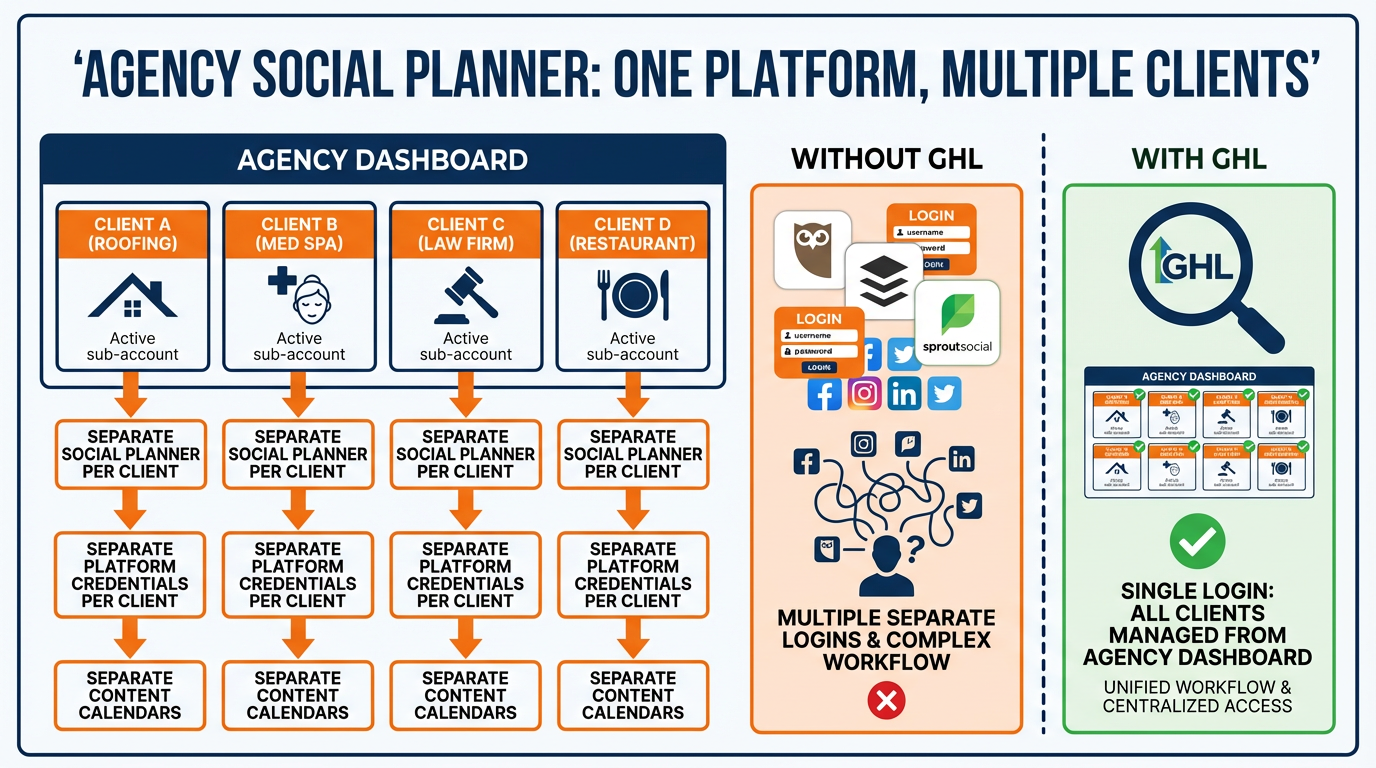
Figure 6:Agency Social Planner architecture: every client sub-account has its own Social Planner with isolated platform credentials, no tool subscriptions per client, and full management from the agency dashboard.
For marketing agencies using GHL, the Social Planner’s multi-sub-account architecture is one of its most significant competitive advantages over standalone social scheduling tools.
7.1The Agency Social Media Architecture in GHL
Each client has their own GHL sub-account. Each sub-account has its own Social Planner instance with its own connected platform accounts. The agency team accesses client sub-accounts from the agency dashboard without switching tools, managing separate logins, or maintaining a spreadsheet of client credentials.
Benefits:
Client data is isolated — no risk of accidentally posting Client A’s content to Client B’s accounts
Permissions are role-based — a junior team member can draft posts for Client A without publishing access
Platform connections are per-client — the agency never holds client credentials directly, only GHL OAuth tokens
7.2The Content Approval Workflow
For agencies and businesses with compliance requirements, GHL’s Social Planner includes a content approval workflow that prevents posts from publishing without sign-off.
Enabling approvals: In Social Planner → Settings → Approval Workflow, toggle “Require Approval Before Publishing” on. Designate approvers — specific GHL users who receive a notification when a post is submitted for review.
The approval flow:
Team member creates and drafts a post
Clicks “Submit for Approval” instead of “Schedule”
Designated approver receives an email/notification with the post preview and a link to approve or request changes
Approver reviews and clicks Approve (post schedules automatically) or Request Changes (post returns to draft with comments)
This workflow is essential for regulated industries (healthcare, financial services, legal) where marketing content requires compliance review before publication. It is also valuable for agency-client relationships where the client wants a final check on content before it posts under their name.
7.3Bulk Scheduling for Campaign Launches
For agencies managing campaign launches, GHL’s Social Planner supports bulk post creation — creating multiple posts in one session and scheduling them across a calendar period.
Workflow for bulk scheduling:
Prepare all post copy and images in advance (a shared Google Drive folder per client works well)
Open Social Planner → + New Post
Create the first post, schedule it for the correct date/time, and save
Use the Duplicate Post function to create variations with minimal edits
Adjust caption, media, and scheduling date for each duplicate
Review the full month’s calendar before publishing to confirm spacing and variety
There is no native CSV import for bulk scheduling in GHL’s Social Planner as of early 2026 — bulk scheduling is done through the visual composer. For teams requiring CSV-based bulk import, this remains a gap relative to dedicated tools like Hootsuite or Sprout Social.
812.8 Social Media Reporting in GHL
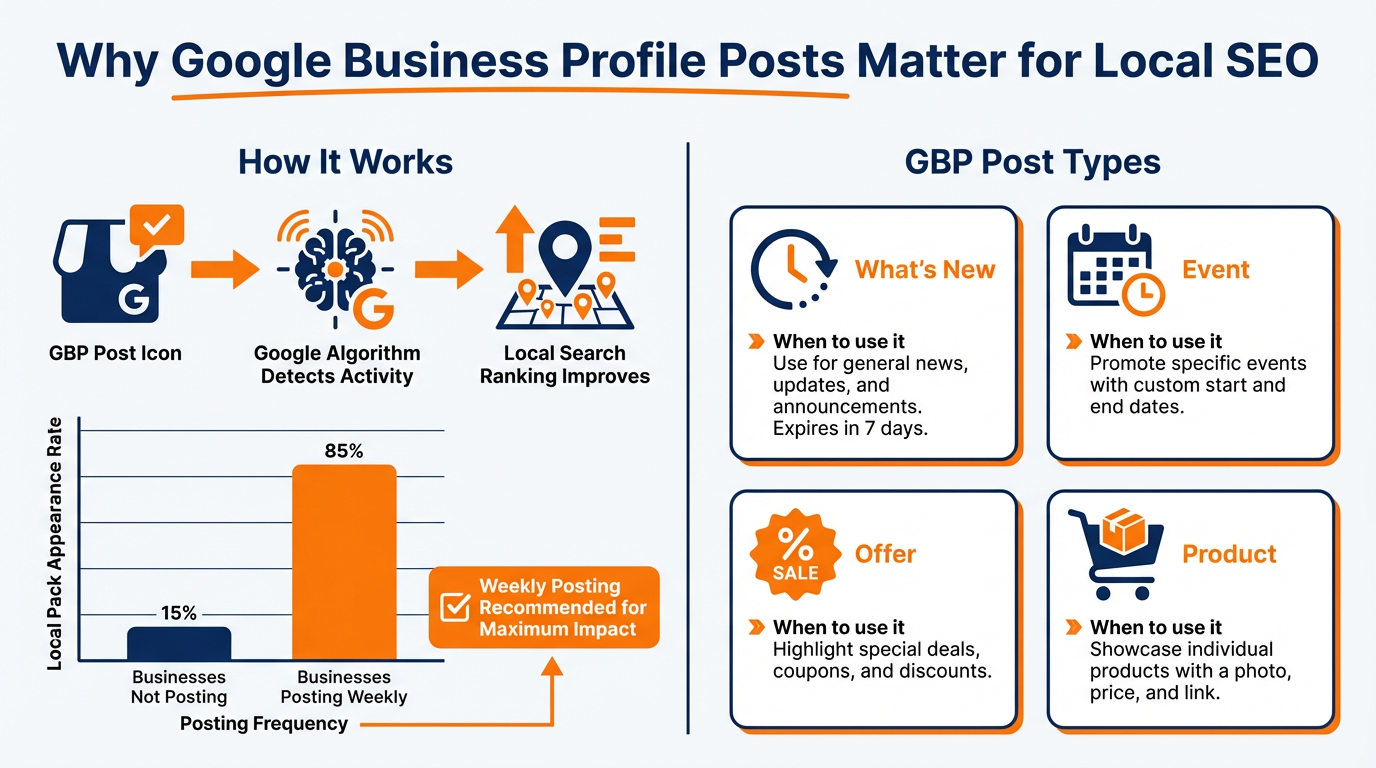
Figure 7:GBP posting and local SEO: weekly posting to Google Business Profile is one of the highest-ROI activities for local search visibility — and one of the least utilized by most local businesses.
Social Planner Analytics provides basic post-level and account-level engagement metrics for connected platforms.
8.1Accessing Social Analytics
Navigate to Marketing → Social Planner → Analytics (or Reporting → Social Media if available in your account version).
Available metrics (varies by platform API access):
Reach and Impressions: How many unique accounts saw the post vs. total times displayed
Engagement: Likes, comments, shares, saves (by platform)
Engagement Rate: Engagements divided by reach — a more useful benchmark than raw engagement counts
Click-Through Rate: For posts with links, percentage of viewers who clicked
Follower Growth: Net follower change over the reporting period
8.2Social Analytics Limitations in GHL
GHL’s Social Planner analytics are functional but not comprehensive. Key limitations:
LinkedIn restricts API access to impression and engagement data for personal profiles (Company Pages have more robust data sharing)
TikTok analytics in GHL are limited compared to TikTok’s native analytics dashboard
Instagram detailed insights (Story views, Reel completion rates, audience demographics) are not fully available via the API in GHL’s current implementation
For agencies requiring deep social analytics — audience demographics, competitor benchmarking, detailed story and Reel performance — native platform analytics or a dedicated social intelligence tool (Sprout Social, Metricool) should supplement GHL’s Social Planner reports.
GHL’s Social Planner analytics are best used for: post-level engagement comparison, identification of your highest-performing content types, and basic follower growth tracking. For strategic decisions about audience targeting or content format mix, supplement with native platform analytics.
912.9 Lab 12: Connect Your Platforms and Schedule Your First Two Weeks of Content
Social media consistency is the thing every business owner wants and almost none achieve — not because they lack ideas, but because the logistics of managing multiple platforms, multiple logins, and daily content decisions are genuinely exhausting. This lab solves the infrastructure problem permanently: you connect three or more platforms to GHL’s Social Planner, configure your posting schedule, use AI to generate your first post, then build a two-week content calendar with six posts across all your channels. By the end, the first two weeks of your social presence are scheduled and you have a repeatable system for doing it every two weeks going forward.
9.1Step 1: Access the Social Planner
In the left sidebar, click Marketing → Social Planner.
If this is your first time here, you see an empty calendar with a prompt to connect your first account.
If Social Planner is not visible in your sidebar: ⚙️ Settings → Launchpad → enable Social Planner (or ask your agency admin to enable it for your sub-account).
You’ll know you did this right when: The Social Planner opens showing a calendar view (monthly or weekly) with a “+ New Post” button in the upper right.
9.2Step 2: Connect Facebook Page
In Social Planner, click the ⚙️ Settings icon (gear icon, usually top-right) → Add Account.
Select Facebook from the platform list.
Click Connect Facebook — a Facebook OAuth window opens.
Log in with the Facebook account that manages your Business Page.
Grant all requested permissions (Page management, content publishing).
In the account selection: check the box next to your Facebook Business Page → click Continue → Done.
Back in Social Planner Settings, your Facebook Page should appear with a green “Connected” status.
You’ll know you did this right when: Your Facebook Page name appears in the connected accounts list with green status.
9.3Step 3: Connect Instagram Business Account
After connecting Facebook, Instagram is available in the same panel:
In Social Planner Settings → Add Account → select Instagram.
In the account picker, select the Instagram Business account linked to your Facebook Page.
Grant content publishing and insights permissions.
Confirm the account shows “Connected” with your Instagram username visible.
You’ll know you did this right when: Your Instagram account appears in the connected accounts list alongside your Facebook Page.
9.4Step 4: Connect Google Business Profile
In Social Planner Settings → Add Account → select Google Business Profile (sometimes listed as “Google My Business”).
Click Connect Google Account → authorize with the Google account that manages your GBP listing.
In the location picker, select your business location.
Confirm “Connected” status appears.
You’ll know you did this right when: Your GBP listing shows “Connected” in the accounts list. Note: GBP posts expire after 7 days unless marked as Events or Offers — plan for weekly posting frequency.
9.5Step 5: Configure Your Content Queue
In Social Planner, click ⚙️ Settings → Content Queue (or “Posting Schedule”).
Configure your posting windows:
Days: Monday, Wednesday, Friday (a sustainable 3×/week starting cadence)
Times: 9:00 AM and 5:00 PM in your local time zone
Platforms: Enable the queue for all connected platforms
Click Save.
You’ll know you did this right when: The content queue shows Mon/Wed/Fri with 9 AM and 5 PM time slots marked as active posting windows.
9.6Step 6: Create Your First AI-Generated Post
In Social Planner, click + New Post.
In the platform selector (usually shown as platform icons at the top of the compose window), check all three connected platforms: Facebook, Instagram, Google Business Profile.
In the compose area, look for the AI Content icon (magic wand ✨ or star icon near the text field) → click it.
In the AI brief field, type:
“An introduction post for [your business name] — what makes us different and the main benefit of working with us. Warm, approachable tone, 100–150 words. No hashtag list at the end.”
Click Generate → review the three to five variations the AI produces.
Select the best option → click Use This (or click the variation to load it into the compose window).
Humanize the post: Edit the AI output to include:
Your actual business name (replace any placeholder)
One real, specific detail — a city name, a real client result, a specific number, or a personal note
Your authentic voice — change any phrases that don’t sound like you
Add an image: click the image/media area → Upload Media → select a professional photo of your team, your space, or your product.
Schedule it: Click Schedule → select tomorrow at 9 AM → click Schedule Post.
You’ll know you did this right when: The post appears on your Social Planner calendar view for tomorrow at 9 AM with icons showing all three connected platforms.
9.7Step 7: Build Five More Posts for the Two-Week Calendar
Create five additional posts, one at a time, using the same + New Post flow. Use this content mix:
Post 2 — Service Spotlight
Topic: Your best-selling or most distinctive service
Angle: One specific client problem this service solves + the result they get
Platform: All three (customize caption for Instagram vs. Facebook/GBP if needed)
Schedule: Day 3 at 9 AM (two days after Post 1)
Post 3 — Client Result or Testimonial
Topic: Paraphrase a real review or testimonial (with permission)
Format: “One of our clients, [first name or business type], came to us with [challenge]. Here’s what happened: [result].”
Add star emoji: ⭐⭐⭐⭐⭐
Schedule: Day 5 at 5 PM
Post 4 — Educational Tip
Topic: One practical piece of advice related to your industry
Angle: Value-first — teach something useful with no sales pitch
Example: “The #1 mistake [your client type] make when [relevant situation] — and how to avoid it.”
Schedule: Day 8 at 9 AM
Post 5 — Behind the Scenes
Topic: Something from inside your business — your workspace, your team, your process, your morning
Caption: Short, personal, conversational. “This is where the magic happens.” or “Meet [team member’s first name], who [what they do]. She’s been with us for [X] and clients love working with her.”
Schedule: Day 10 at 5 PM
Post 6 — Direct Offer
Topic: A specific, limited-time offer with a clear CTA
Example: “This week only: [offer details]. Book by [date] to [get specific benefit]. Spots are limited — grab yours here: [link].”
Schedule: Day 12 at 9 AM
You’ll know you did this right when: All six posts appear on your Social Planner calendar view distributed across the two-week period — no more than one post per day per platform.
9.8Step 8: Review the Calendar and Set a Recurring Theme
Switch to Calendar View in Social Planner.
Verify: six posts appear, distributed across two weeks. Confirm no two posts are on the same day. Check that images are attached to each post and captions appear correctly.
Set your first recurring theme: Find a regular Wednesday slot → in your calendar notes or external planning doc, label it “Tip Wednesday.” Every Wednesday for the next month, that slot gets an educational tip post. Building one recurring theme eliminates the weekly “what do I post?” paralysis.
You’ll know you did this right when: The calendar view shows six scheduled posts across two weeks, with balanced distribution. You can describe your Tip Wednesday recurring slot.
Troubleshooting Common Issues
Facebook “Connect” opens a window but nothing happens after authorization: Pop-up blockers or third-party cookie restrictions can break the OAuth callback. Try in an incognito browser window with pop-ups allowed. After completing Facebook authorization, return to GHL → Social Planner → Settings → Add Account and check if Facebook now shows as connected before trying again.
Instagram not appearing in account options: Instagram requires a Business or Creator account (not Personal) linked to a Facebook Page. If you only have a Personal Instagram, go to Instagram → Settings → Account → Switch to Professional Account → Business. Then re-link to your Facebook Page in Instagram → Settings → Account Center. Return to GHL and try the Instagram connection again.
Posts schedule but don’t publish: Check the connected account’s permission status in Social Planner Settings. Facebook and Instagram tokens expire periodically. If you see a warning icon next to your account, click it and re-authorize the connection. Post failures often trigger an email notification — check your inbox.
GBP posts aren’t appearing on Google after scheduling: Confirm the GBP connection is active. GBP API publishing can have a delay of up to 24 hours. If posts are consistently failing, check the GBP account in Social Planner Settings for an error message — Google occasionally changes API requirements, and reconnection resolves it.
The AI content generation doesn’t appear in my compose window: Content AI is a premium feature that may require an AI-enabled plan. If the wand/star icon doesn’t appear in the compose area, check Settings → AI Employee → Usage to see if Content AI credits are available on your plan.
A post published to Instagram but not to Facebook (or vice versa): Each platform’s publishing status is shown separately in your Posts view. Click the post to see per-platform status. If one platform failed, the error message (hover over the platform icon) usually explains why — common causes are token expiration or post format incompatibility (e.g., certain image dimensions rejected by Instagram).
1012.10 Social Media Best Practices for Service Businesses
The Social Planner gives you the infrastructure to publish consistently. The content strategy determines whether that consistency produces results. Here are the non-negotiables for service businesses using GHL’s Social Planner effectively.
Post to Google Business Profile every week without exception. GBP posts are the most underused high-ROI social publishing channel in local business marketing. Every post to GBP tells Google’s local algorithm that your business is active and relevant. Businesses that post weekly to GBP consistently rank higher in local pack results than equivalent businesses that don’t. Use the Social Planner to ensure this never gets skipped.
Repurpose, don’t just re-post. When a piece of content performs well on one platform, adapt it for others — don’t just copy and paste the same caption. LinkedIn audiences expect more professional framing. Instagram audiences respond to more visual or emotional presentation. TikTok audiences want a hook in the first two seconds. Content AI can help you quickly rewrite the same core message in platform-appropriate styles.
Engage within the first hour after posting. The Social Planner handles publishing — human engagement after publishing is still required. On platforms where algorithms boost posts with early engagement (Instagram, TikTok, LinkedIn), responding to every comment in the first 60 minutes after posting significantly increases organic reach. Schedule this time on your calendar alongside your content queue.
Use platform-native features when the API supports them. Stories, Reels, YouTube Shorts — these formats consistently receive preferential algorithmic treatment because platforms want their users engaged in their newest features. Whenever you can publish in a native format through GHL’s Social Planner, do so.
11🎯 Your Turn: Apply It to Your Business
Social media consistency is one of the most common broken promises in small business marketing — not for lack of effort or desire, but for lack of infrastructure. The Social Planner removes the infrastructure problem. Now apply it to your business.
1. Connect your highest-priority platform first. If you are a local service business: Google Business Profile is your most high-leverage social platform for new customer acquisition. Connect it first. Set a weekly GBP post as your non-negotiable baseline. Everything else is bonus.
If you are a professional services business or consultant: LinkedIn. Your next client is more likely scrolling LinkedIn than TikTok. Connect your LinkedIn Company Page and personal profile.
If you are a consumer brand or retail business: Instagram and TikTok are your discovery channels. Connect both.
2. Do the “one month in advance” challenge. Using the Social Planner and Content AI, create and schedule 30 days of social content in one sitting. Plan the themes (Week 1: client results, Week 2: educational tips, Week 3: behind the scenes, Week 4: promotional), write the posts with AI assistance, schedule them. Then step back from social content creation for the rest of the month. Observe: does planned, consistent content perform better than your previous spontaneous, sporadic posting? What does the Social Planner analytics show after 30 days?
3. Set up the approval workflow for your highest-risk channel. If you manage social media for a business in healthcare, finance, legal, or any regulated industry — enable content approval in Social Planner immediately. No post should go to a regulated client’s LinkedIn or Facebook without a compliance review. Set up the approval workflow now, before a post creates a problem.
4. Repurpose your top five performing pieces of content. Look at your last six months of social posts. Identify the five that received the most engagement. Now repurpose each one into two other formats using GHL’s Content AI: if the original was a Facebook text post, create an Instagram caption version and a LinkedIn version. Schedule all ten repurposed pieces over the next two weeks. Repurposing your best content is the highest-ROI content strategy available.
5. Audit your Google Business Profile posting history. Log into your GBP directly (business.google.com) and check when you last posted. If it has been more than two weeks, you have a gap that is affecting your local search ranking. In GHL Social Planner, build a recurring GBP post in your content queue — once per week, minimum. Add it to your queue template now so it cannot be skipped.
12Chapter Summary
GHL’s Social Planner consolidates the most fragmented layer of modern marketing — social media management — into a single, capable interface. Seven major platforms connect through a standardized OAuth flow. Content is drafted with built-in AI assistance, scheduled through a visual calendar or automated queue, and routed through approval workflows before publishing. Analytics provide post-level and account-level performance data to guide content decisions over time.
For agencies, the per-sub-account architecture means every client’s social presence is managed in isolation — no credential sharing, no cross-client risk, and full permission control per team member. The content approval workflow handles compliance requirements that would otherwise require external tools.
Social media consistency is a compounding asset. Every week you publish consistently adds to the body of evidence that your business is active, credible, and worth following. Every week you miss compounds in the opposite direction. The Social Planner eliminates the logistical excuses for inconsistency. The strategy — what you say, why it matters, and who it serves — is still yours to define.
13Glossary
Social Planner GHL’s built-in social media scheduling, publishing, and analytics module. Supports Facebook Pages, Instagram, LinkedIn (Company Pages and personal profiles), Google Business Profile, TikTok Business, YouTube, and Pinterest from a single interface.
Content Queue A Social Planner feature that automatically distributes scheduled posts into predefined posting windows (days and times configured per platform) without requiring manual time selection for each post.
Approval Workflow A Social Planner configuration that routes drafted posts to designated approvers before scheduling. Required in regulated industries or agency-client relationships where content requires sign-off before publication.
OAuth An authorization framework that allows GHL to access a connected social platform account on the user’s behalf without storing the user’s platform password. Platform connections in Social Planner use OAuth tokens that may require periodic reauthorization.
GBP Post A post published to Google Business Profile — a short-form content update (text + optional image or video) that appears on the business’s Google listing in Search and Maps. GBP posts expire after seven days unless created as Events or Offers.
Repurposing Adapting existing content for a different platform or format. Example: converting a LinkedIn article into an Instagram carousel, or a Facebook testimonial post into a TikTok video script. Repurposing maximizes the value of every content creation effort.
Content Calendar The scheduled view of all upcoming posts across all platforms, displayed in Social Planner’s Calendar View by day, week, or month. A filled content calendar represents a systematized social media operation.
Direct Post A publishing mode in which content is submitted and published directly to the platform via API, without requiring the creator to open the native app. Not available for all account types on all platforms — TikTok Business Account direct posting has variable availability depending on account eligibility.
1412.12 Social Media Strategy Frameworks for GHL Users
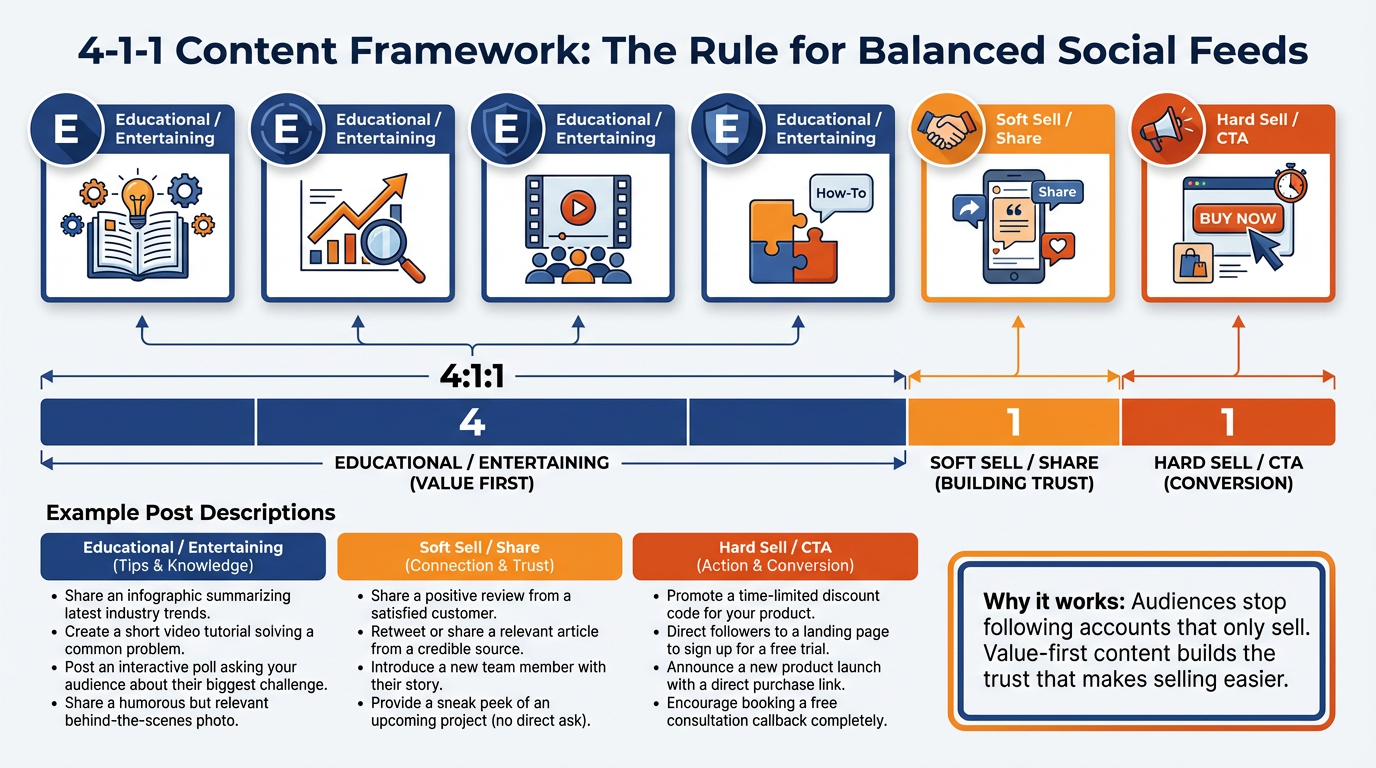
Figure 8:The 4-1-1 content framework: for every 6 posts, four provide genuine value with no sales pitch, one soft-sells through sharing or testimonial, and one makes a direct offer. Audiences follow and trust value-first accounts.
Having the tool is only half the equation. What you post — and why — determines whether consistent publishing produces results or just produces noise. Here are three strategy frameworks that work particularly well in combination with GHL’s Social Planner.
14.1The 4-1-1 Framework
Popularized by Andrew Davis and applied across service industries, the 4-1-1 rule provides a simple content mix ratio:
4 pieces of educational, entertaining, or valuable content that serves your audience (tips, insights, how-tos, behind-the-scenes, curated resources)
1 piece of soft promotional content (showcasing a service, a client result, a case study)
1 piece of hard promotional content (a direct offer, a CTA, a limited-time promotion)
For every six posts in your content queue, four should provide value without asking for anything, one should build credibility through proof or storytelling, and one should ask for business. This ratio keeps your social presence from becoming an ad feed — which kills engagement and following.
In GHL Social Planner, plan your content queue with this ratio in mind. Label each post type during creation so you can audit the mix in your calendar view before publishing.
14.2The Content Pillar System
Define three to five core “content pillars” — the recurring themes that your social media always addresses. Everything you publish should fit into one of these pillars.
Example pillars for a chiropractic practice:
Pain Education — posts about the causes and consequences of common pain conditions
Treatment Demystification — posts that make chiropractic care feel accessible and safe
Patient Stories — real client outcomes (with permission) that build trust
Practice Culture — behind-the-scenes, team introductions, office updates
Community — local events, partnerships, health fairs
When you sit down to build your content queue for the month, you assign each post slot to a pillar. The pillars act as creative constraints — instead of staring at a blank calendar asking “what should I post today?”, you are answering the much simpler question “which pillar is this slot for, and what’s one good post in that category?”
Set up your pillars in a simple document and share it with your team. All AI-generated content in Social Planner should be prompted with a specific pillar in mind — the output will be more on-brand and strategically consistent.
14.3The Topical Authority Calendar
For businesses that want social media to contribute to SEO (particularly LinkedIn and Google Business Profile, where content indexes in search), the Topical Authority Calendar maps your content plan to your SEO keyword strategy.
Identify your five to ten most important keywords or search queries — the things your ideal customer Googles when they need what you offer. Build at least two posts per month on each topic, explicitly addressing the query in the post copy. Over 90 days, your GBP and LinkedIn presence builds topical authority around these queries, reinforcing your SEO signal.
This is an advanced use of Social Planner that most users never reach — but for businesses where Google ranking drives significant revenue, it is worth the investment.
1512.13 Integrating Social Media With GHL Workflows
Social Planner is not an island. It connects to GHL’s broader automation ecosystem in ways that amplify both your social content and your lead capture capabilities.
15.1Social to CRM: Capturing Leads From Social Posts
When your social posts direct traffic to GHL-hosted funnels (rather than external websites), every visitor interaction is trackable in GHL. Configure UTM parameters on every social post link:
utm_source=facebookutm_medium=socialutm_campaign=spring_promoutm_source=linkedinutm_medium=socialutm_campaign=b2b_lead
These UTMs feed into the Attribution Reports (Chapter 11) and tag the contact’s first-attribution source as your specific social campaign. Over time, you will know exactly which social content types and which platforms produce the contacts that convert to revenue — not just which posts get the most likes.
15.2Workflow-Triggered Social Media Actions
While Social Planner does not yet support full workflow-triggered posting (posting automatically in response to a CRM event) natively in all GHL configurations, you can approximate this behavior using GHL’s webhook action:
When an opportunity moves to “Closed Won,” a webhook fires to a Make.com or Zapier scenario that posts a “welcome new client” templated post to your Facebook Page
When a new Google review is posted with 5 stars, a webhook triggers a “thank you for the review” social post featuring the review snippet
These integrations require a Make/Zapier middleware step, but they represent the frontier of integrated social media automation — content that reacts to business events rather than running on a fixed schedule.
15.3Social Listening and Follow-Up
For service businesses that receive inbound inquiries via social DMs (Facebook Messenger, Instagram DMs), those messages route to GHL’s unified Conversations inbox (Chapter 6). This means a social inquiry becomes a CRM contact automatically — and the lead enters your qualification and follow-up workflows without any manual data entry.
The chain is: prospect sees your scheduled Social Planner post → clicks → sends a DM → DM arrives in GHL Conversations → Conversation AI qualifies the lead → contact created → pipeline opportunity opened → workflow triggers → AI or human follows up. From social post to nurtured lead, fully automated.
1612.14 Common Social Planner Setup Mistakes to Avoid
After walking through the setup in detail, here are the most common errors that prevent Social Planner from working as expected — and how to avoid them.
Mistake 1: Connecting the wrong Facebook account. If you manage Facebook Pages on behalf of clients, you may have access to multiple Pages across multiple Business Manager accounts. Connecting the wrong Page is easy and creates confusion when posts publish to an unexpected account. Always verify which Page is selected during the connection flow before confirming.
Mistake 2: Not verifying Google Business Profile before connecting. GHL’s GBP integration requires a verified listing. If you connect an unverified listing, posts will fail silently — they appear as Scheduled in GHL but never appear on the GBP listing. Verify your listing at business.google.com first, then connect.
Mistake 3: Using personal Instagram accounts instead of Business accounts. A personal Instagram account cannot publish through any third-party scheduling tool. If your Social Planner Instagram connection shows errors or posts don’t publish, check that the account is set to Business or Creator in Instagram → Settings → Account → Account Type.
Mistake 4: Ignoring the content preview before scheduling. GHL’s cross-platform preview is approximate, not exact. Always click through the platform-specific preview for each platform selected before scheduling. What looks good on Facebook may have a different aspect ratio on Instagram or have link formatting differences on LinkedIn.
Mistake 5: Setting up a content queue and never auditing it. The content queue automates scheduling, not content quality. A queue full of AI-generated, unedited posts that run for three months without human review produces robotic-sounding content that quietly erodes your audience engagement. Audit your scheduled queue weekly. Every post should still sound like you.
1712.15 Discussion and Exercises
17.1Discussion Prompt
GHL’s Social Planner brings AI content generation, multi-platform publishing, and CRM integration together in a tool that any small business can use. Some digital marketing professionals argue that this democratization of social media production — AI-generated content published at scale across seven platforms simultaneously — will reduce the quality and authenticity of social media content overall, as more businesses default to AI copy rather than investing in genuine creative work.
Others argue that the tool simply removes logistics friction, freeing creators to focus on strategy and creativity rather than copy-paste scheduling work.
Which perspective do you find more compelling, and why? Draw on at least one study or credible industry source examining the relationship between content authenticity and audience engagement. Engage substantively with at least two peers who hold the opposing view.
17.2Exercises
Platform Connection Audit
For a business you manage or are familiar with, map out which social platforms the business is currently active on. For each platform: (a) Is the account a Business/Creator account or personal account? (b) Is it eligible for GHL Social Planner connection as described in Section 12.3? (c) What specific steps would be required before connection is possible? Produce a one-page “Social Planner Readiness Checklist” for that business.
Content Calendar Design
Using the 4-1-1 framework and Content Pillar system, design a four-week social media content calendar for a local service business of your choice. Include: platform assignments for each post, pillar category, post type (4/1/1 ratio), and a one-sentence description of the post topic. Do not write the actual captions — this exercise is about structure, not copy. Deliver the calendar as a structured table.
AI Prompt Engineering for Social Content
Write five different AI prompts for Content AI (in GHL Social Planner) targeting five different business types: (1) dental practice, (2) marketing agency, (3) real estate agent, (4) gym or fitness studio, (5) restaurant or café. Each prompt should specify: the topic, the target audience, the tone, the platform, and the desired outcome (engagement, DMs, booking link clicks). Evaluate what makes each prompt specific enough to generate useful output versus too generic to produce usable copy.